-
Written By Vikas Bajpai
-
Updated on April 20th, 2026
Transfer OneDrive to iCloud Easily With Full Data Safety
User Query: I have around 20–30 GB of data stored in OneDrive that includes documents and photos. Now I want to move everything to iCloud safely. What can be an easy and safe way to do this without losing any files?
Keeping files in the cloud is simple, but moving them to another platform isn’t always straightforward. Users often switch from OneDrive to iCloud when they start using Apple devices. The challenge is making sure nothing gets lost during the transfer.
Since there is no direct way to move data between these platforms. Most people have to rely on manual steps, but it takes time and effort. Using a professional OneDrive Backup Tool is a safe and reliable alternative to transfer OneDrive to iCloud. In this guide, we’ll walk through a simple approach and a professional tool.
|
Prerequisites
|
How to Move Files from OneDrive to iCloud manually?
There is no direct way to move files from OneDrive to the Apple environment through a manual approach. The usual method is simple: download your data from OneDrive first, then upload those files manually to iCloud.
Steps to complete the conversion
- Open OneDrive using your browser and log in with your details.
- After that, choose the files or folders you need and download them to your system.
- Further, sign in to your iCloud account in the browser.
- After that, open iCloud Drive and upload the downloaded files.
- Finally, wait for the upload process to transfer files from OneDrive to iCloud.
What Are the Common Issues with This Approach?
- Manually exporting OneDrive files to iCloud can take longer time.
- There is always a chance of missing some files to move.
- Folder structure may not be preserved, and it may need more effort to verify everything.
- Download and upload both tasks heavily rely on the internet speed.
- Progress can not be monitored or tracked while the process is continuing.
- Any interruption can pause the transfer before it completes.
Want a Simpler Way to Back Up Your OneDrive Files?
Moving files manually is possible for small files in size and number. But when you are running a business or dealing at an enterprise level, you must find an effective way. MailConverterTools OneDrive Backup Tool is a practical and effective choice to transfer files from OneDrive to iCloud. It manages large data sets well and keeps folders in the same format. The process feels smooth, and you do not have to worry much about missing files or errors.
What are the steps to use this tool?
- Install and run the MailConverterTools OneDrive Backup Tool on your system, select the account type, and hit Next.
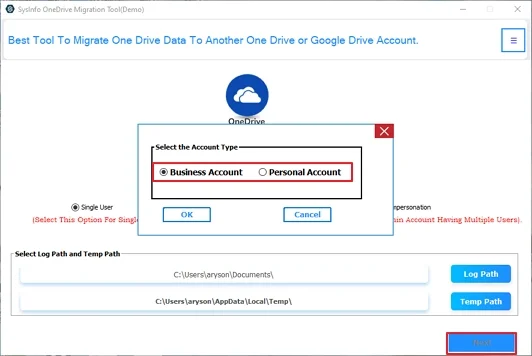
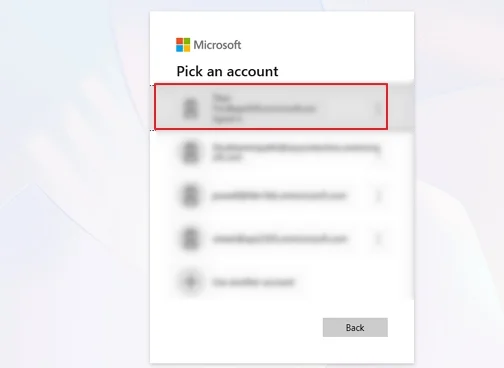
- Further, you need to sign in with your OneDrive credentials and wait for the tool to fetch your data and show it in a tree structure. Select the files to export
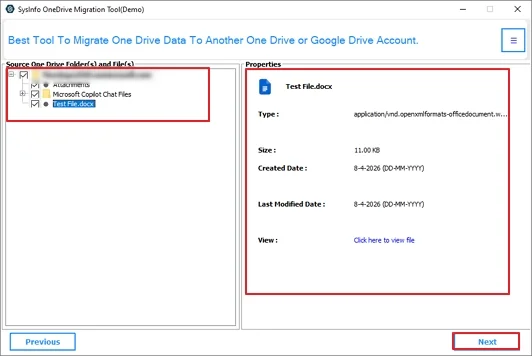
- From there, you can double-click on the file to preview its details and then select the files to export.
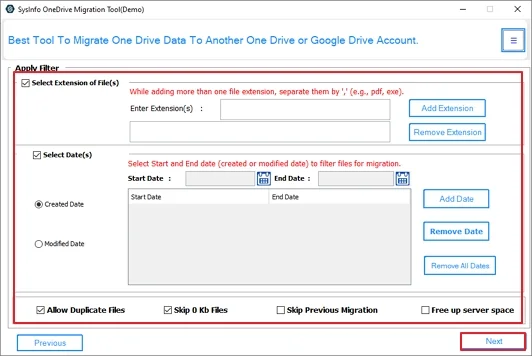
- After that, apply the filters if needed and click Next to continue with the process.
- Now, choose Backup to Local Drive in the Select Destination Drive option. Press Next.
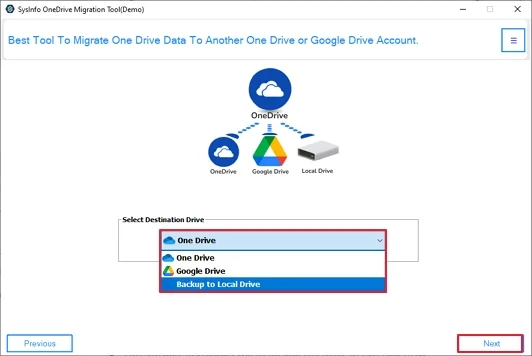
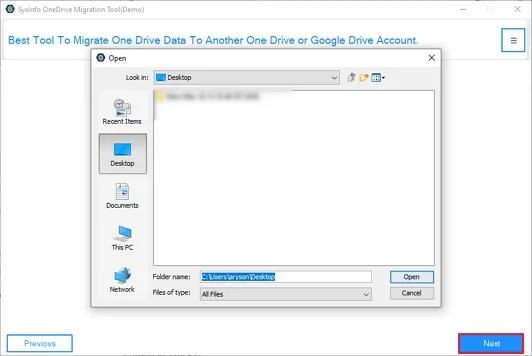
- Select the folder to save the exported data and click Next to Transfer OneDrive to iCloud.
Why Professionals Prefer a Specialized Backup Tool?
- OneDrive Backup Tool can download the complete OneDrive data to your system in one go.
- The tool ensures data integrity and preserves the folder structure.
- Supports bulk data handling without breaking files or any downtime.
- This software also allows you to backup OneDrive to External Drive.
- You don’t have to worry about missing or skipping any files during migration.
- Users can opt for selective migration instead of downloading everything.
- Compatible with different Windows and Mac OS.
- Capable of dealing with multiple large files, making it a perfect choice for enterprises.
Real Case
A growing marketing company decided to shift to iCloud from OneDrive to improve its file management system. They had approx 50000 files to move, with the deadline coming to an end sooner. Manual transfer was not a practical solution in this case. So the company decided to use MailConverterTools OneDrive Backup Tool to export OneDrive files to iCloud. The migration was completed in less than 48 hours and without data loss. The software saved time and increased work productivity for them.
Common Migration Problems You Should Expect
Cloud migrations can often come up with some small issues, like unstable internet or file access restrictions. These issues can interrupt the migration process. But most of these problems are temporary and can be fixed easily.
- Weak internet cuts the transfer mid-move.
- Login sessions expire and block access.
- File permissions stop certain items from syncing.
- Firewall rules can interrupt cloud communication.
- A quick reconnect or fresh login usually clears the issue.
Final Thought
Moving your digital life between platforms needs a clear plan and the right tech. Although the manual approach is there to transfer OneDrive to iCloud, it is not an effective and practical solution. Using a dedicated tool like MailConverterTools OneDrive Backup Tool helps you keep control over your files. They ensure a safe transfer of your documents. Start your migration today for a better storage environment. Your data is precious, so use professional tools for every step.
Frequently Asked Questions
Q1. Which is the best tool to transfer OneDrive to iCloud easily?
Ans. The MailConverterTools OneDrive Backup Tool is a reliable option to download and manage OneDrive data easily before moving it to iCloud. It simplifies the backup process and reduces manual effort.
Q2. Is it safe to transfer OneDrive to iCloud?
Ans. Yes, the process is safe when using a trusted backup tool. It helps keep your data secure and maintains file integrity during the transfer workflow.
Q3. How can I move files from OneDrive to iCloud in bulk?
Ans. You can use the MailConverterTools OneDrive Backup Tool to export multiple files at once to your iCloud. The tool can easily export and ensure complete data safety.
Q4. Can I move files from OneDrive to iCloud without technical skills?
Ans. Yes, the tool is designed with a simple interface, so even non-technical users can back up and move their OneDrive data without complex steps.
About The Author:

Vikas Bajpai is a results-driven SEO expert and content strategist with a strong passion for building impactful digital experiences. He specializes in crafting data-backed content plans that boost visibility, engage audiences, and drive measurable growth. With deep expertise in search engine optimization, keyword strategy, and content marketing, Vikas helps brands strengthen their online presence and achieve long-term success.
Related Post