-
Written By Vikas Bajpai
-
Updated on May 20th, 2026
Import Google Takeout to Thunderbird Without Errors
If you want to safely import Google Takeout to Thunderbird without losing messages or attachments, you need a clear, step‑by‑step approach, not trial‑and‑error. Many users run into errors when they try to open Google’s MBOX files directly, which is where a dedicated tool like MailConverterTools MBOX Converter helps. It lets you move Google Takeout to Thunderbird the right way, keeping folders, dates, and attachments in place. This guide shows safe, low‑friction ways to move your Google Takeout MBOX into Thunderbird, step by step.
User Query: Tried the ImportExportTools NG method to bring Google Takeout data into Thunderbird, but it keeps crashing on larger MBOX files. Have six accounts’ worth of data sitting here. Is there a cleaner way to handle this migration properly?
What Do You Actually Get From Google Takeout?
- Google Takeout exports your Gmail as a ZIP archive, which you download and extract.
- Inside, you find one or more .mbox files for each mailbox or label you selected.
- These MBOX files store threads, senders, dates, recipients, and attachments in a single file.
- Thunderbird does not open these directly from the ZIP, and you must first import them properly.
Native Method to Move Google Takeout to Thunderbird
This is how most users transfer Google Takeout to Thunderbird without paying for anything. The built-in add-on does the work and requires no extra tools, no accounts, and nothing else.
Step 1: Install ImportExportTools NG
- At first, open Thunderbird and hit the three-line menu sitting at the top right.
- Further, head into Add-ons and Themes and search for ImportExportTools NG.
- After that, click Add to Thunderbird, wait for it to finish installing completely.
- Restart Thunderbird — the add-on will not show up in menus until you do.
Step 2: Create a Folder to Stage the Import
- Look for Local Folders in the left panel and right-click it.
- Moving ahead, pick a New Folder and call it something obvious like “Gmail Takeout.”
- Meanwhile, hit Create Folder and keep it selected as you will need it active for the next step.
Step 3: Pull the MBOX File Into Thunderbird
- Firstly, right-click the new folder and hover over ImportExportTools NG.
- After that, click Import MBOX File, then pick Import Directly One or More MBOX Files.
- Further, browse to your extracted Google Takeout folder and find the .mbox file.
- Click Open and let Thunderbird run as it loads messages quietly and updates the count as it goes.
Step 4: Move Emails Across to Your Main Account (Optional)
- Once loading wraps up, press Ctrl + A to grab every message inside the staging folder.
- Drag the whole selection into the matching folder inside your Gmail or IMAP account on the left.
- Let the sync run through completely before closing anything, as this keeps your real mailbox accurate.
Why Does the Manual Route Fail at Any Real Scale?
- No visible progress during import means users have no idea if Thunderbird is working or stuck.
- Manual steps to move Google Takeout data to Thunderbird become repetitive when handling multiple mailbox folders.
- Thunderbird memory usage spikes on larger MBOX files, and the app crashes before finishing cleanly.
- Google Takeout folder labels do not translate into Thunderbird folder names without manual fixes.
- Dragging emails from Local Folders into an IMAP account sometimes drops attachments silently.
- A single interrupted import corrupts the staging folder and forces the entire process to restart.
- Multiple MBOX files from one Takeout archive each need a separate import run.
What Handles Google Takeout Import Without the Errors?
Staging folders, invisible progress bars, and Thunderbird memory crashes are the standard outcome of manual Google Takeout import at any serious volume. The MailConverterTools MBOX Converter Tool skips all of that entirely and lets you import Google Takeout to Thunderbird. It processes Google Takeout MBOX files through a direct bulk migration pipeline and delivers emails, attachments, and folder hierarchy into Thunderbird without a single manual handoff. Moreover, the software helps users convert Google Takeout to PST without handling complicated manual mailbox imports.
Steps To Migrate Google Takeout to Thunderbird:
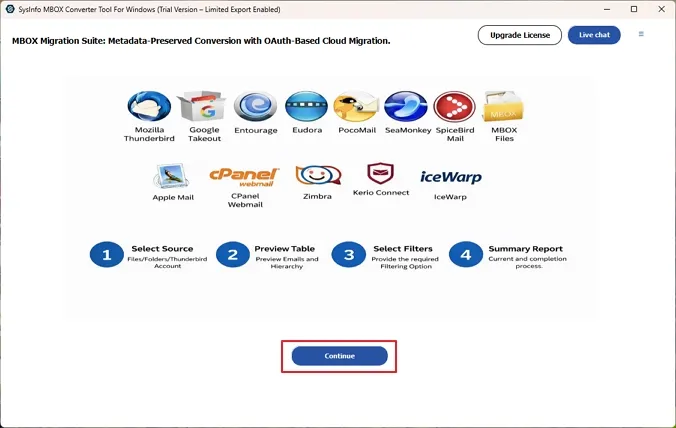
- To start, install and open the MailConverterTools MBOX Converter on your system and hit Continue.
- Further, tap on Select MBOX Files(s) or Select Folder and add your files to the wizard.
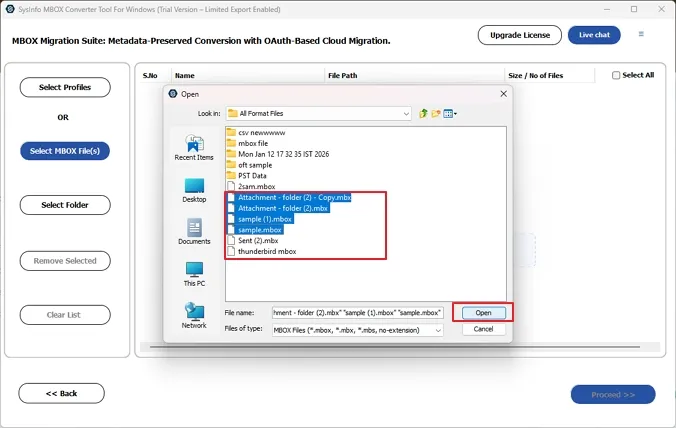
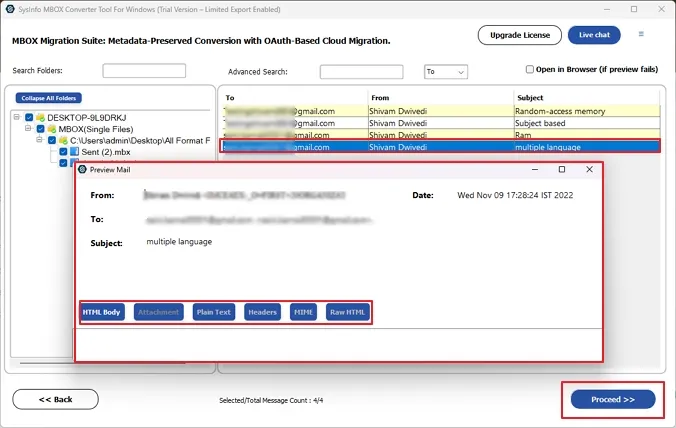
- After that, preview the content of the added MBOX files from the tree structure and select the files to migrate.
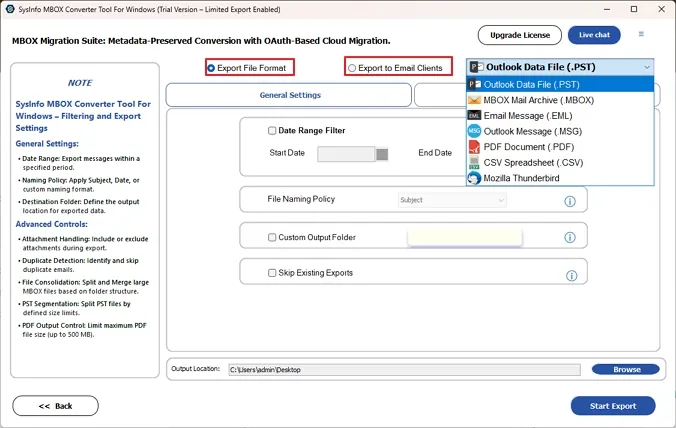
- Moving ahead, in the export to file format option, choose Thunderbird as the desired format.
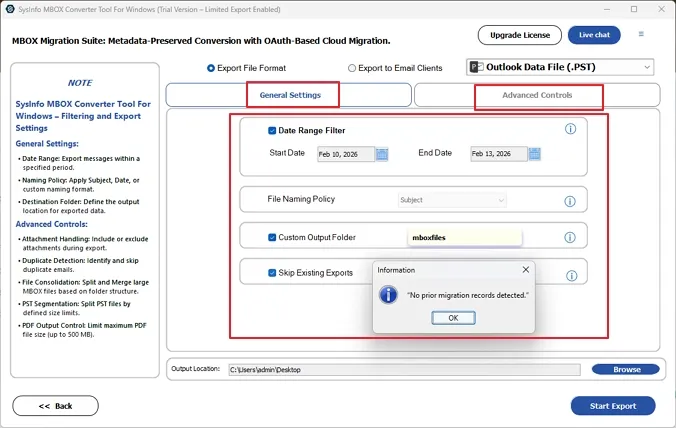
- In the end, choose from General Settings or Advanced Controls and tap on Start Export to add Google Takeout Emails to Thunderbird.
What Makes This the Right Takeout Import Tool?
- Handles bulk Google Takeout archives through a single migration pipeline without slowing down or crashing.
- Original folder hierarchy from Google Takeout maps correctly into Thunderbird without manual intervention needed.
- Full attachment payload transfers without detaching during the bulk migration process at any file size.
- Date filter narrows the migration scope to specific periods, keeping the Thunderbird mailbox clean and organized.
- Duplicate email detection cleans the Thunderbird mailbox before identical messages pile up silently.
- Import Google Takeout emails to Microsoft 365 without configuring multiple email applications manually.
Real World Example
An IT team in Sydney was migrating six Google Takeout archives into Thunderbird before a full infrastructure switch. Manual import crashed repeatedly, and the attachment payload detached without warning across every attempt. MailConverterTools MBOX Converter Tool completed the full migration in one uninterrupted session. Every account landed in Thunderbird with folder hierarchy and mailbox data integrity fully preserved.
Final Verdict
Importing your Google Takeout data the right way can save hours of frustration and prevent permanent data loss. When you choose to import Google Takeout to Thunderbird, the safest route is a clean, structured workflow that keeps folders, dates, and attachments intact. A dedicated tool like MailConverterTools MBOX Converter makes this even easier, helping you transfer Google Takeout data to Thunderbird without errors, corruption, or missing messages. It is the kind of move‑once‑done‑correctly method that lets you trust your backup and move on.
Frequently Asked Questions
Q1. What Is the Best Tool to Import Google Takeout to Thunderbird?
Ans. Many users prefer MailConverterTools MBOX Converter for importing Google Takeout files into Mozilla Thunderbird because it simplifies the mailbox import process and reduces manual effort.
Q2. Can I import multiple Google Takeout files into Thunderbird at once?
Ans. Yes, the MailConverterTools MBOX Conversion Utility supports bulk processing, which helps users import multiple Google Takeout MBOX files at once without repeating steps.
Q3. What is the safest method to import Google Takeout into Thunderbird?
Ans. Using a dedicated MBOX migration tool is usually safer than manual methods. MailConverterTools MBOX Converter helps preserve mailbox folders and email data during the import process.
Q4. Can I Move Google Takeout Data to Thunderbird for Free?
Ans. Manual methods are available, although they usually require additional setup and technical steps. Many users choose MailConverterTools MBOX Converter for a simpler and faster migration experience.
About The Author:

Vikas Bajpai is a results-driven SEO expert and content strategist with a strong passion for building impactful digital experiences. He specializes in crafting data-backed content plans that boost visibility, engage audiences, and drive measurable growth. With deep expertise in search engine optimization, keyword strategy, and content marketing, Vikas helps brands strengthen their online presence and achieve long-term success.
Related Post