-
Written By Vikas Bajpai
-
Updated on June 11th, 2026
How to Export Office 365 Emails in a Specific Date Range
“I have been trying to export my Office 365 emails along with all subfolders to a PST file, but the export only pulls data from the last year. My mailbox is almost 49 GB out of 50 GB, so there is a significant amount of older data I cannot retrieve. I followed Microsoft’s recommendation to increase the email download range from account settings, but the results remain the same. I need a way to export Office 365 emails in a specific date range without losing any historical data.
¬ Lucas Moreau, Administrator
It is required to export Office 365 emails for a specific date range in multiple sectors. This is required for audits, migrations, long-term archiving, and many other purposes. However, the native method to export Office 365 emails repeatedly restricts the data retrieval to a limited time window. Users frequently run into this when working with large mailboxes. This blog covers both the manual approach and a more reliable alternative using the MailConverterTools Office 365 Backup Tool.
Why Export Office 365 Data Within a Specific Date Range?
- Regulatory bodies often require organizations to produce email records from a defined time period. Exporting only the relevant date range saves time and ensures precise submissions.
- When reviewing employee communication for disciplinary or investigative purposes, HR teams need access to emails from a particular window of time rather than an entire mailbox history.
- Mailboxes close to their storage limit, like the 49 GB out of 50 GB scenario many users face, benefit greatly from selective date-based exports. It allows older data to be archived locally without disturbing active email flow.
- During platform transitions or mailbox consolidations, migrating every email from day one is often unnecessary. Filtering by date range keeps the migration lean, faster, and easier to manage on the receiving end.
Export Office 365 Emails in a Specific Date Range Manually
This method will work only if your emails are already available in your local Outlook profile. Go through the methods below and execute these steps accurately.
Steps to Office 365 Email Export with Date Filter
- Open Outlook on your system.
- Click on File from the top menu.
- Select Open and Export from the left panel.
- Click on Import/Export.
- Choose Export to a file and click Next.
- Select Outlook Data File (.pst) and click Next.
- Choose the folder you want to export, such as Inbox or any subfolder, and check Include subfolders if needed.
- Click on the Filter button before proceeding.
- Go to the Advanced tab inside the Filter window.
- Under Define more criteria, set the Field to Received, set the Condition to between, and enter your date range, for example, 01/01/2023 to 31/03/2023.
- Click Add to List and then click OK.
- Click Next and choose your duplicate handling preference.
- Browse to select a destination folder and name the PST file.
- Click Finish.
- Optionally set a password to protect the exported file.
|
Note: This method works on Outlook 2016, 2019, and the Microsoft 365 desktop application |
Limitations of the Manual Date-Range Export Method
- Requires the Outlook desktop application and a configured local Outlook profile.
- Date filters may not always capture emails accurately if filter settings are configured incorrectly.
- No advanced options for automated scheduling or recurring exports.
- Requires manual effort and technical knowledge to apply filters correctly.
- PST file corruption can occur when exporting very large datasets.
Quickly Export Office 365 Emails in a Specific Date Range
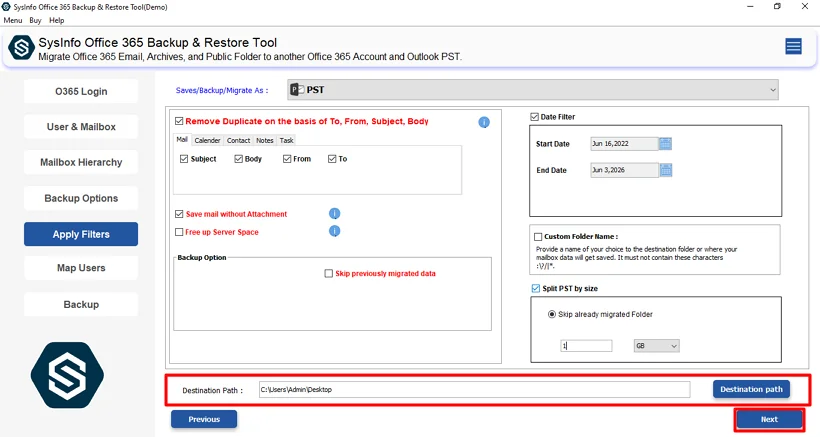
MailConverterTools Office 365 Backup Tool doesn’t work based on local syncing settings, which implies that old emails are still accessible, no matter how long ago they were created. It has a feature to set From and To dates, thus migrating only emails sent between those dates. There is even an option to Remove Duplicates and Skip Already Migrated items to avoid double migration. What’s more important, you can migrate Office 365 to IMAP server or move it to any other mailbox provider. For instance, here is a reference to migrate Office 365 to Zoho Mail.
Steps to Backup Microsoft 365 Emails Between Specific Dates
- Firstly, download the tool and click Backup.
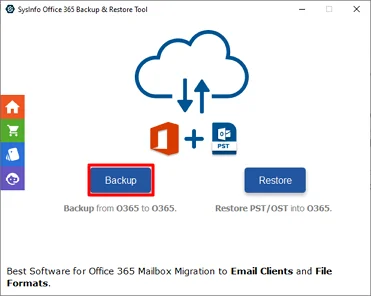
- After that, use Office 365 credentials and click Sign in.
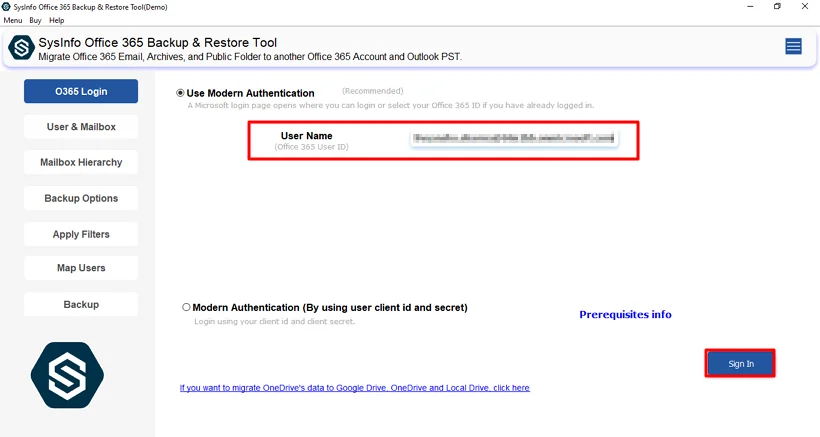
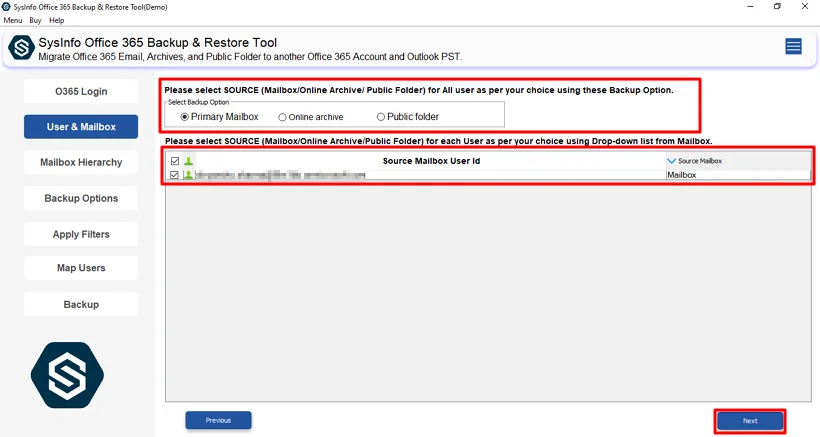
- Now, choose the Backup option and user ID and click Next.
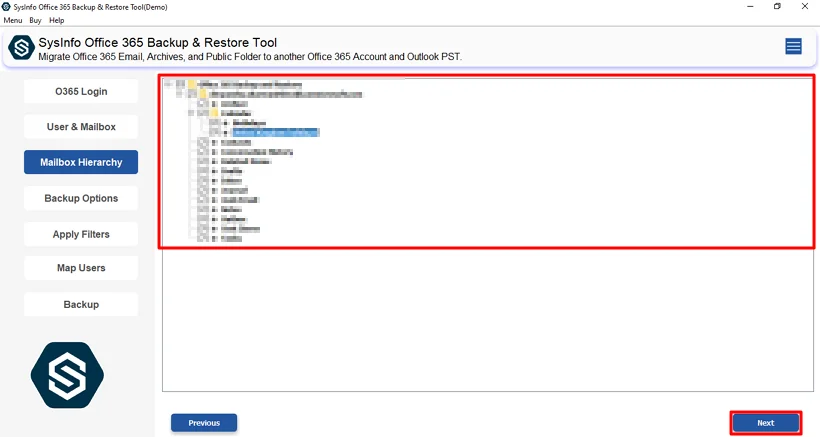
- Then, expand folders and select files to export and hit Next.
- Thereafter, choose the Backup format and apply the available filters.
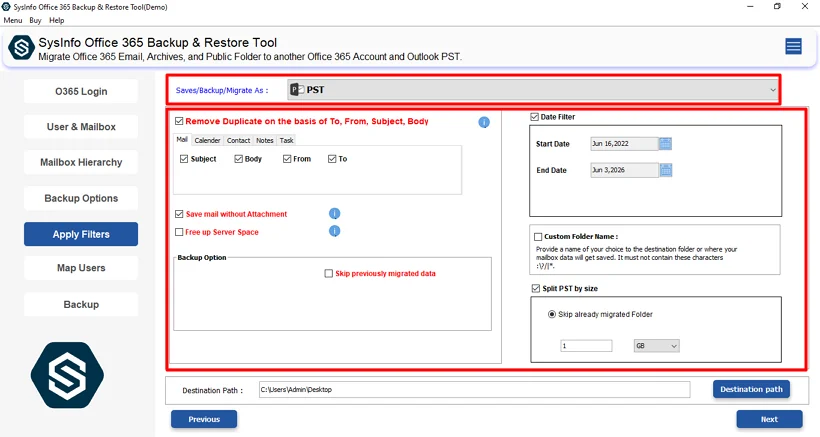
- Further, set Destination Path and press Next.
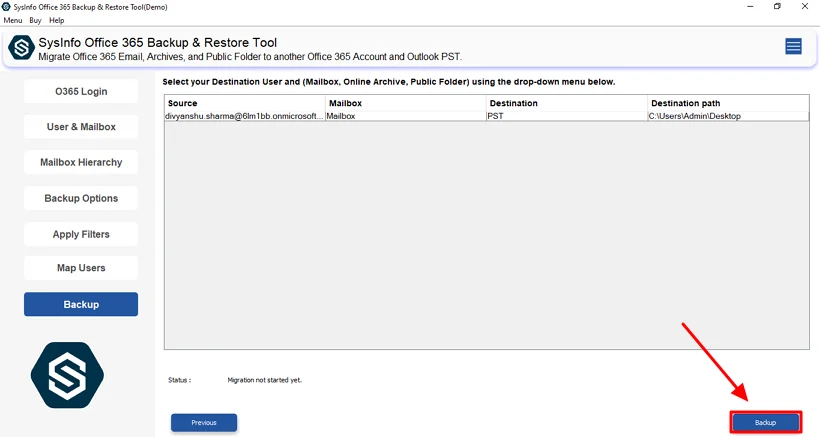
- Lastly, click the Backup button to initiate the process.
Real Case Study
A compliance officer at a New York financial firm needed to export six months of internal emails. The mailbox was nearly full at 47 GB, but the native Outlook export kept returning only recent emails because the sync window was limited to 12 months. After two days of failed attempts, the team switched to the MailConverterTools Office 365 Email Backup Tool. They applied the Smart Mail Filter, set the exact date range, and had a clean, audit-ready PST file ready in negligible time.
End Note
The native Outlook method to export Office 365 emails in a specific date range works for basic needs. But the manual solution falls short when dealing with large mailboxes. For a more reliable and precise export, the MailConverterTools Office 365 Backup Tool is a practical choice. It gives users full control over date range selection, removes duplicate emails, and skips previously migrated items. Whether you are exporting for a compliance audit or long-term archiving, the tool handles it efficiently from start to finish.
Frequently Asked Questions
Q.1 Does exporting Office 365 emails within a specific date range provide accurate results?
Ans: Yes, the MailConverterTools Office 365 Backup Tool allows you to define exact From and To dates, ensuring that only emails within the selected period are exported. This helps generate precise and targeted backup or migration results.
Q.2 Is it safe to export Office 365 data within a specific date range?
Ans: Yes, the tool provides a secure way to export Office 365 emails by backing up only the selected data range. It also includes features such as Remove Duplicates and Skip Previously Migrated Items, helping maintain data integrity during the export process.
Q.3 Can I export Office 365 data within a specific date range without technical skills?
Ans: Yes, the MailConverterTools Office 365 Backup Software is designed with a user-friendly interface that allows users to export Office 365 emails by selecting the required date range through simple steps, without requiring advanced technical knowledge.
Q.4 Is the interface easy to use for Office 365 email export with a date filter?
Ans: Yes, the tool offers an intuitive interface where users can sign in, select mailboxes or folders, choose the desired backup format, apply From and To date filters, and start the export process with minimal effort.
Q.5 Can I back up Microsoft 365 emails between specific dates for free?
Ans: Yes, the MailConverterTools Office 365 Email Backup Software offers a free trial version that allows users to back up up to 50 emails per folder. Using the date filter feature, you can select a specific date range and evaluate the tool’s functionality before upgrading to the full version for complete mailbox backup.
About The Author:

Vikas Bajpai is a results-driven SEO expert and content strategist with a strong passion for building impactful digital experiences. He specializes in crafting data-backed content plans that boost visibility, engage audiences, and drive measurable growth. With deep expertise in search engine optimization, keyword strategy, and content marketing, Vikas helps brands strengthen their online presence and achieve long-term success.
Related Post