-
Written By Vikas Bajpai
-
Updated on May 11th, 2026
How to Convert PST to EML – Manual and Automated Methods
Outlook PST files are hard to use outside Microsoft’s ecosystem, especially when you need portable EML messages. Manual drag‑and‑drop exports are slow, fragile, and don’t scale. To convert PST to EML, you need a proper strategy that handles large data volumes without risking any loss. That’s where a purpose‑built MailConverterTools PST to EML Converter Software steps in, turning large Outlook data files into clean, import‑ready EML batches. It keeps headers, attachments, and folder structure intact without Outlook installed.
User Query: How do I manually save Outlook PST emails as EML without installing any extra tools? I want to keep original headers and attachments while avoiding Outlook crashes.
When Should You Convert PST File to EML?
Organizations often convert their PST files to EML for archiving, e‑discovery, or migration to other email platforms. Small teams might do it to free mailboxes from Outlook while keeping individual email files.
Whenever you convert a PST File to EML, protecting message content and attachments matters far more than how fast it finishes.
How to Convert Outlook PST to EML Using Thunderbird?
If you want to go the manual route, this Thunderbird‑based approach works on both Windows and Mac. It still needs Outlook to build the PST, but the heavy lifting happens inside Thunderbird.
Section 1: Import PST into Thunderbird
- Open Thunderbird on your machine and click Tools from the top menu bar.
- Then choose Import from the list that pops up.
- A new window appears; pick Import from another mail account or Import from Outlook.
- Click Continue, and when prompted, select the PST file items you want to bring in.
- Hit Continue again, then Start Import to actually pull the PST data into Thunderbird.
- When the job finishes, click Finish and restart Thunderbird so you can see all your old PST folders and messages.
Section 2: Save PST Emails as EML in Thunderbird
- Once Thunderbird is back, open the folder that now holds your Outlook PST data.
- Select all messages at once with Ctrl + A, or click just the ones you really need.
- Right‑click the selection and choose Save As from the menu.
- Pick a folder on your disk, then set the file type to EML before saving.
- Press Save, or Select Folder, and Thunderbird will write each message as a separate .eml file while keeping attachments and basic metadata intact.
Why Manual PST to EML Methods Fall Short?
- Manual methods to convert PST to EML are slow and only work for a few emails at a time.
- You have to handle each message or folder one by one, which gets tedious.
- Thunderbird can save PST emails as EML, but it still needs Outlook to build the PST first.
- Folder structure and nested subfolders often don’t map over cleanly.
- Large mailboxes can crash Outlook or slow Thunderbird down during the process.
- There is no real filter or batch option to pick only certain dates or senders.
- Attachments and metadata sometimes break or go missing in manual steps.
What Is the Automated Solution to Convert PST Files?
An automated MailConverterTools PST to EML converter avoids the Outlook and Thunderbird steps altogether. It pulls your whole mailbox out of the PST in a single run. Folders, dates, and attachments stay the same as they were in Outlook. The tool works directly on the PST and does not need Outlook running. This method fixes the slowness and crashes you see in manual exports. This amazing utility also lets you convert PST to CSV for easier sorting and filtering outside Outlook.
Moreover, this software gives you some advantages over the manual methods with its advanced features, which we mentioned below:
- Convert PST to EML in one go without manual Outlook or Thunderbird steps.
- Keeps original folder structure, dates, and attachments intact across the export.
- Runs directly on the PST file and does not need Outlook open or installed.
- Let’s you filter emails by date, sender, or subject before saving them as EML.
- Exports clean, client‑agnostic EML files that other tools can later convert PST to MBOX if needed.
Follow The Procedure Below to Export PST to EML:
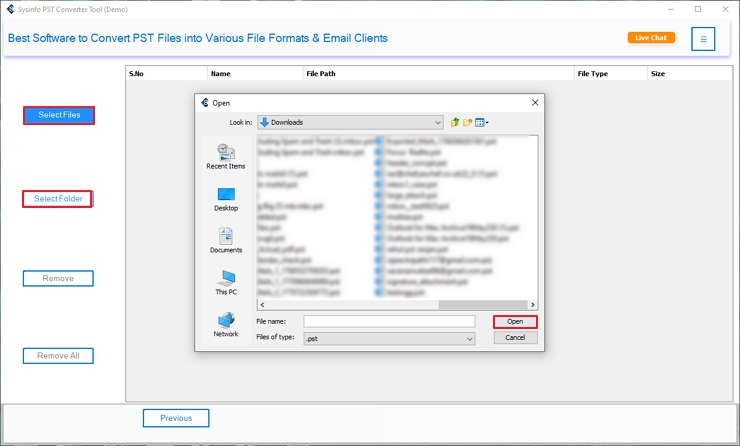
- At first, install and run the PST to EML software and choose the file selection mode. Hit Next.
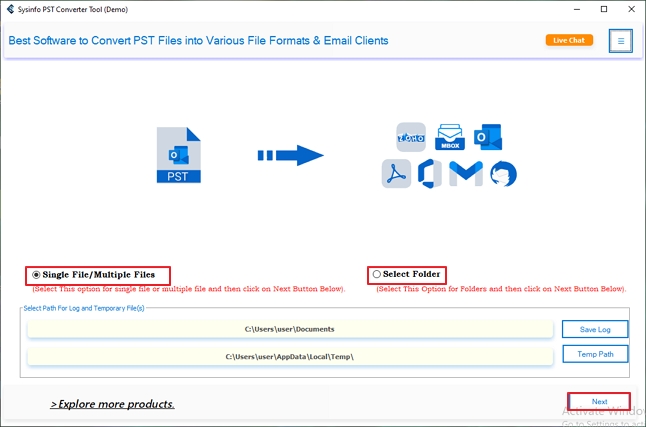
- Further, tap on Select Files or Select Folder and browse your PST files, and then click Open.
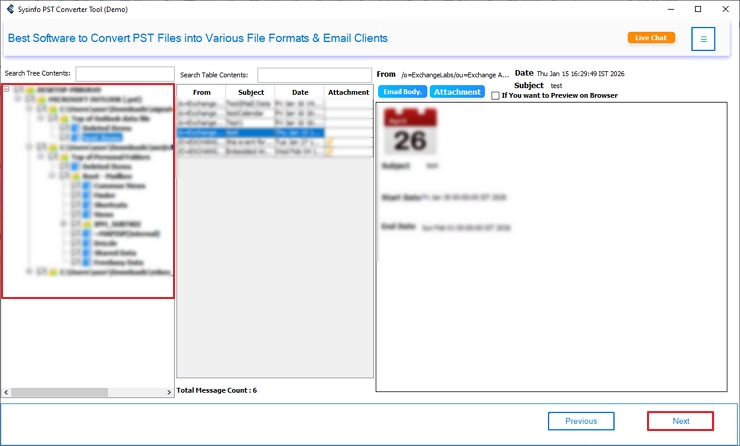
- Meanwhile, expand the tree hierarchy to view all files and folders and preview the content, then select the files to export.
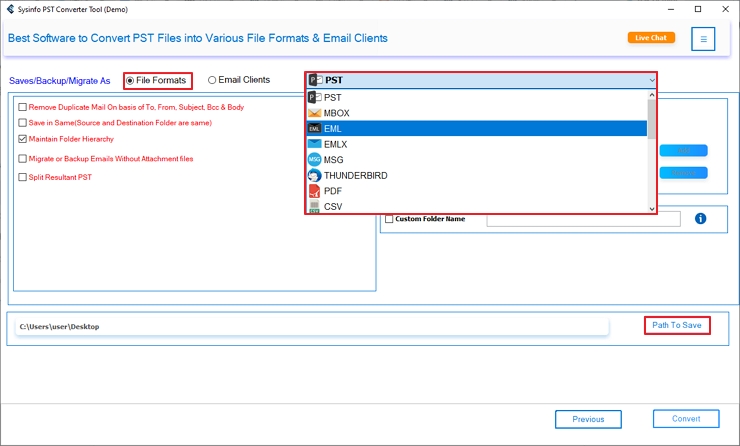
- After that, pick the EML as the desired file format and then specify the saving location by clicking on Path To Save.
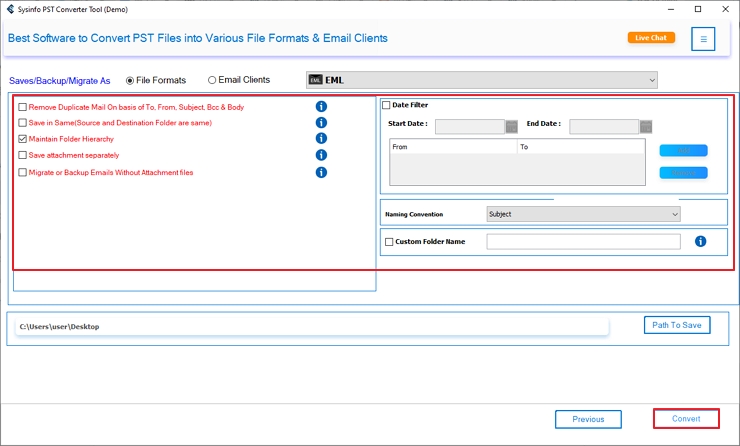
- In the end, apply the filters if needed to ease the process and click on Convert to begin the process.
Real Case Scenario
A small law firm in Chicago had to move Outlook PST data into EML for e‑discovery review. Opening each email manually in Outlook and Thunderbird took hours and kept breaking the folder structure. They used MailConverterTools PST to EML Converter to extract the entire mailbox in one run. The tool kept the message order, dates, and attachments exactly as they were inside Outlook.
To Wrap Up
The process to convert PST to EML does not have to mean slow Outlook clicks or broken folder trees. Manual steps in Outlook or Thunderbird work for a few emails but fail on real‑world mailboxes. A dedicated PST to EML converter like MailConverterTools PST to EML Converter moves the whole mailbox safely. The software keeps dates and attachments intact and gives you clean EML files for further use.
Frequently Asked Questions
Q.1 What Is the Best Tool to Convert PST to EML?
Ans. The MailConverterTools PST to EML Converter is a reliable choice, offering accurate conversion with attachments, folder structure preservation, and support for bulk PST files without data loss.
Q.2 Can I Convert PST File to EML on Mac and Windows?
Ans. Yes, the MailConverterTools PST Converter Software supports both Windows and Mac systems, allowing smooth PST to EML conversion across platforms without requiring Outlook installation.
Q.3 Can I Bulk Convert Outlook PST to EML Files at Once?
Ans. Yes, the MailConverterTools Outlook to EML Converter supports bulk conversion, letting you convert multiple PST files in one go without size limitations or repeated manual effort.
Q.4 Is It Safe to Convert Outlook PST to EML Files?
Ans. Yes, the MailConverterTools PST Migration Tool ensures safe conversion by preserving email data, attachments, and folder hierarchy, maintaining complete data integrity throughout the process.
About The Author:

Vikas Bajpai is a results-driven SEO expert and content strategist with a strong passion for building impactful digital experiences. He specializes in crafting data-backed content plans that boost visibility, engage audiences, and drive measurable growth. With deep expertise in search engine optimization, keyword strategy, and content marketing, Vikas helps brands strengthen their online presence and achieve long-term success.
Related Post