-
Written By Amit Chandel
-
Updated on January 30th, 2026
Complete Guide to Migrate from Google Workspace to Office 365
User Query: I want to switch from my current G Suite to the other famous email client, which is Office 365. My colleague and I explored and used many methods. Can anyone make this process simple?
Sometimes migrate from Google Workspace to Office 365 becomes necessary for many. Users prefer switching to Office 365 because it feels like a better option for teams that want more control. The problem is figuring out how to move everything without breaking emails or losing data. This blog looks at that exact issue. It explains the available migration methods and also introduces MailConverterTools Google Workspace Backup Tool that can be used as a single solution for the migration process.
Why Prefer to Migrate Google Workspace to Microsoft 365?
- More advanced security and compliance options.
- Easier management for large teams and enterprises.
- Reliable access across devices and platforms.
- Improved email handling and mailbox management.
- Moreover, it fits well with existing Microsoft-based environments.
Google Workspace & Office 365: Difference Table
|
Aspect |
Google Workspace |
Office 365 |
|
Email platform |
Primarily uses Gmail, whereas Office 365 relies on Outlook |
Uses Outlook, which is often preferred in business setups |
|
Work style |
Focuses more on cloud collaboration, while desktop use is limited |
Supports both desktop and cloud work, so users get more flexibility |
|
File handling |
Files stay mostly online; on the other hand, offline access is basic |
Allows strong offline access, especially with desktop apps |
|
App integration |
Works best within Google apps, but less with third-party tools |
Integrates smoothly with many business tools, therefore widely adopted |
|
Admin control |
Admin options are simpler; however, they are limited for enterprises |
Offers deeper admin control, which makes management easier |
|
Security options |
Basic security settings, whereas advanced controls are fewer |
Provides advanced security and compliance features |
|
Best suited for |
Small teams and startups, in contrast to large enterprises |
Medium to large organizations, as a result of better scalability |
Manually Migrate from Google Workspace to Office 365
This method does not require any additional tool and this way will be time-consuming for large data. It is a technical process; this will work better for a small migration.
Step 1: Verify Your Domain and Users
- Firstly, add and verify your Google Workspace domain in Microsoft 365 using a TXT DNS record.
- Then, import all Google Workspace users into Office 365.
- Further, assign Office 365 licenses to users.
Step 2: Set Up Google Workspace for Migration
- Thereafter, enable API access and create a service account with domain-wide delegation in Google Cloud Console.
- After that, add service account details and OAuth scopes in the Google Admin Console.
- Wait for permission to be granted.
Step 3: Migrate from Google Workspace to Microsoft 365
- Afterwards, create a migration endpoint in Microsoft Exchange Admin Center using the service account key.
- Then, prepare a CSV with user emails and create a migration batch.
- Finally, start migration and track progress.
- After completion, update DNS MX records to Office 365 and remove the migration batch.
Limitations
- Setting up API access and permissions in Google Cloud isn’t easy and needs admin rights.
- If the CSV file with user info isn’t correct, some emails might not get moved or cause errors.
- Moving lots of emails or many accounts can take a lot of time and computer power.
- Changing the MX records incorrectly can mess up your email delivery.
Expert Way to Migrate From Google Workspace to Office 365
The MailConverterTools Google Workspace Backup Tool is an expert-advised utility. This tool is one of the best Google Workspace backup solutions that is used by many users. It can handle multiple files and large or heavy mailbox data easily with 100% accurate results and zero errors. You can use this tool to export Google Workspace Email to PST and many formats like this.
Steps to Migrate Google Workspace to Office 365
- Download the tool and select Backup GW All Services.
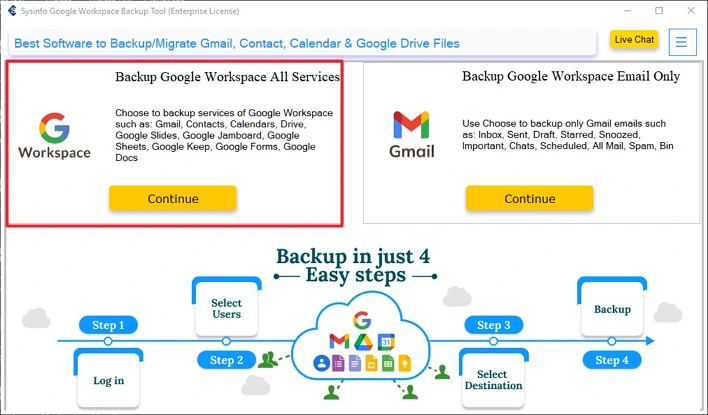
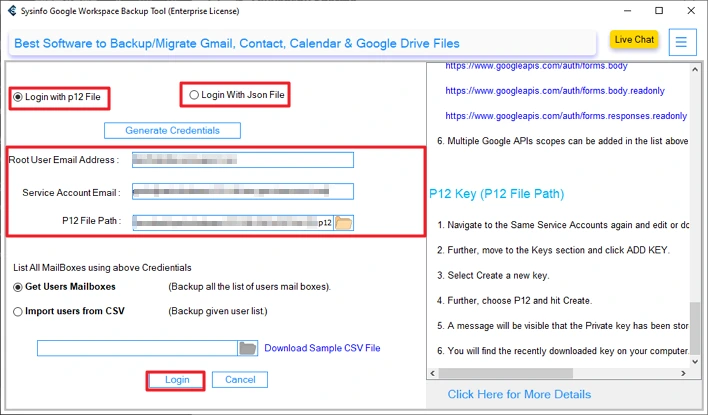
- Then, log in with the relevant credentials.
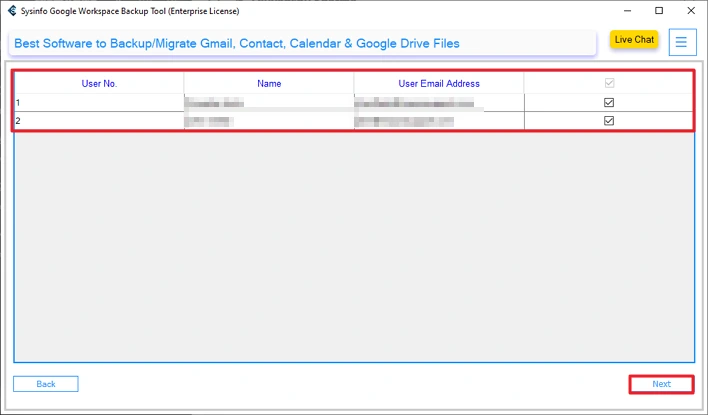
- After that, select the users and click Next.
- Further, select the GW service and click Next.
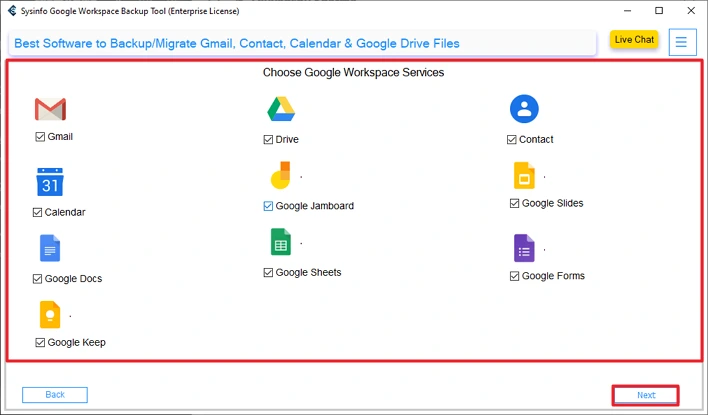
- Afterwards, choose the Email Client option.
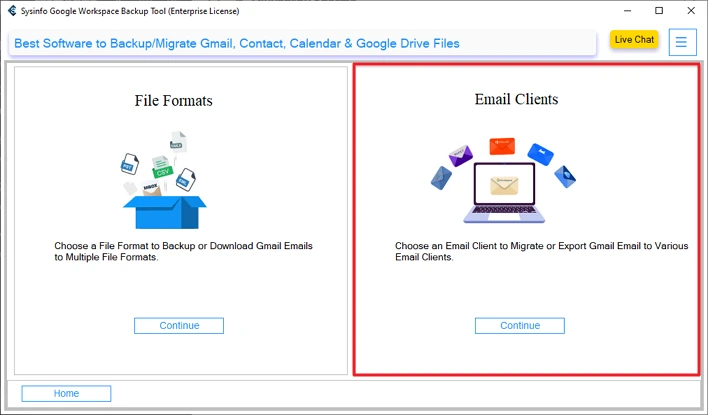
- Thereafter, choose Office 365 and sign in with your credentials.
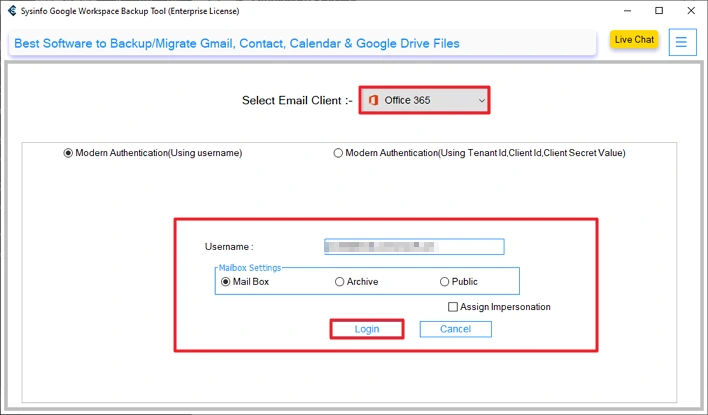
- Next, apply important features and filters and click Next.
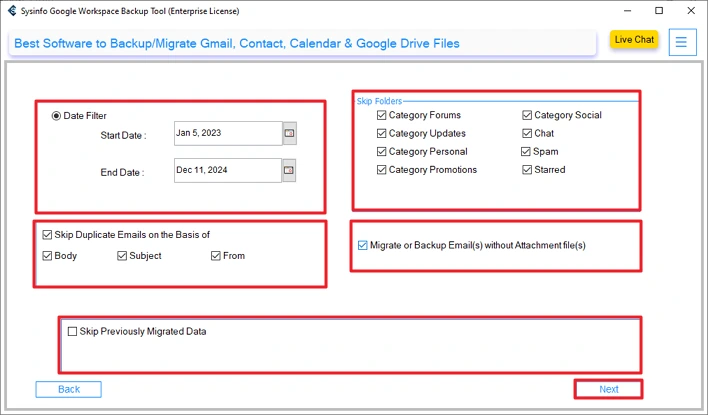
- Finally, set the path and click Start Process.
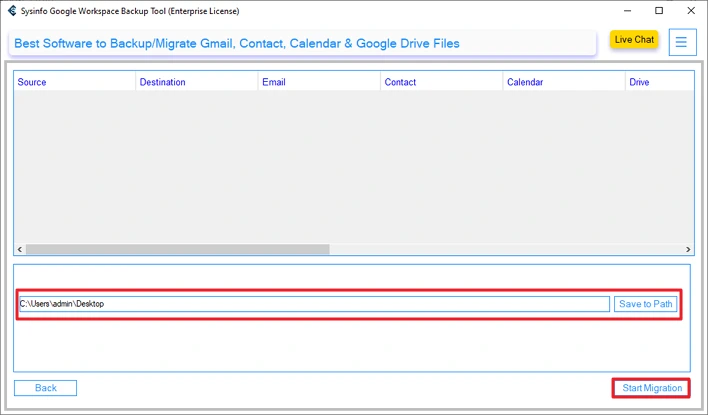
Successful User Case:
One IT team was moving about 120 user accounts from Google Workspace to Office 365 migration, doing it manually at first, but it didn’t go as planned. A few mailboxes didn’t migrate properly.
Later, they MailConverterTools Google Workspace Backup Tool. This time, the emails transferred without trouble, folders stayed in place, and attachments came through fine. They also managed to import Google Contacts to Office 365 during the same process.
Conclusion
To conclude, for your confirmation, the process to migrate from Google Workspace to Office 365 isn’t easy with manual methods. They take time and usually need technical knowledge. Plus, they come with a lot of limits that can slow things down. Using a backup tool makes the job simpler. It helps move emails, contacts, and files without much effort and takes care of duplicate data, too. Since it works on most systems and has a demo, it’s easier to try it out before fully switching.
Frequently Asked Questions
Q1: Can I migrate Google Workspace to Microsoft 365 while users continue working?
Ans: If you are using the manual method to migrate, then you need to hold the work until the process is complete. Otherwise, you may lose some data, but this problem cannot be encountered by the MailConverterTools Google Workspace Backup Tool.
Q2: How to migrate Google Workspace to Office 365 for multiple domains?
Ans: The MailConverterTools Google Workspace Backup Tool allows you to migrate multiple domains. It has an automatic fetching feature, or you can add them from the CSV files.
Q3: Can I migrate from Google Workspace to Office 365 on a staged basis?
Ans: By using the professional Google Workspace Backup Tool, you can migrate on a staged basis. And it provides features to skip the previously migrated data and help you to remove duplicates.
Q4: Is technical expertise required to migrate Google Workspace to Office 365?
Ans: Manual methods are 100% technical and not easy for beginners. On the other hand, the MailConverterTools Google Workspace Backup Tool user interface makes it easy to use for beginners.
About The Author:

Meet Amit, an experienced SEO expert and content planner. He uses his creativity and strategy to create content that grabs attention and helps brands reach their goals. With solid skills in digital marketing and content planning, Amit helps businesses succeed online.
Related Post