-
Written By Vikas Bajpai
-
Updated on May 12th, 2026
Import MBOX to Gmail With Attachments — Zero Emails Lost
Trying to import MBOX files to Gmail, but your emails show up broken or missing? MBOX files from Thunderbird, Apple Mail, or Google Takeout don’t open in Gmail by default, which is why you need a clean conversion workflow. This guide shows you how to import MBOX to Gmail with full folder structure and attachments, using both manual steps and a dedicated MailConverterTools MBOX Converter Tool.
User Query: Tried importing MBOX to Gmail via Thunderbird, but the IMAP transfer drops attachments and breaks folder structure every time. What actually works for bulk MBOX migration without data loss?
Standard Ways to Import MBOX File to Gmail
Two routes exist, and both work differently under real conditions:
- Manual Method: Thunderbird acts as a free bridge to push MBOX emails into Gmail via IMAP.
- Automated Method: MailConverterTools MBOX Converter Tool connects directly to Gmail and handles the full migration in one run with zero data loss.
Thunderbird gets small jobs done on a good day. Only the tool keeps folder structure, attachments, and formatting intact when scale actually matters.
Manual Method to Import MBOX to Gmail
Two sections get this done, but neither works independently. The Gmail account and add-on both need to be ready inside Thunderbird before the actual MBOX import can begin in Section 2.
Section 1: Get Gmail Connected and the Add-on Installed
- Open Mozilla Thunderbird and click the hamburger menu at the top right.
- From there, select Account Settings, then click Account Actions.
- Next, choose Add Mail Account and enter your name, Gmail address, and Google App Password.
- Hit Continue and give Thunderbird a moment to detect the right server settings automatically.
- After that, select IMAP as the account type and click Done to wrap up the configuration.
- Now wait as Thunderbird needs a few minutes to download all your existing Gmail folders properly.
- Once that is done, go back to the hamburger menu and open Add-ons and Themes.
- Search for ImportExportTools NG and click Add to Thunderbird when it appears in the results.
- Then, confirm the installation pop-up and let the add-on finish installing completely.
- Finally, restart Thunderbird so the add-on registers and shows up in the right-click menu.
Section 2: Import MBOX to Local Folders Then Move to Gmail
- Once Thunderbird is back up, find Local Folders sitting in the left panel.
- Right-click it and hover over ImportExportTools NG from the menu that pops up.
- Next, select Import MBOX File and then choose Import Directly One or More MBOX Files.
- Click OK, then browse your system and choose the MBOX file you want to import.
- Hit Open, and Thunderbird loads the MBOX data as a folder under Local Folders, not Gmail.
- Right-click the imported folder and select Move To from the context menu shown.
- After that, pick your Gmail account from the list and choose the destination folder inside it.
- Thunderbird now starts transferring everything from Local Folders into the Gmail IMAP folder.
- Finally, let the sync run completely, as closing Thunderbird before it finishes will break the transfer.
Log in to Gmail from your browser once it completes, and verify the emails and attachments landed correctly.
This completes the free manual method to upload MBOX file to Gmail through Thunderbird. That said, this process has real limitations worth knowing before depending on it for large MBOX files. You can explore our other guide if you need to import MBOX to Google Workspace without any data loss.
Why Does the Manual Method Fail at Scale?
- Thunderbird IMAP sync breaks under folder volume pressure and leaves large MBOX transfers incomplete.
- Attachments drop silently during transfer with no error notification and no way to trace what went missing.
- No built-in deduplication means every retry pushes redundant emails into Gmail and clutters the mailbox structure.
- Folder hierarchy gets lost between Local Folders and Gmail, and email threads lose their original organisation.
- Without the manual move step from Local Folders to the Gmail IMAP folder, the migration is never complete.
How Do You Import MBOX to Gmail Without Data Loss?
Manual IMAP migration introduces multiple failure points that chip away at mailbox data integrity before the job even finishes. The MailConverterTools MBOX Converter Tool skips all of that entirely. It processes MBOX files through its batch conversion feature and delivers emails, attachments, and subfolder structure directly into Gmail. This amazing utility allows users to import MBOX to GoDaddy and other email clients if needed.
Moreover, you get various advantages with this tool that make the process easy and smooth for you. Such as
- Batch conversion runs across single or multiple MBOX files without any file size restriction.
- Built-in preview panel shows email content and attachments before the migration runs.
- Date range filter gives users full control over which emails actually move into Gmail.
- The Remove Duplicate Mail feature keeps the Gmail mailbox clean from redundant message entries.
- Maintains a complete folder hierarchy and subfolder structure from the source MBOX into Gmail accurately.
- The software makes it easy to share your files by allowing you to import MBOX to PDF with attachments.
Steps To Transfer MBOX Emails to Gmail
- To begin, download and run the MBOX exporter tool on your system and then tap Continue.
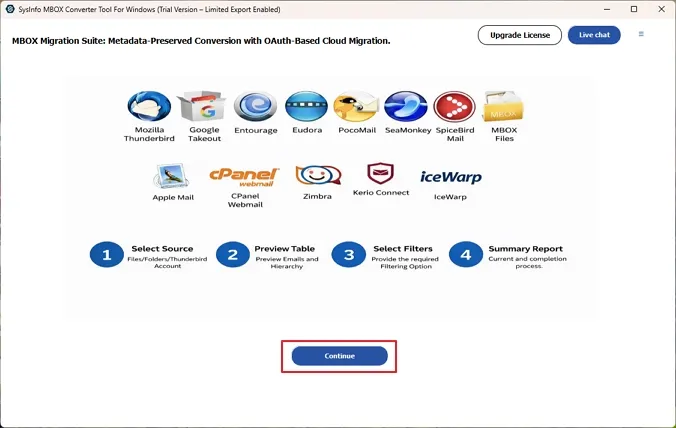
- Further, click on Select Profile, Select Files, or Select Folder and add MBOX files to the software.
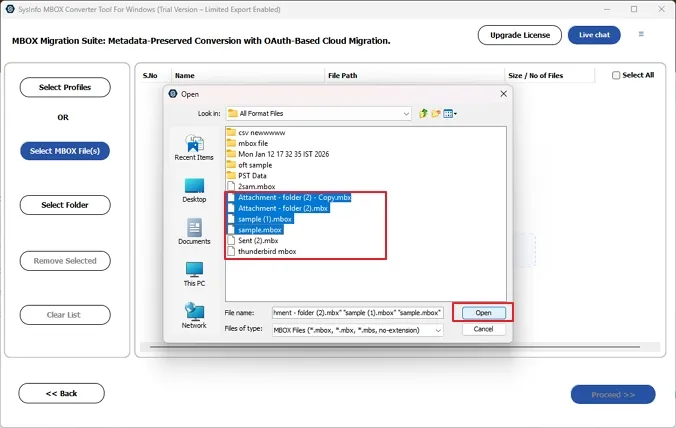
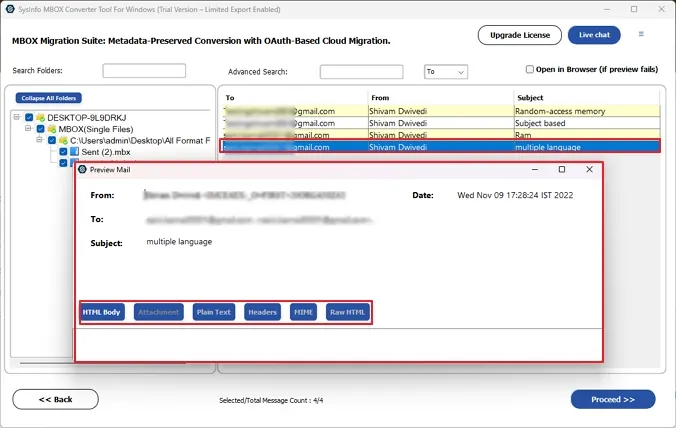
- In the next panel, you can preview the file content and further select the folders in the tree structure to import.
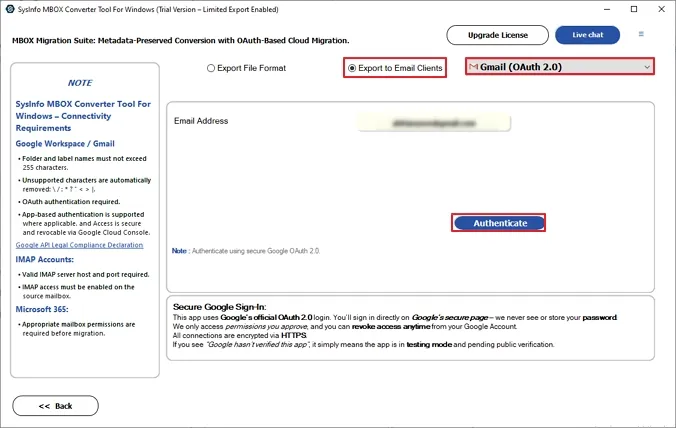
- After that, in the export to email clients option, choose Gmail as desired, and then authenticate your account.
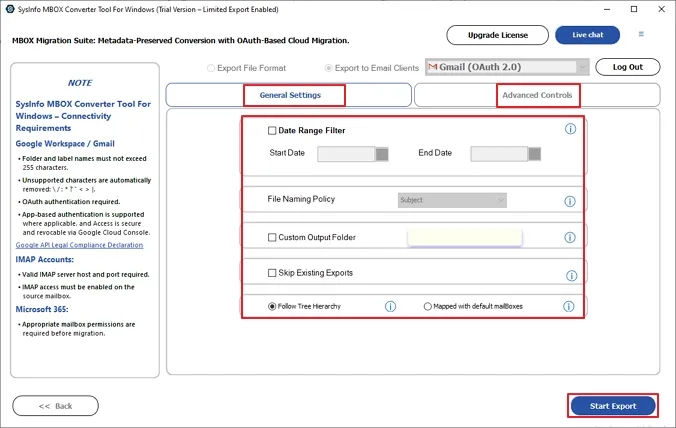
- As the last step, pick from the filters if needed, and tap on Start Export.
Real Case Scenario
A three-person law firm in Edinburgh needed Thunderbird MBOX archives inside Gmail before a system-wide switch. Manual migration broke the folder hierarchy and stripped attachments from business-critical correspondence entirely. MailConverterTools MBOX Converter Tool completed the full migration in one uninterrupted run with zero data integrity issues reported.
To Wrap Up
IMAP throughput limitations and missing attachment data are the standard outcome of any manual Thunderbird migration at scale. Business-critical email archives cannot afford those gaps. MailConverterTools MBOX Converter Tool removes every manual step between your MBOX files and Gmail. Batch conversion handles multiple files at once, duplicate detection keeps the mailbox clean, and folder hierarchy transfers without collapsing mid-migration. To import MBOX to Gmail accurately and at scale, this tool handles every file in one uninterrupted session.
Frequently Asked Questions
Q.1 Can I import an MBOX file directly into Gmail?
Ans. Yes, the MailConverterTools MBOX Converter lets you import MBOX files directly into Gmail without using Thunderbird or manual IMAP syncing.
Q.2 What is the best tool to import MBOX to Gmail?
Ans. The MailConverterTools MBOX Migrator is a reliable option, offering direct Gmail migration, bulk processing, and accurate email transfer with attachments intact.
Q.3 Will attachments also migrate while importing MBOX to Gmail?
Ans. Yes, the MailConverterTools MBOX File Converter preserves attachments and email properties during migration, ensuring complete data transfer without losing important information.
Q.4 Is there a free way to upload MBOX files to Gmail?
Ans. Yes, the MailConverterTools MBOX Converter offers a trial version that lets you export a limited number of emails per folder for evaluation.
Q.5 How long does MBOX to Gmail migration take?
Ans. With the MailConverterTools MBOX Migrator, migration time depends on file size, but batch processing helps complete large transfers much faster.
About The Author:

Vikas Bajpai is a results-driven SEO expert and content strategist with a strong passion for building impactful digital experiences. He specializes in crafting data-backed content plans that boost visibility, engage audiences, and drive measurable growth. With deep expertise in search engine optimization, keyword strategy, and content marketing, Vikas helps brands strengthen their online presence and achieve long-term success.
Related Post