-
Written By Amit Chandel
-
Updated on January 1st, 2026
Best Way to Download All Photos from Google Photos in One Click
Photos are a crucial part of our memories, yet they consume a lot of system and mobile storage. This makes it difficult for users to keep up with them, and often, when storage is required, they have to be deleted. But what if you don’t necessarily need to delete them? Instead, you can download all photos from Google Photos and create an offline backup, migrate it, or archive it for long-term storage. This guide explains official methods and a one-click solution with the Gmail Backup Tool, ensuring data fidelity and consistency.
Real-World Case
Hello, I am Candice, and I have been using Google Photos for many years. Additionally, I have taken the subscription for enough storage. However, recently, one of my friends informed me that he was unable to send anything to my Gmail. This made me furious, and I quickly checked my account only to find a message: ‘You don’t have enough storage space. Try clearing up some files.’ Now, how is this even alright when I already had the subscription too? Ultimately, nothing helped, and I don’t want to delete my photos. I am looking for any feasible solutions that can help secure my Google Photos without deletion.
Why Users and Businesses Download Photos from Google Photos?
Like Candice, many other users struggle to keep their Google Photos safe without deletion. In the upcoming section, we will explain how you can store them, but first, check out these reasons for which you need to download the Photos:
- Google Photos is for cloud convenience, but you may require data locally.
- It is needed when you move or shift to a new Google account.
- To create offline backups of your important Google Photos.
- Free Google storage when closing or consolidating accounts.
- For meeting data retention and ownership requirements.
- When moving from Android to iOS on saving on a physical hard drive.
- Reorganize the cluttered gallery and rebuild the entire library in an organized way.
How to Securely Download All Photos from Google Photos?
In this section, we will explore some reliable free solutions and an absolute professional software for quick downloads. The manual solutions include the use of Google services and features. You can find a complete stepwise procedure for all here.
Free Download All Photos and Videos from Google Photos
There are three different techniques by which you can extract Google Photos with ease. However, they may be time-consuming and require extra effort. These are:
Way 1: Save Google Photos Using Google Takeout
It is one of the most reliable manual solutions best suited for bulk photo and video downloads for desktop and laptop users. The steps are:
- Go to https://takeout.google.com/ and sign in with your Gmail.
- Click Deselect All and browse down to all the Google Services.
- Then, select Google Photos and Videos and tap Next Step.
- After that, select to save Export via Download Link and choose a file size.
- Also, pick frequency as Export Once and file type as ZIP.
- Finally, click Create Export and wait until a link is received in your Gmail.
- Once received, download the ZIP on your system and extract the data to access Photos.
Way 2: Download All Photos from Google Photos via Website
Using the Google Photos Website is another manual solution that you can follow if you need limited photos and that too quickly. Steps are:
- Launch Google Photos and sign in to your Google account.
- Then, move to Photos to access the full library/gallery.
- After that, select the first photo and scroll down to the last.
- Press Shift to select all and then click the three-dot icon.
- At last, click Download, and a ZIP with all your Photos is saved on the system.
Way 3: Download All Pictures from Google Photos on Phone
If you are using the Google Photos application on your mobile, then this method is for you. Remember, it is only useful if you need to download a small batch. Follow these steps:
- On Android/iPhone, open the Google Photos app and sign in.
- Next, move to Photos and drag and select all those to download.
- Afterward, press the three-dot icon and select Download/Save to Device.
- Finally, all the chosen photos get saved on your device.
What Limitations Do These Free Methods Pose?
- The speed of the network can affect the download stability.
- It is necessary to have enough space on your system or device.
- Not very effective for large Google Photos libraries.
- You cannot keep the album structure preserved.
- High possibilities for duplicates and missing images.
Smart Download All Photos from Google Photos
If you need a complete Google data management solution, then the MailConverterTools Gmail Backup Tool is the one. It enables you to quickly and effectively save large volumes of Google Photos, Gmail, Drive, and other data at once. Additionally, it keeps the album formatting and data integrity maintained and handles multiple profiles in batch mode. Moreover, the software ensures complete data protection and guaranteed 100% accuracy and precision during downloads.
|
Note: This advanced software uses secure OAuth authentication to log in to Gmail and keeps all data safe with local performance. |
Process to Download Photos from Google Photos
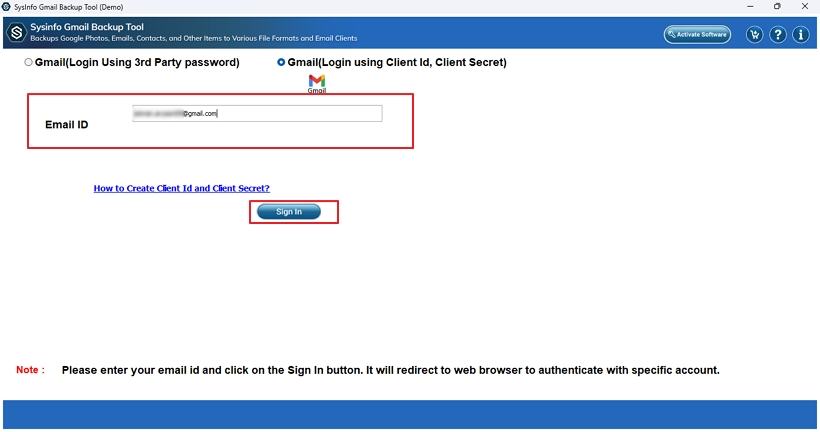
- Launch the Gmail Backup Software and choose to sign in with Modern Auth.
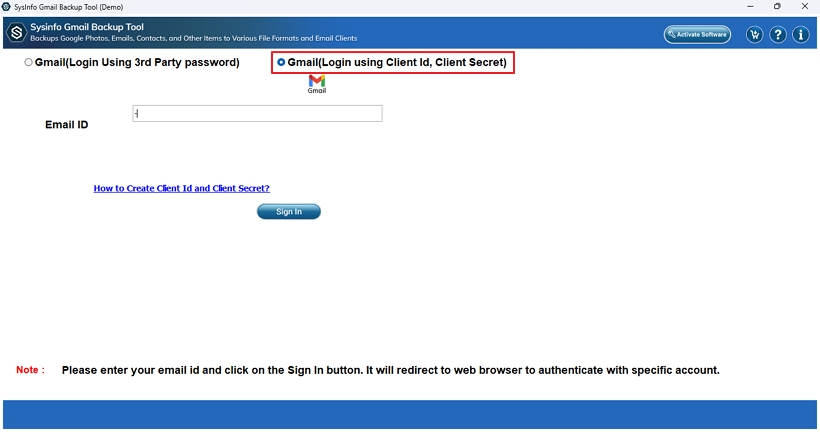
- Then, enter your email ID and click Login for browser authentication.
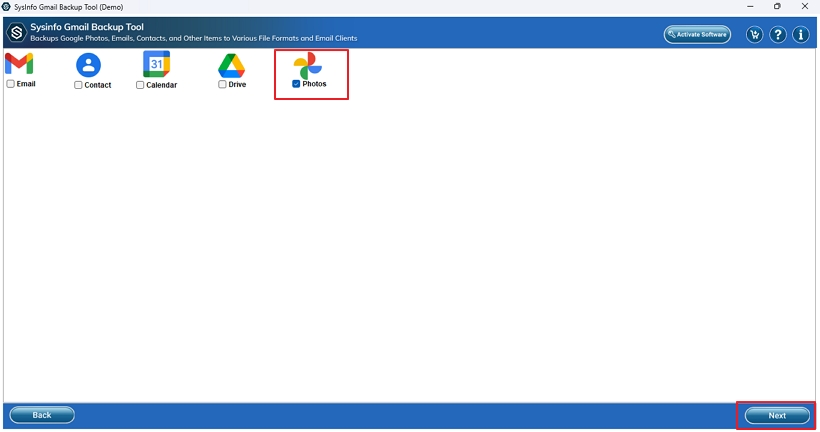
- After that, choose Photos from the listed options and click Next.
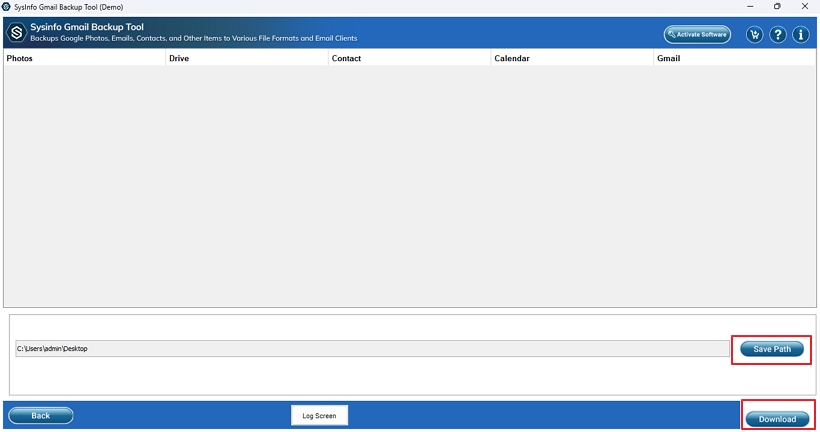
- Specify a Path to Save them, and lastly, press Download to finish.
Isn’t it a very easy, simple, quick, and efficient solution?
Client Testimonial
“My Google Photos account had around 1500+ Photos, which made my storage too cluttered. Using the Gmail Email Backup Tool, I was able to download all pictures from Google Photos in one go without any loss. It made me satisfied, and my storage became free too. Now I can happily take more pictures and am good to go!”
–Sophia Cins
Conclusion
When long-term data ownership matters more than cloud convenience, users tend to download all photos from Google Photos. In the guide above, we discussed all the key reasons for saving Google Pictures on PC and also learned different methods for downloading. While the manual methods are suitable for small datasets and need manual efforts, they cannot cope with larger volumes. So, if you need to download your entire Google Photos library in a single click, effortlessly and securely, with zero loss. Then, using the Gmail Backup Tool is the optimal choice.
Frequently Asked Questions
Q1. How can I download all photos from Google Photos at once?
Ans. To download an entire Google Photos album at once, use the Gmail Backup Software. It has no size limitations.
Q2. Can I download Google Photos directly to my computer?
Ans. Yes, using any manual method or professional software, you can directly save Google Photos on your computer with ease.
Q3. Is there a limit to how many photos I can download from Google Photos?
Ans. No, there is no specific fixed limit for the Photos. But the large bulk often splits into several ZIPs manually. With the automated MailConverterTools Gmail Email Backup Software, it is saved as one file.
Q4. Can I download photos from Google Photos to my phone?
Ans. Though limited, you can easily download all photos and videos from Google Photos to your Phone.
About The Author:

Meet Amit, an experienced SEO expert and content planner. He uses his creativity and strategy to create content that grabs attention and helps brands reach their goals. With solid skills in digital marketing and content planning, Amit helps businesses succeed online.
Related Post