-
Written By Amit Chandel
-
Updated on March 5th, 2026
How to Transfer Shaw Email to Gmail: Easy & Safe Methods
User Query: I’ve seen other people asking the same thing because Gmail seems more reliable and easier to use. I also switched to Gmail from Shaw and am looking for a reliable way to transfer my Shaw data to Gmail.
Shaw’s email works fine, especially if you’re already using their internet service. But over time, many people feel like moving to Gmail because it offers more features. The tricky part is moving all those old emails safely. No one wants to lose important data. In this blog, I’ll explain a simple manual way to transfer Shaw email to Gmail, and also discuss using the MailConverterTools IMAP Backup Tool if you want something quicker and less stressful.
Common Reasons to Forward Shaw Email to Gmail
A lot of people start thinking about this move after using Shaw for years. It’s not that Shaw’s email is bad, but Gmail just feels more convenient for daily use. Here are some simple reasons why users forward Shaw emails to Gmail:
- More space for emails, so you don’t have to keep cleaning your inbox again and again.
- You can check your emails from anywhere — phone, office computer, or even a friend’s laptop.
- Less junk mail showing up in your inbox. Gmail usually catches most of it.
- Some people just feel safer keeping their emails on a platform that’s widely used and not tied to one internet provider.
- It’s easier to manage things when all your personal and work emails are in one place instead of switching between accounts.
Step-by-Step Transfer Shaw Email to Gmail Manually
Gmail already has an option that lets you bring emails from another account using IMAP. You don’t really need anything complicated for this. Just follow these simple steps:
Steps to Migrate Emails Shaw to Gmail
- First, sign in to your Gmail account.
- Then click on the Settings icon and open See all settings.
- Go to the Accounts and Import tab.
- There, you’ll see an option that says Import mail and contacts. Click on it.
- Now enter your Shaw email address and continue.
- After that, you’ll need to enter your Shaw IMAP server details along with your email password.
- Once everything is filled in, start the import process.
Gmail will begin pulling your Shaw emails in the background. It may take some time depending on how many emails you have, so just let it run.
Limitations
- It can be slow. If you have years of old emails, the import may take hours or even days.
- Sometimes, not all folders come over properly. A few emails might get skipped without you noticing.
- You need the correct IMAP details. If anything is entered incorrectly, the process simply won’t start.
- It doesn’t always sync everything perfectly. Labels and folder structure can change after moving to Gmail.
- If the connection drops in between, you might have to start again or check what actually got imported.
Easy & Safe Method to Transfer Shaw Email to Gmail
If you don’t want to deal with the manual method, there’s also the MailConverterTools IMAP Email Backup Tool. I tried it when I needed a more direct way to move emails from Shaw to Gmail. It lets you connect your Shaw account and transfer emails to Gmail without changing the email content. The emails keep their original format, folders, and details like date and sender info.
Steps to Convert Shaw Email to Gmail
- Firstly, download the IMAP Backup Tool.
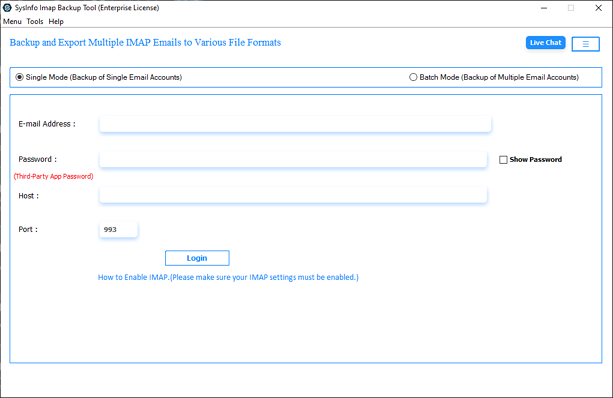
- Then, log in with the Shaw credentials.
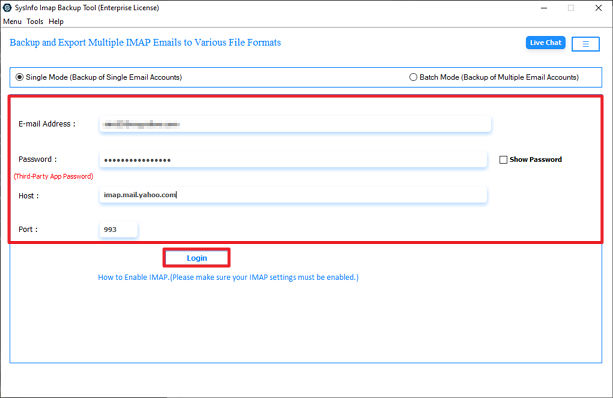
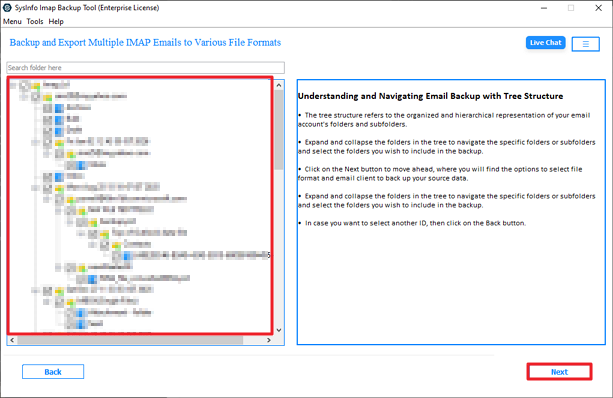
- After that, expand the tree to select the files and click Next.
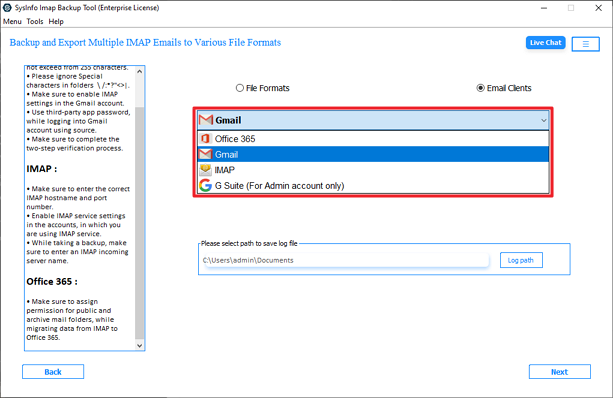
- Choose Gmail as the Output format.
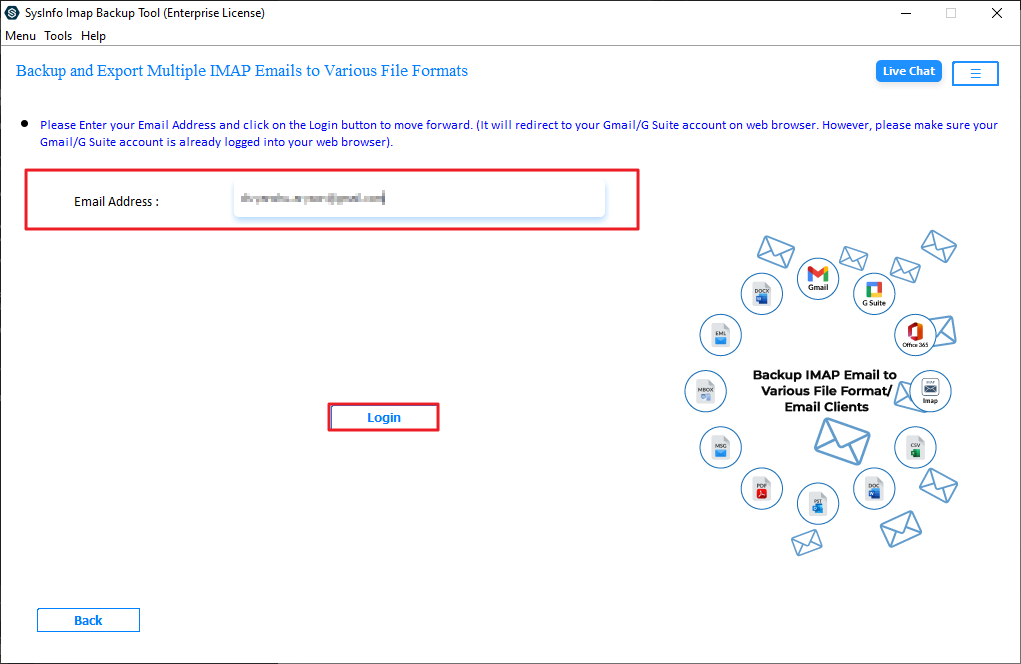
- Thereafter, log in with your Gmail credentials.
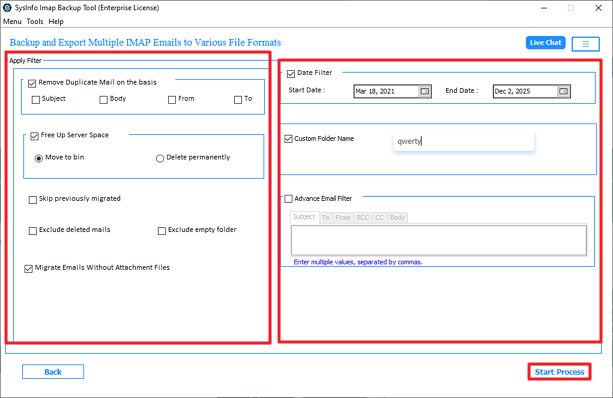
- Finally, apply the filters and click Start Process.
Successful User Case
One of our readers recently shared his experience with moving from Shaw to Gmail. He had been using the Shaw email for almost eight years. When he decided to switch to Gmail, his main concern was losing old data.
At first, he tried the manual IMAP method inside Gmail to migrate Shaw to Gmail. It did start importing emails, but the process was very slow. Some folders did not appear the way they were in Shaw, and he wasn’t fully sure if everything had been copied.
After that, he decided to try the MailConverterTools IMAP Backup Tool mentioned in this blog. He logged in with his Shaw account, selected Gmail as the output, and started the process. The tool transferred all emails in one go. His folder structure and attachments stayed the same, and he didn’t notice any missing messages.
In the end, all his Shaw emails were available in Gmail without any data loss. According to him, the second method saved time and gave him peace of mind.
Conclusion
In this blog, we talked about a couple of ways to move your emails from Shaw to Gmail. You can use the manual method if you want to transfer Shaw email to Gmail for free. But keep this in mind that the manual method has many limitations. To overcome these limitation using the professional IMAP Backup Tool is the best option.
Frequently Asked Questions
Q.1 How to Transfer Shaw Email to Gmail without losing data?
Ans: You can use the IMAP option inside Gmail to import emails from your Shaw account. In addition, you can use the MailConverterTools IMAP Backup Tool. It transfers emails while keeping the original format.
Q.2 What is the easiest way to migrate Shaw email to a Gmail account?
Ans: The easiest free way is using Gmail’s built-in Import mail and contacts option. You just log in, enter your Shaw details, and start the import.
Q.3 Can I convert Shaw email to Gmail easily without technical knowledge?
Ans: The professional tool is also designed in a simple way. You log in to both accounts, choose Gmail as the output, and start the process. No advanced technical knowledge is required.
Q.4 How can I migrate Shaw email to Gmail in bulk?
Ans: If you have a large number of emails, the professional IMAP Backup Tool is the better option. It allows you to transfer multiple emails at once and handles the data in a single process.
About The Author:

Meet Amit, an experienced SEO expert and content planner. He uses his creativity and strategy to create content that grabs attention and helps brands reach their goals. With solid skills in digital marketing and content planning, Amit helps businesses succeed online.
Related Post