-
Written By Amit Chandel
-
Updated on April 23rd, 2026
Transfer TalkTalk Emails to Gmail Without Data Corruption
User Query: My TalkTalk account holds close to 8,000 emails across various folders, and I am ready to switch to Gmail. I want to move everything, folder structure and attachments too, without any files breaking. What is the best approach?
Nowadays, businesses often tend to move towards better email environments. Switching to Gmail provides seamless syncing and reliable device access. But the issue is that many people struggle when moving their TalkTalk Emails to Gmail. This guide covers two proven methods to transfer TalkTalk emails to Gmail. A hands-on manual process for a small-scale and professional robust IMAP Migration Tool for all types of migration headaches. You can pick your preferred approach to handle this task effectively.
Why Move TalkTalk Mail to Gmail?
- Gmail because it offers a smoother, more reliable email experience.
- Gmail lets you handle multiple email accounts in one place, making it convenient for both work and personal use.
- It connects perfectly with Google services like Drive, Calendar, Meet, and Docs, helping you stay organized and productive.
- Emails and updates sync automatically across all your devices, phone, laptop, or tablet.
What Do You Need To Check Before You Start The process?
Before you start to move your TalkTalk email to a Gmail account, you must check that the following are ready :
- Access to both your TalkTalk and Gmail accounts (login details handy).
- IMAP is enabled in your Gmail settings.
- A stable internet connection for smooth transfer.
- Correct TalkTalk email server settings (IMAP/POP).
- Backup of important emails to avoid any data loss.
Can I Import TalkTalk Mail Into Gmail Manually?
Want to move your TalkTalk emails to Gmail? You’ve got a couple of straightforward options. Neither requires extra software, but it helps to feel comfortable tweaking email settings like IMAP or forwarding rules.
Method 1: Using Gmail’s IMAP Fetcher
The first way is to use Gmail’s IMAP Fetcher. It basically connects your Gmail to your TalkTalk account and pulls all your old emails automatically, so you can read them right inside Gmail.
Here’s How You Can Move TalkTalk Email to Gmail Account:
- Firstly, open Gmail and click the gear icon in the top-right corner, then choose “See all settings.”
- Then, go to the Accounts and Import tab and select “Add a mail account.”
- After that, when asked, enter your TalkTalk email address and password.
- Thereafter, in the server settings, use the following details:
- Incoming Mail Server: mail.talktalk.net
- Port: 993
- Encryption: SSL enabled
- At last, click Add Account, and Gmail will start fetching your TalkTalk messages automatically.
Method 2: Use Gmail’s Built-In Import Tool
The other option is to use the “Import Mail and Contacts” feature in Gmail. This one helps you bring over not just emails but also your contacts and a few other details from TalkTalk without much effort.
Steps to Transfer TalkTalk Emails to Gmail:
- To begin with, in Gmail, go to Settings -> Accounts and Import.
- Then, click on “Import mail and contacts.”
- After that, enter your TalkTalk login details and confirm the server settings when prompted.
- Select what you need to import from emails, contacts, or both.
- As the last step, click Start Import and wait for Gmail to start moving files into your inbox.
What are The Downsides of Manual Migration?
- If the internet connection drops or times out, it will interrupt the import.
- Some of the larger attachment files might not import properly.
- Folder structure may not be preserved after the migration process.
- Setting up IMAP or server details is confusing for the less technical part of the group.
- If you manage multiple TalkTalk accounts, you will repeat the process for each account.
- The migration process can be really slow while dealing with large mailboxes.
What is the Easiest Way to Backup TalkTalk Emails to Gmail?
Manual methods may not be the go-to solution for every user. In that case, you can use MailConverterTools IMAP Migration Tool to export your TalkTalk emails. It is designed to make migration much easier, even for multiple large files. The tool moves complete mailboxes along with attachments and preserves folder structure.
Steps to execute the process:
- Firstly, download and launch the IMAP Migration Tool on your computer.
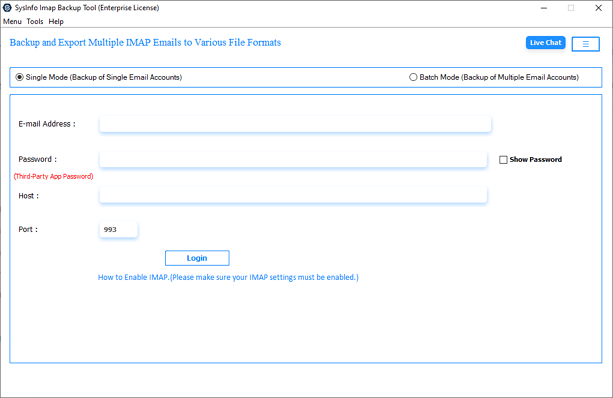
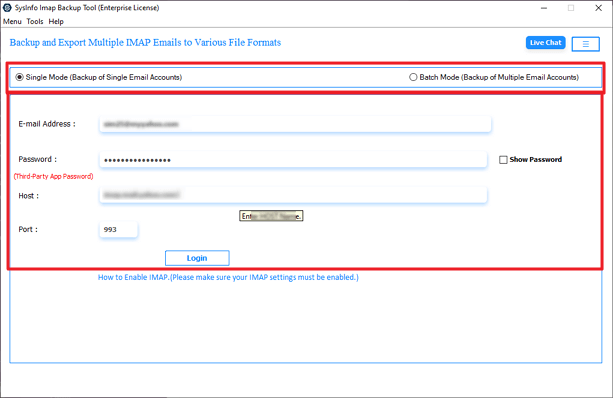
- After that, select Single or Batch mode, then sign in with your TalkTalk email credentials.
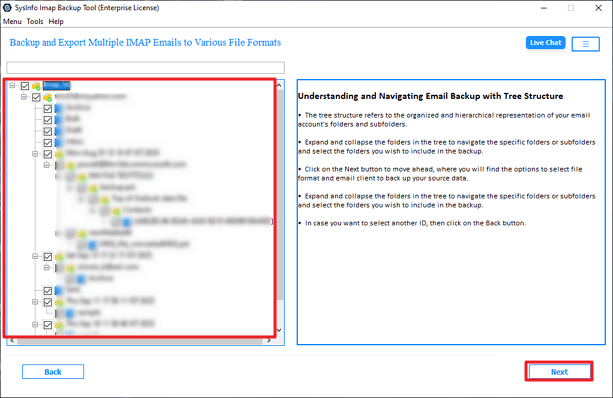
- Further, preview the mailbox folders displayed in the tree structure and choose the ones you want to move.
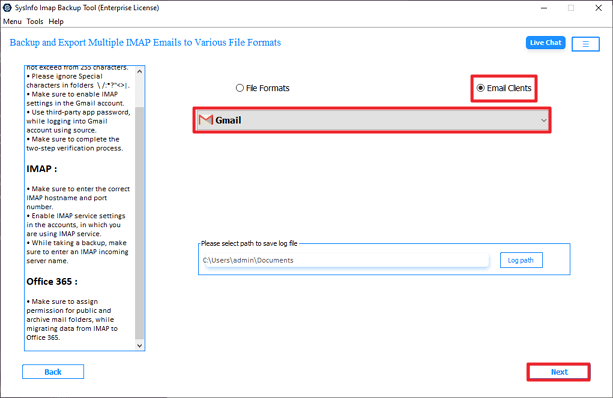
- Thereafter, from the saving options in Email Clients, select Gmail as the target email platform. Then, Next.
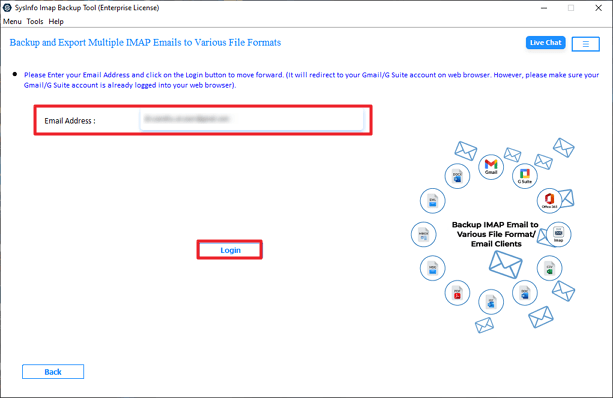
- Furthermore, log in with your Gmail account credentials to connect your mailbox.
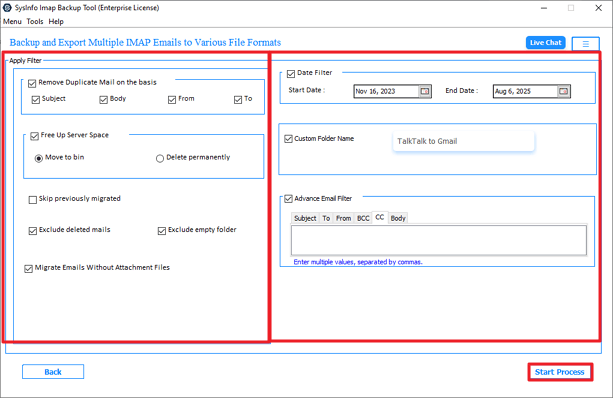
- You can apply filters if required, else press Start Process to transfer TalkTalk emails to Gmail.
Why Use an IMAP Tool for Email Migration?
- MailConverterTools IMAP Migration Software allows you to migrate all emails in one go.
- Keeps folder structure and attachments intact during the transfer.
- No need to deal with confusing IMAP or server settings.
- Works well with large mailboxes without slowing down or failing.
- Eliminates the risk of data loss or incomplete migration.
Real World Example: How IMAP Migration Software Helped?
A small business owner had 20000 TalkTalk emails stored across different folders. They tried manual methods to switch to Gmail but failed. Further, they used MailConverterTools IMAP Backup tool to handle this task. The software transferred all files in one go, reducing migration time by 90%. The tool ensured data safety and kept the folder structure intact.
To Wrap Up
Getting your TalkTalk emails to Gmail should be straightforward and easy. Manual methods often fall short when moving large or complex data. You can use MailConverterTools IMAP Migration Tool to transfer TalkTalk emails to Gmail in quick and easy steps. The tool moves all files rapidly in one go and ensures a smooth process.
Frequently Asked Questions
Q.1 How can I transfer TalkTalk emails to Gmail easily?
Ans: You can use the MailConverterTools IMAP Migration Tool to connect both accounts and start the transfer. It moves emails in one go without requiring complex manual configuration.
Q.2 Is it safe to transfer TalkTalk emails to Gmail?
Ans: Yes, the MailConverterTools IMAP Mail Backup Tool ensures a secure migration process. It keeps emails, attachments, and folder structure intact without altering or losing any data.
Q.3 Is it possible for beginners to move TalkTalk emails to Gmail?
Ans: Yes, the MailConverterTools IMAP Migration Tool is designed with a simple interface. Even beginners can follow the steps easily without needing technical knowledge or handling server settings.
Q.4 Can I transfer TalkTalk emails to Gmail for free?
Ans: The MailConverterTools IMAP Mail Backup Tool offers a free demo version to test its features. However, you will need the full version to complete unlimited email migration without restrictions.
About The Author:

Meet Amit, an experienced SEO expert and content planner. He uses his creativity and strategy to create content that grabs attention and helps brands reach their goals. With solid skills in digital marketing and content planning, Amit helps businesses succeed online.
Related Post