-
Written By Vikas Bajpai
-
Updated on April 6th, 2026
Rename OST File in Outlook Without Errors – Easy Methods
User Query: I tried to rename my OST file directly from the folder, thinking it would be simple, but after that, Outlook started acting weird.
But now MS Outlook is throwing sync issues and some errors when opening the application. I guess I followed the wrong way and didn’t do it properly. Does anyone know how I can easily rename an OST file without much headache?
If you’re trying to rename an OST file in Outlook. You will realise that it is not as simple as it looks. That’s because the OST files are directly linked to your Outlook profile. Rename it incorrectly, and you might run into sync issues or errors when Outlook starts. In this guide, I’ll show you a few simple and professional OST to PST Converter Tool to rename OST file in Outlook without any hassle.
Why Do Users Rename OST File in Microsoft Outlook?
- Users rename OST files to avoid confusion between multiple Outlook accounts on one system.
- It helps keep mailbox data organized when working with several profiles or backups.
- Renaming makes it easier to identify specific OST files without opening each one.
- Many users rename files before backup to keep names clear and easy to track.
- It helps prevent overwriting when moving or saving OST files to another location.
- Users often rename files during migration to match new email accounts or setups.
- It makes sharing OST files simpler, as names are easier to recognize quickly.
- Renaming helps during troubleshooting by keeping different file versions easy to manage.
Manual Methods to Rename OST File in Outlook
There are actually two easy ways to rename an OST file in Outlook. Both ways are good and work fine. You just need to follow the steps properly. Also, you shouldn’t run into any issues.
Method 01: Rename OST File in MS Outlook
Follow these steps to safely rename the OST file in Microsoft Outlook:
Step 01: Close Microsoft Outlook
Firstly, make sure Microsoft Outlook is completely closed.
Step 02: Locate the OST File
After that, go to the default OST file location:
C:\Users\YourUsername\AppData\Local\Microsoft\Outlook
Step 03: Rename the OST File
- Thereafter, right-click on the OST file.
- Further, Select Rename.
- Then, change the file name as you want.
Step 04: Restart Outlook
- Now, Open MS Outlook again.
- At the end, Outlook will detect the missing file and change OST File Name in Outlook.
Method 02: Recreate OST File in Outlook
To fix this error, it is better to recreate an OST file in MS Outlook instead to renaming it.
Steps to Recreate OST File:
- First, open the Control Panel.
- Then, you need to go to Mail >> Data Files & select your account.
- Now, note the file location and close MS Outlook.
- Next, click Delete or rename the OST file
- Lastly, restart Microsoft Outlook.
Outlook will create a new OST file and resync all data from the server.
Automated Solution to Rename OST File in Outlook
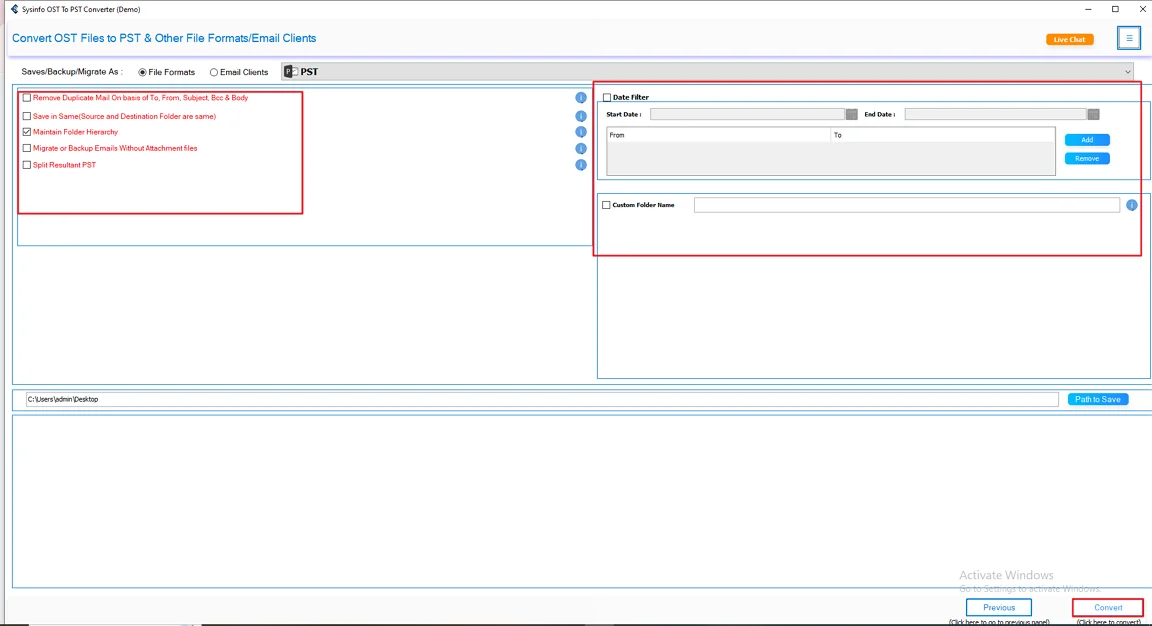
If you’re dealing with issues like errors or trouble accessing your OST file. You can use the MailConverterTools OST to PST Converter to rename your OST files. With the help of this tool, you can convert more than one OST file into PST without data loss. Moreover, this software keeps your emails, folders, and structure intact. The interface is usually simple, so even if you’re not very technical, you can still use it without much effort. Additionally, this tool can also convert OST to PDF, EML, CSV, and other file formats. Moreover, it has an option to Remove Duplicates from OST files, convert OST to PST files with or Without Attachments, and offer a Date Filter option.
Follow these verified steps to change the OST File Name in Outlook:
- Firstly, install, download, and open the OST to PST Converter.
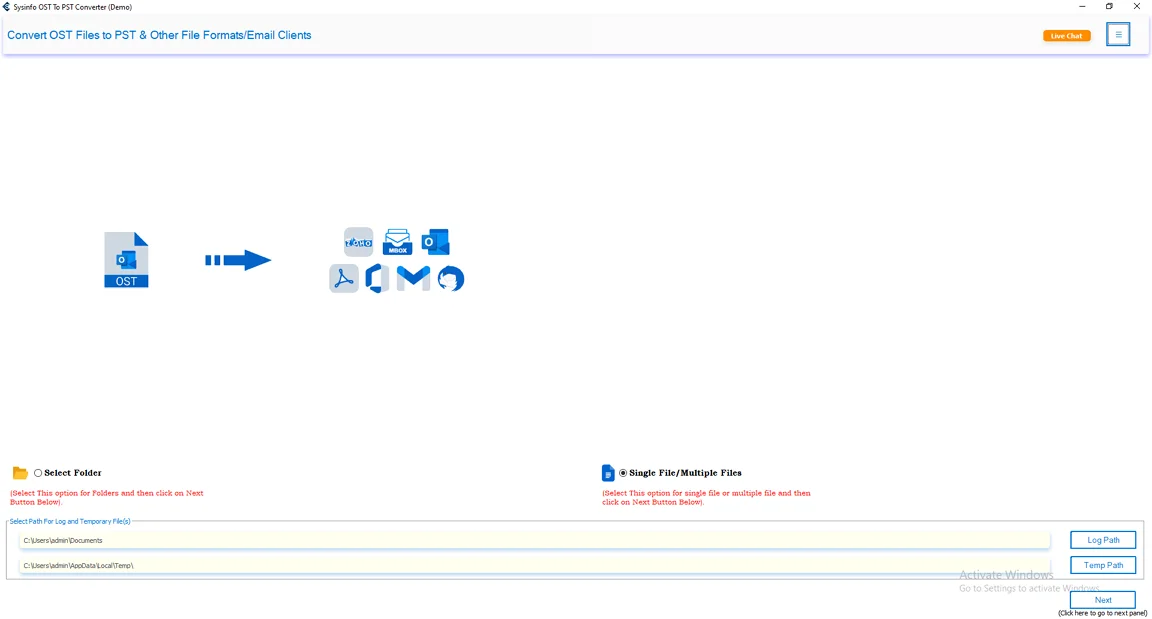
- Afterwards, go to Select Files/ Select Folder to add OST files and press Next.
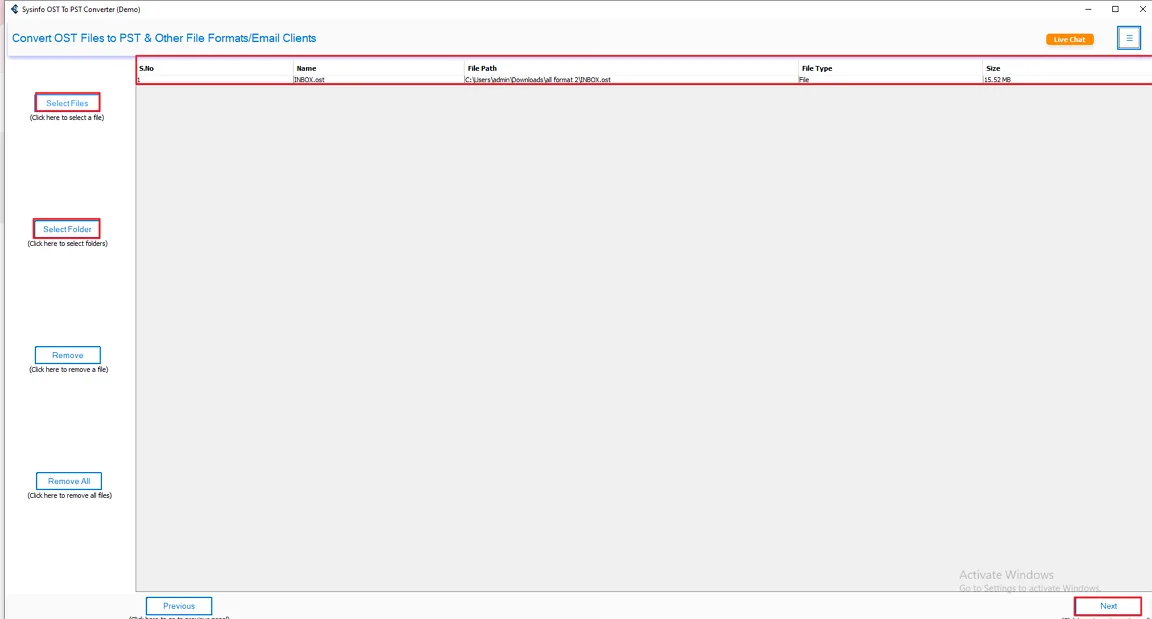
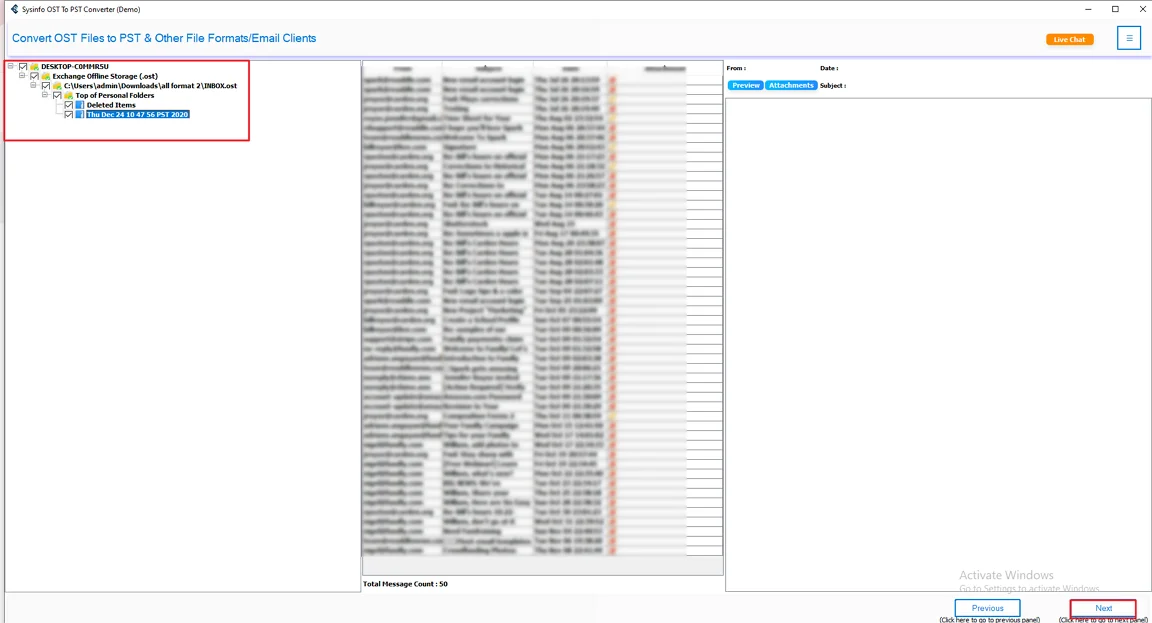
- Thereafter, preview and select your files from the tree structure. Click Next.
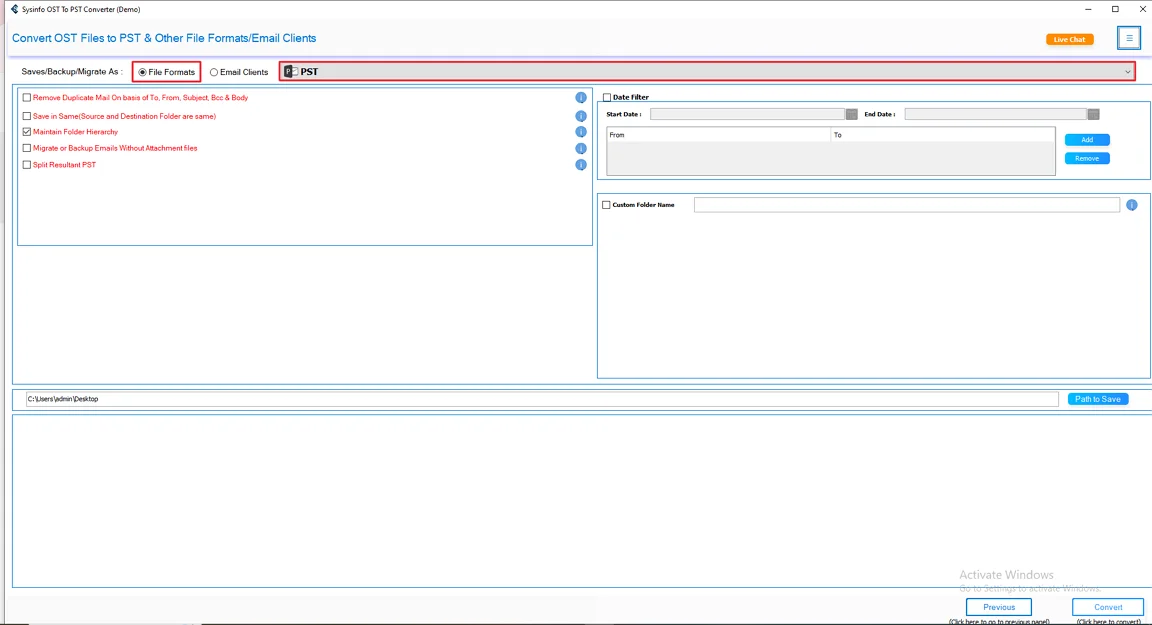
- Next, select PST as the saving file format.
- Finally, apply additional filters and press the Convert button to initiate the process.
Real-Life Scenario
I had a few OST files in Outlook, and honestly, the names were all over the place. It got confused, so I thought I’d just rename them and clean things up a bit.
At first, I tried renaming the file while Outlook was still open. Outlook started acting weird, and one of the files stopped syncing properly. That’s when I realized I probably did it the wrong way.
So I checked the proper method. I closed Microsoft Outlook, went to the folder where the OST file was stored, and renamed it from there. Then I opened Outlook again. It created a new OST file on its own and synced everything back. No issues this time.
In another case, one of my OST files was already corrupted. Outlook just wouldn’t sync it at all. That’s when I tried the MailConverterTools OST to PST Converter. The steps were pretty straightforward. I added the file, checked the preview, and ran the conversion. After that, I opened the PST file in Outlook. All my emails were there, in the right folders. Even the attachments were fine. It was way easier than what I tried earlier.
Final Words
To sum up, we covered all the aspects to rename OST file in Outlook. This could be done with the right method. In this guide, we discussed three methodologies that help you to rename your OST files. However, both the manual method is suitable for a small number of files, not for large files. Therefore, it is recommended to use the MailCoverterTools OST to PST Converter that smoothly changes the name without any data loss.
Frequently Asked Questions
Q1. What is the safest way to rename OST file in Outlook?
Ans. Just close Microsoft Outlook, go to the OST file location, and rename the file. Then open Outlook again. It will create a new file automatically. If you face any issues, you can also use MailConverterTools OST to PST Converter for a safer and easier option.
Q2. Will I lose my data if I rename an OST file?
Ans. No, you can use MailConverterTools OST to PST Converter if the OST file is corrupted or not syncing, using MailConverterTools OST to PST Converter. It can help you recover your data without any loss.
Q3. Is technical expertise required to rename an OST file?
Ans. No, it’s a simple process. Anyone can do it by following the basic steps. If you face issues like corruption or errors, you can use MailConverterTools OST to PST Converter to easily access and recover your data.
About The Author:

Vikas Bajpai is a results-driven SEO expert and content strategist with a strong passion for building impactful digital experiences. He specializes in crafting data-backed content plans that boost visibility, engage audiences, and drive measurable growth. With deep expertise in search engine optimization, keyword strategy, and content marketing, Vikas helps brands strengthen their online presence and achieve long-term success.
Related Post