-
Written By Vikas Bajpai
-
Updated on April 25th, 2026
Outlook Couldn’t Import Calendar Try Again Later Fix Tips
“I am Marinda, an Outlook user having around 50-100 iCalendar files. But the issue is that as soon as I try to import them into my Outlook calendar, I receive an error message, “Couldn’t Import. Try Again Later.” I have to plan a major upcoming event and also send the information to other members. Can you help me out how to resolve this error and access my calendar data file for further purposes without much hassle and risks.”
Received an ICS file from a client and want to access it within your Outlook calendar? Tapped Import Calendar, selected ICS, and clicked to Import, but got stuck with the error message: “Outlook couldn’t import calendar try again later fix”. If that’s so, don’t panic, we have got you with this technical guide. Start with the basic free troubleshooting and browse through the advanced ICS File Converter Tool solutions for a flexible and reliable fix.
Causes for Outlook Import Calendar Greyed Out Fix
To ensure that you can easily fix this issue, first understanding why it happened is quite necessary. The common reasons for it can be as follows:
- Malformed data fields and unsupported encoding of ICS
- Oversized iCalendar Outlook file
- Exchange/IMAP setup restrictions in Outlook account
- Corrupted Outlook profiles and conflicts with the cache
- Context and permission constraints resulting in a greyed-out import
- Server-side throttling and network issues
- Calendar linked or subscribed elsewhere
|
Note: If the errors for the import are only arising on one machine and work fine on another, then the problem is related to the system environment. If it appears the same everywhere, then it’s highly related to the ICS file. In either case, you must take appropriate fixes. |
Ideal Outlook Couldn’t Import Calendar Try Again Later Fix
We will discuss all free troubleshooting solutions for you first that generally comply with the environment. If they don’t help fix, we will proceed to the final converter tool, as trusted by experts, for an immediate fix at a large scale.
Fix Outlook Calendar Import Error ICS File-Troubleshoot
Follow the simple to technical fixes that can help you resolve this calendar import error at some point. Figure out which method works for you by trying them out. However, ensure you have the technical skills and understanding to execute them properly.
#1: Calendar Re-Import
If you are facing the error because of temporary synchronization issues, then:
- Wait for at least 10-15 minutes and hard refresh your Outlook calendar platform.
- Next, ensure your internet connection is stable.
- Try to re-import the ICS calendar file into Outlook.
#2: Verify ICS Structural Integrity
Formatting inconsistencies are another big issue with the Outlook import issue. So re-check the format as unable to import calendar into Outlook solution. Steps are:
- First, locate your ICS file and right-click it.
- Choose Open With >> Text Editor and access data.
- Further, locate these mandatory fields within it:
- BEGIN: VCALENDAR and BEGIN: V EVENT
- DTSTART and DTEND
- END: VCALENDAR
- Afterward, remove the incorrect and corrupted fields from the file.
- Identify any missing or duplicate blocks within the calendar and manage them.
- Finally, save it again on the PC and try to re-import within MS Outlook.
#3: Importing into a Different Calendar
Outlook couldn’t import calendar try again later fix also involves testing the ICS by accessing it in another calendar platform. Follow these steps:
- Initially, open Google Calendar or Apple Calendar, depending on your OS.
- Then, within it, click Import and choose From ICS File.
- Further, tap Import ICS to Google Calendar/Apple and wait for all the data to sync to another calendar.
- Now, tap Export again to get the imported calendar data in a new ICS file.
- In the end, try to add the downloaded ICS into Outlook again to see if the data is accessible now.
#4: ICS Import in New Calendar
If you still cannot figure out the optimal Outlook import calendar greyed out fix, try this:
- Open the MS Outlook app and go to the Calendar within it.
- Then, choose to create a new blank calendar.
- Further, from File, click Open & Export and go for Import/Export.
- Afterward, opt for Import an iCalendar file and click Next.
- Select ICS from the system and import it into the new Outlook calendar.
#5: Rectify ICS Calendar Name
Another way for you to resolve this issue for free is by checking and correcting the name of the calendar file. Try the given steps:
- Browse to the folder location where Calendar is stored and right-click it.
- Select Properties from the list and check the saved name of the file.
- Verify the name isn’t too long or contains special characters.
- If yes, then change to a simple name with no spaces and special characters.
- Finally, save the new name of the ICS file and try to import it.
#6: Try Outlook Web App
Another Outlook couldn’t import calendar try again later fix is to use the web application if nothing on the desktop works. The steps involved are:
- Open the Outlook Web App (OWA) and click the Calendar icon.
- Within it, press Add Calendar and choose Upload from file.
- Select your ICS file and upload into the web calendar.
- If it completes, it will automatically sync data to the desktop calendar in some while.
|
What Else Can You Try? If you have tried all the above manual fixes and are still not ready to give up or opt for a third-party solution. Then, these are the last few fixes that you can resort to:
|
Fix Outlook Calendar Import Error ICS File- Expert Tool
As specified, when none of the manual methods seem to help you out, then the professional tool is your solution. MailConverterTools ICS File Converter is a robust solution to instantly save ICS files as Outlook PST or a new ICS at once. It doesn’t affect the data integrity or folder structure at all and keeps secure offline processing. With just a few steps, you can achieve the perfect, ready-to-use Outlook calendar file.
Outlook Couldn’t Import Calendar Try Again Later Fix Steps
- Install and start the ICS Conversion Tool on the OS.
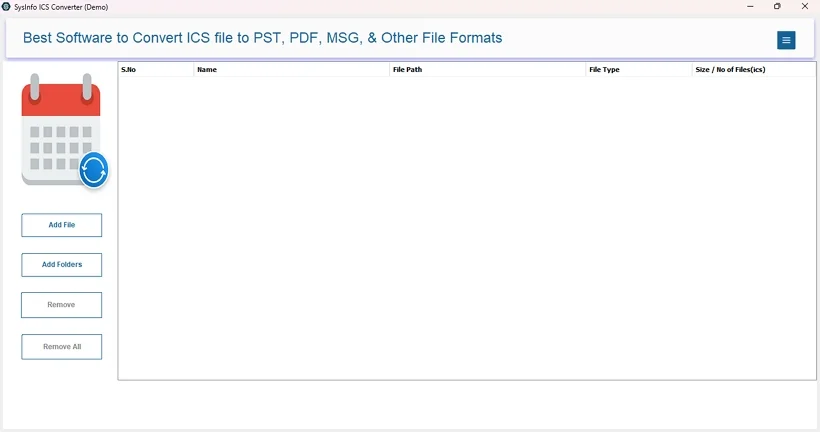
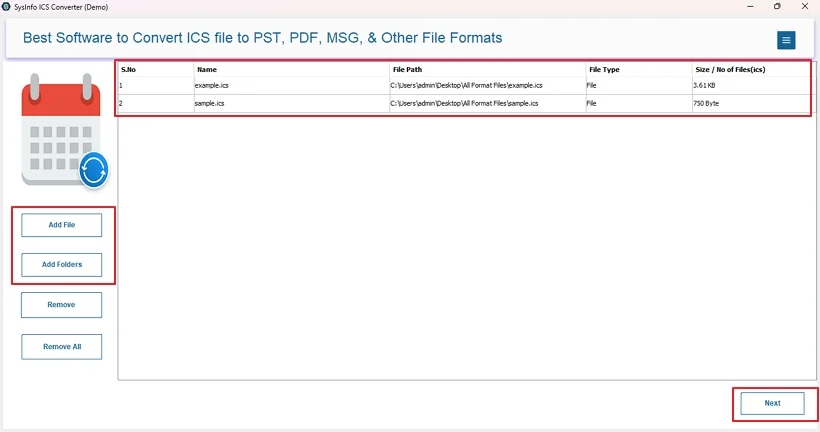
- Then, click Add File/Folder and upload the ICS. Tap Next.
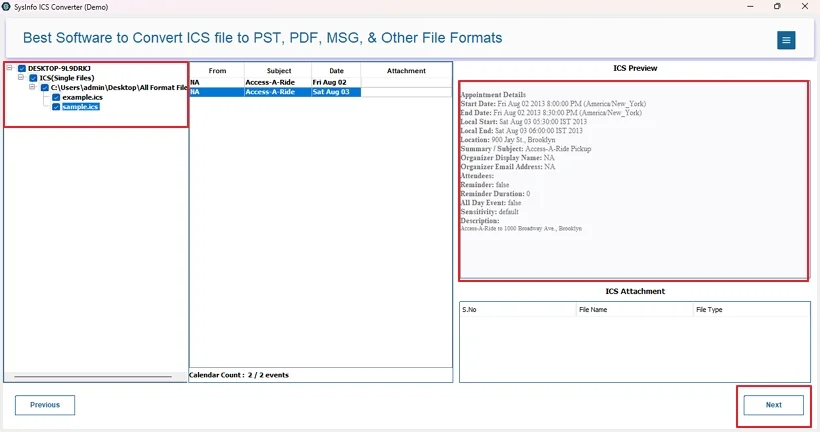
- Further, verify contents and select files. Tap Next.
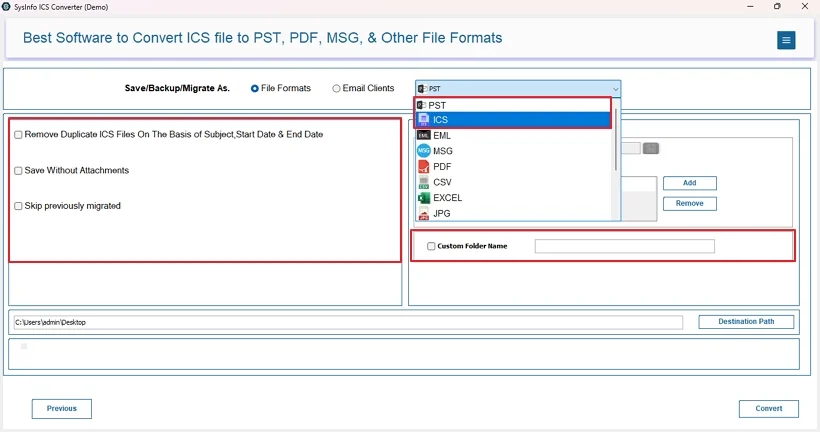
- Afterward, choose PST/ICS from the menu and use filters.
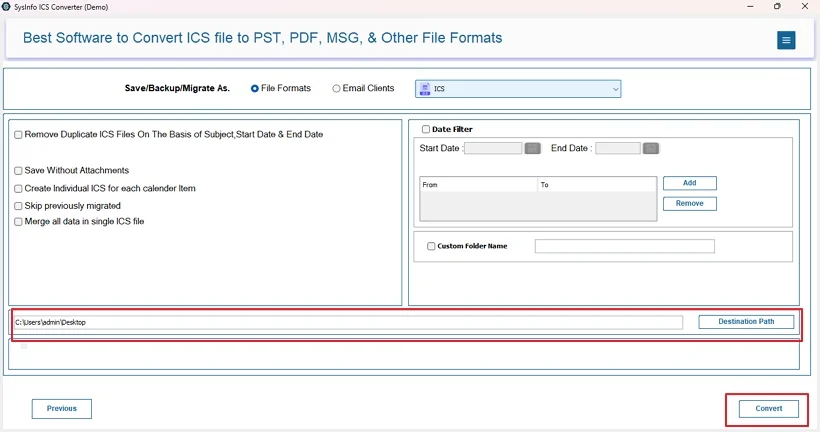
- Finally, specify the target path and click Convert to save.
|
Note: Once your file is saved. Open Outlook and use the Import/Export wizard to open the ICS/PST file securely within it. |
Why Is It Beneficial to Enterprises?
Unable to import calendar into Outlook solution: MailConverterTools ICS Converter because:
- It is quick, safe, and allows batch conversion in one go.
- No file size limitations and complete data fidelity.
- Suitable for all Mac, Linux, and Windows OS.
- Helps import ICS to Apple Calendar and others, too.
- Requires no technical knowledge and is self-explanatory.
- Supports all Outlook versions and creates clear, structured outputs.
- Offers DEMO VERSION for evaluation and a few free conversions.
Real Life Scenario Where It Worked
An operations team needed to immediately import 2O MB ICS calendar file with more than 6,000 events. However, Outlook repeatedly failed and presented the Try Again Later error. By using the MailConverterTools ICS Conversion Tool, the team immediately saved it as a PST, imported it into Outlook, and Voila! No duplicates, instant access, and 100% successful data import with zero loss.
Final Remarks
The problem isn’t that “Outlook is broken,” it’s how Outlook interprets calendar data based on different conditions. If you ever face the Outlook couldn’t import calendar try again later fix issues, you just need to:
- Validate the Input
- Control Your Environment
- Choose the Proper Fix & Import Method
Once all three of these are sorted, the error will be resolved without being told, and your calendar data will be exactly where it belongs. For best case, use the MailConverterTools ICS Converter Software and save your time, cost, and effort.
Frequently Asked Questions
Q.1 How do I fix Outlook couldn’t import calendar try again later error?
Ans. Start by validating the ICS calendar file, then attempt to open the file and import; if that continues to produce an error, create a new Outlook profile or consider using Outlook Web. If not, use a ICS Conversion Software and save your file as a new ICS or PST and import it later again into Outlook.
Q.2 What causes Outlook calendar import to fail on Windows?
Ans. The possible causes of the calendar import issue are: corrupt ICS files, profile issues, large file sizes, and account-level restrictions.
Q.3 Is it safe to import calendar into Outlook after fixing the error?
Ans. Once the original issue is resolved, importing will certainly be fine, but always backup your original ICS file using a smart backup tool. Like, ICS File Converter Wizard by MailConverterTools.
Q.4 Can I fix Outlook calendar import error ICS file for free?
Ans. Yes! Most of the fixes do not require any paid third-party tools. The free manual fixes include file validation, profile reset, use of Outlook Web, etc. You can even try the ICS File Converter as its Trial Version allows free saving items upto 10 files per folder.
About The Author:

Vikas Bajpai is a results-driven SEO expert and content strategist with a strong passion for building impactful digital experiences. He specializes in crafting data-backed content plans that boost visibility, engage audiences, and drive measurable growth. With deep expertise in search engine optimization, keyword strategy, and content marketing, Vikas helps brands strengthen their online presence and achieve long-term success.
Related Post