-
Written By Priyanka Kumari
-
Updated on May 18th, 2026
How to Import MBOX to Apple Mail Quickly – Complete Guide
User Query: A Mac user wants to move emails from a third‑party MBOX archive into Apple Mail without losing folders or attachments. They need a simple, non‑scripting method that works reliably on macOS and keeps dates, senders, and mailbox structure intact.
Many users try to import MBOX to Apple Mail by dragging the file into the app. This manual method is slow, unreliable, and often breaks folders or dates. The MailConverterTools MBOX Converter fixes this by preparing MBOX files cleanly on Windows. It keeps folders, senders, dates, and attachments safe before import. You end up with a smooth, error‑free move into Apple Mail instead of trial‑and‑error. This guide will walk you through each step and the correct migration process.
What is the Traditional Approach to Open MBOX in Apple Mail?
Apple Mail includes an import option for opening MBOX mailbox files manually. Users usually prefer it for smaller mailbox transfers and basic email access. Below, we have covered the steps for the same.
- Open Apple Mail on your Mac, then hit File in the top menu bar.
- Next, pick Import Mailboxes from the dropdown.
- In the import window, select Files in MBOX format, then click Continue.
- Browse to your MBOX file location and highlight the file you need.
- After that, click Choose to kick off the import process.
- Imported mailboxes show up under the Import folder in your Mail sidebar.
What Breaks When You Migrate MBOX to Apple Mail?
- Handling multiple large MBOX files manually actually slows the import workflow considerably.
- Missing emails happen during manual import, though you won’t notice until validation later.
- Email formatting breaks sometimes, and attachments detach, or folder trees flatten after import.
- Non-technical teams waste hours on this process, as each step demands careful verification.
- One incorrect click interrupts the whole import sequence. Honestly, there’s no undo button.
- Manual methods skip advanced features like selective import or duplicate detection to ease the process.
What is the Expert Way to Import MBOX To Apple Mail?
Manual methods to import MBOX files are not that effective for enterprise-level migrations. MailConverterTools MBOX Converter Tool comes to the rescue and helps to open or access MBOX files in Apple Mail with complete data safety. The software ensures that every folder structure remains the same and no business-critical data is lost in the process. Along with that, it lets you import MBOX to Gmail and other email clients as per your needs.
Procedure to Transfer MBOX to Apple Mail:
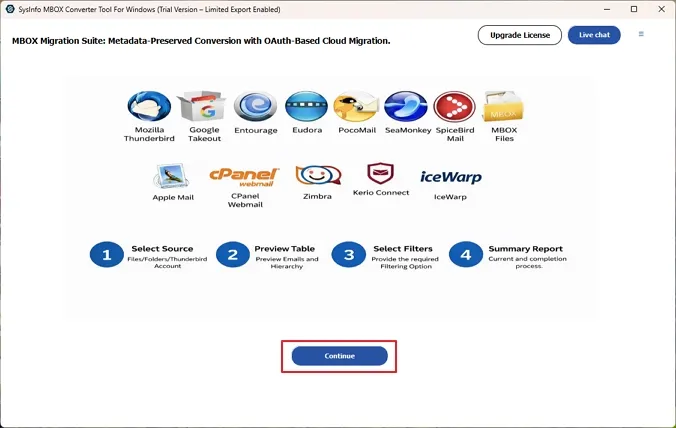
- At first, install and launch the MailConverterTools MBOX Converter Tool on your system. Then, hit Continue.
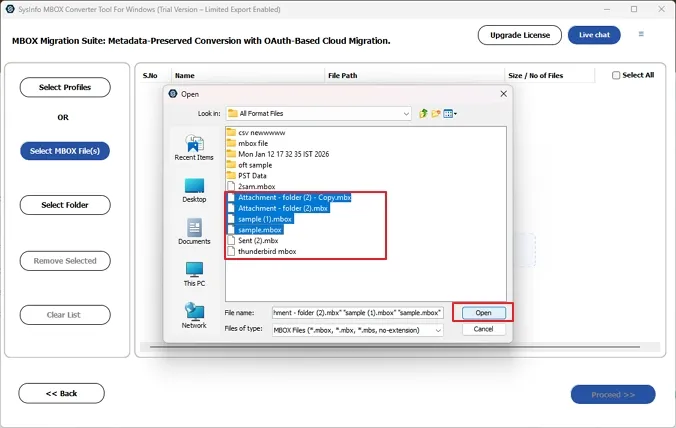
- Further, click on Select Files or Select Folder to locate the MBOX files to add to the tool.
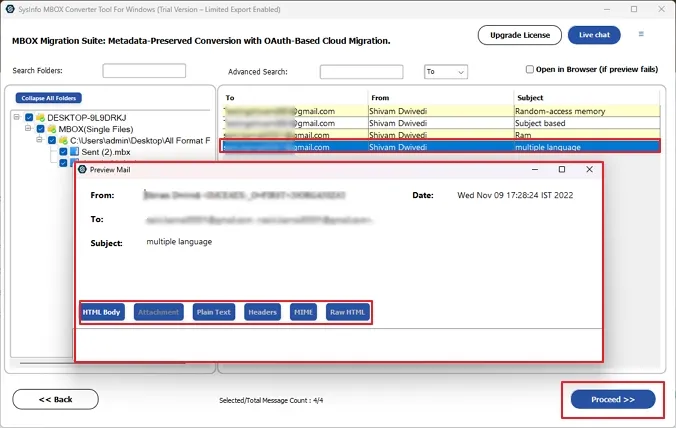
- Moving ahead, expand the tree structure and preview file content before you select the files to convert. Then, hit proceed.
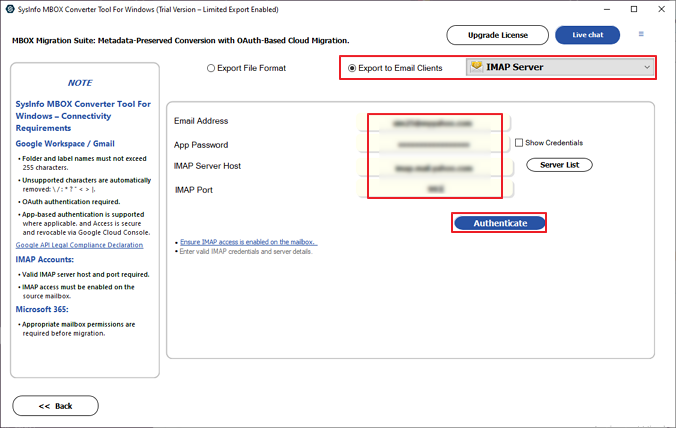
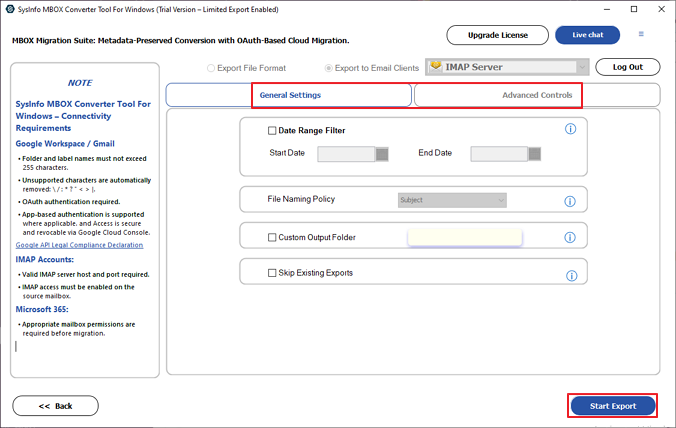
- Meanwhile, choose IMAP in the export to email clients option and authenticate with the correct Apple Mail details.
- In the end, apply the needed filters and tap on Start Export to start the process.
What Are The Key Features Of The Software?
- Transfer MBOX mailbox data into Apple Mail without following lengthy manual import procedures.
- The original mailbox structure remains unchanged after importing email data successfully.
- Even old and oversized MBOX files are processed correctly during large migration operations.
- Users can review mailbox emails before starting the actual transfer operation manually.
- Non-technical users can understand the software steps without facing unnecessary confusion.
- The utility helps you to import MBOX to iCloud directly from old mailbox archives.
Real Case Scenario
Last month, a freelance designer replaced her old Windows laptop with a MacBook. She needed years of Thunderbird emails inside Apple Mail before starting a client project. The manual import sounded simple at first, although several folders turned messy later. A few email attachments became inaccessible during migration. She used the MailConverterTools MBOX Converter Tool instead for this migration issue. Everything moved correctly, and the mailbox looked exactly the way it did earlier.
To Wrap Up
Teams that import MBOX to Apple Mail using manual routes often lose important data. Path errors surface after imports finish, and validation happens too late. MailConverterTools MBOX Converter parses containers at the raw level to avoid those failures. It keeps attachments linked and folder hierarchy intact without any manual rework. The software comes with advanced features to offer selective migration and other functionalities for seamless migration.
Frequently Asked Questions
Q.1 How to import MBOX to Apple Mail without losing emails?
Ans. You can use the MailConverterTools MBOX Converter Tool to import MBOX files into Apple Mail safely. The software maintains email formatting, attachments, and mailbox hierarchy during the import process.
Q.2 Can I get 24/7 support if I face issues while opening MBOX in Apple Mail?
Ans. Yes, MailConverterTools MBOX Converter Tool provides technical support assistance to help users resolve issues related to MBOX file import and mailbox migration.
Q.3 Can I bulk import and open multiple MBOX files in Apple Mail?
Ans. Yes, the MailConverterTools MBOX Converter Tool supports bulk importing of multiple MBOX files, making it suitable for large mailbox migration requirements.
Q.4 Is it easy to transfer MBOX files to Apple Mail for non-technical users?
Ans. Yes, the MailConverterTools MBOX Converter Tool comes with a simple and user-friendly interface that helps non-technical users complete the import process easily.
About The Author:

Priyanka Kumari is a technical content writer in the fields of Email Migration, Data Recovery, Cloud Migration, and File Management. She is dedicated to simplifying complex technology terminologies for all users. Her articles and guides demonstrate her commitment to streamlining email management for professionals or businesses of any size.
Related Post