-
Written By Amit Chandel
-
Updated on November 8th, 2025
Simple Steps to Remove Password From PST File Easily
You launch Outlook, and instead of the inbox you expected to see a pop-up appears on the screen requesting the password. You try the password you think is right, and it does not work, and worse, you do not recall even setting a password. Does this sound familiar?
This is a common occurrence when the PST file (the Personal Storage Table file), which stores your Outlook data, is secured with a password. While this is a great security feature, it is a challenge when you forget the password. Let’s explore simple and safe methods to remove password from PST file for free or with PST Password Remover. It helps get you access to your data to get back to work in your Outlook without hassle.
Urgent Attention Required! “I am stuck with an important PST file that I need to access. But the problem is that it is password-encrypted, and I do not remember the password. Is there any way I can remove PST file password quickly without hampering my crucial data?”
-Tasaka Biilish
Why Remove Password From Outlook PST File?
Microsoft Outlook allows users the option to password-protect PST files for additional security. However, many users forget or lose the password they set. Especially users managing multiple mail profiles or archival accounts. Some common reasons for this may include:
- A PST file was created years ago that is protected with an old password.
- When you move data into or import Outlook data from another device.
- Workplace backups with incidental security applied need to be opened.
- Corrupted or damaged PST metadata generates a password prompt.
No matter the reason, there are reliable ways to remove a PST password and safely access, view, and edit your data in Outlook.
How to Remove Password from PST File Easily?
There is a very simple native manual method by Microsoft Outlook for the removal. And the other one involves the use of an expert tool to unlock the PST file quickly within some time with zero loss and no manual hassle.
Traditionally Open Password Protected PST File
If you still have access to the old password, Outlook provides a way to remove it manually from your account settings. The steps are:
- Open Outlook, then go to File –> Account Settings -> Account Settings.
- There, under the Data Files tab, select your PST file.
- After that, click Settings -> Change Password.
- Further, in the “Change Password” window, type in your Old Password.
- Then, leave the New Password and Verify Password empty.
- Finally, click OK for confirmation. Now, your PST file is free of a password.
Note: This option is only available if you know the password already. Outlook does not allow you to remove or reset a password without verifying the old password. Also, you may need an Outlook installation and basic technical skills for this method.
Automatically Remove Password from PST File
If you have forgotten or lost the PST password, the manual route to reset it is not an option for you. Here is where a professional MailConverterTools Outlook PST Password Remover comes in handy. It is specially built to unlock Outlook PST files without data loss or corruption. Some other top-notch features of this excellent software are:
- Instantly unlocking or resetting a PST file password.
- Full support for all Outlook versions from 2003 – 2021.
- Compatible with ANSI and Unicode PST formats.
- Can remove passwords from multiple PST files at once.
- Does not affect emails, attachments, contacts, or folder structure.
- Supported for all the latest and earlier versions of Windows and Mac.
- Easy-to-use interface for everyone with 24*7 expert support.
- Advanced Demo Version to remove password from PST of upto 10 GB free.
Steps to Remove Password From Outlook PST File
- Launch the Outlook PST Password Remover as an administrator.
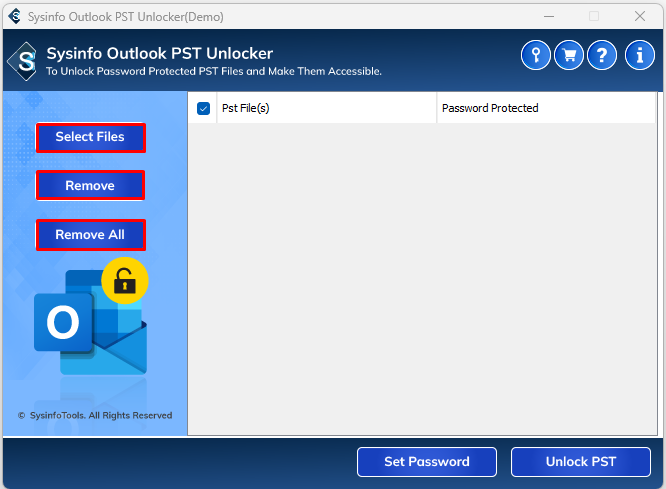
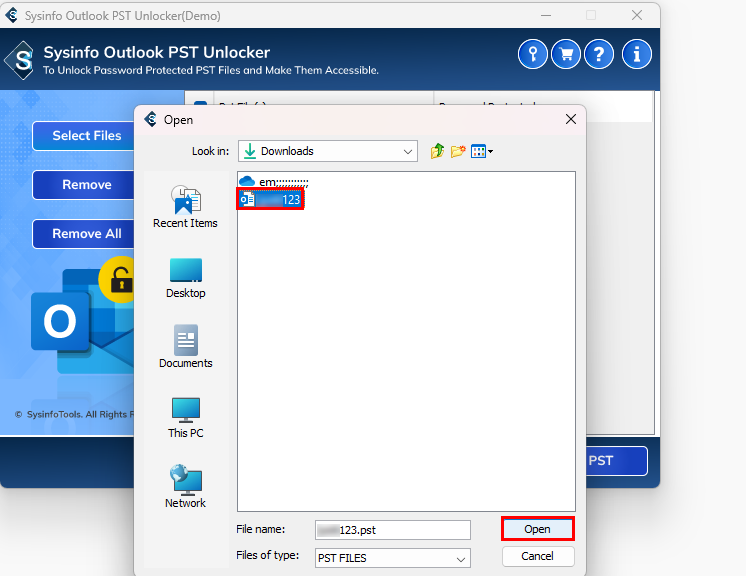
- Next, add the PST file(s) you want to unlock that are password-protected.
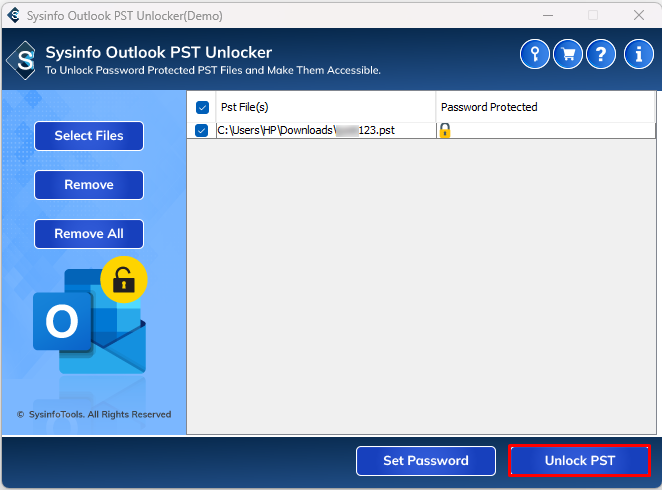
- At last, click on Unlock PST to immediately unlock the PST file effortlessly.
Example Case:
An HR professional had numerous password-protected PST files archived from five years ago that were inaccessible. Since the passwords were no longer known, the manual option with Outlook didn’t work. The HR professional used the PST Password Remover to remove PST password from all files in just a matter of minutes. Thus, recovering important HR correspondence without losing a single message.
Explore More: Split Large PST file Outlook
Conclusion
Being locked out of your own data in Outlook is very frustrating, but there are ways to handle it. You can remove password from PST file manually if you still remember it. Or use an Outlook Password Recovery Tool if you forgot it, or have to deal with files with passwords set in bulk. Either way, we just want to remind you, smart management of your PST files today will save you hours of recovery work tomorrow!
Frequently Asked Questions
Q1. Can I remove PST file password manually in Outlook?
Ans. Yes, but only if you still remember the current password. Then, go to File >> Account Settings >> Data Files >> Choose PST >> Settings >> Change Password and leave the fields for the new password blank.
Q2. Can I remove passwords from multiple PST files at once?
Ans. Yes, of course. Use the Outlook Password Recovery Tool to unlock multiple PST files at once without limitations.
Q3. Which is the best tool to Remove Password From PST File?
Ans. The best tool to use is one that supports all Outlook versions, guarantees that no data will be lost, and allows batch removal of passwords. Like the MailConverterTools PST Password Remover.
Q4. Is it possible to recover the old PST password?
Ans. There’s nothing directly in Outlook; however, password recovery software can scan the file and recover or remove the password automatically.
Q5. How long does it take to remove password from Outlook PST file?
Ans. This usually takes a few seconds to minutes, depending on the file size and number of PSTs being processed.
About The Author:

Meet Amit, an experienced SEO expert and content planner. He uses his creativity and strategy to create content that grabs attention and helps brands reach their goals. With solid skills in digital marketing and content planning, Amit helps businesses succeed online.
Related Post