-
Written By Amit Chandel
-
Updated on January 14th, 2026
Top Methods to Convert PST to MBOX on Mac & Windows
Summary: Generally, users use MS Outlook for email communication and PST is the default storage format for its files. However, it is not very compatible with different systems and email clients. Therefore, they want to convert PST to MBOX. We will get to know more about their needs, and reliable methods through this blog. Also, we will discuss a way to convert and still keep your files safe using the MailConverterTools PST Converter. Let’s get into the blog now.
Why Convert Outlook PST to MBOX?
Some significant reasons that make users switch from PST to MBOX are:
- MBOX format is more compatible with different email clients than PST.
- It is easier to transmit and retrieve data from MBOX format.
- Needed because the mailing format of organizations differs from each other.
- Also, PST conversion prevents from corruption of Outlook files leading to data loss.
- Moreover, managing MBOX files is simple and is not too risky.
Methods for PST to MBOX Conversion
In the section below, we will discuss the following conversion methods:
- Using Outlook
- With Google Takeout
- Automated Tool
The complete step-by-step guide for these methods in detail is given below.
Method 1: Export PST to MBOX Using Outlook
Follow the steps given below to execute the conversion process.
For Windows:
1. Launch Thunderbird on your system. Select your mail and click Import.
2.The Import window will open. Select Import from Outlook and click Continue.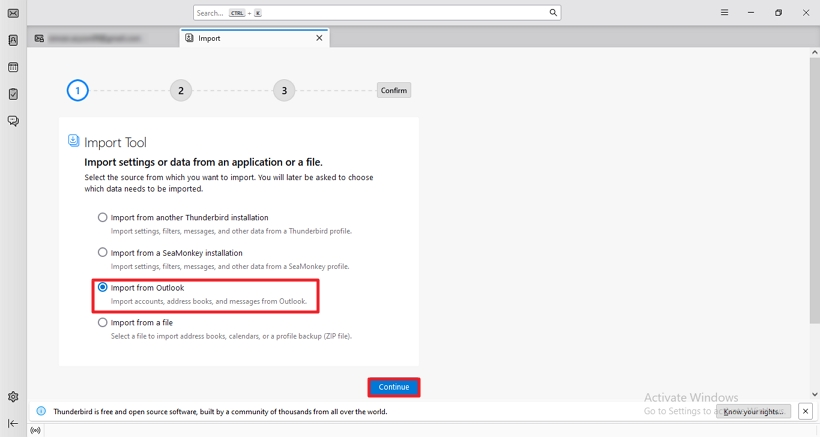
3. Further, on the next page, select the items to import and click Continue.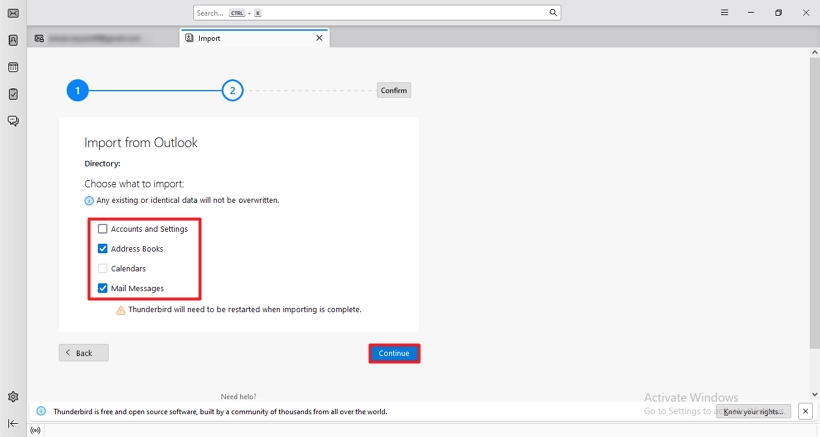
4. Next, click the Start Import button to import your PST files. Click Finish.
5. Now, go to Account Settings and click Add-ons and Themes > Add ImportExportTools NG.
6. Afterward, select Outlook, right-click, and select ImportExportTools NG > Folder Export (mbox) > As MBOX file.
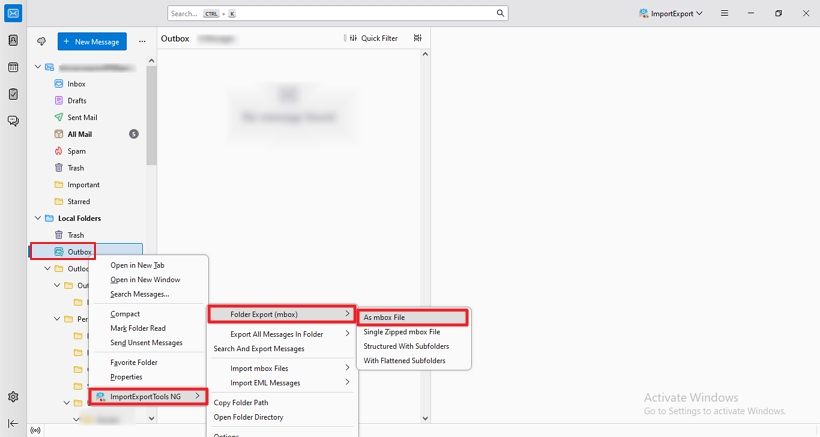
7. Subsequently, choose the destination to save and click the Select Folder button to complete the conversion process.
On Mac:
- Open Mac Outlook, go to File, and click Import.
- Next, choose your PST file to convert and click the Import button.
- Now, drag the imported mailbox on the system. Your PST file is successfully converted to MBOX.
Method 2: Convert PST Files to MBOX with Google Takeout
This method involves two stages to convert PST to MBOX without Outlook. These are as follows:
Stage 1: Importing PST to Gmail
This stage is divided further into two parts:
#Enabling IMAP
- Sign in to your Gmail account, go to Settings, and select See all settings.
- Move to the Forwarding and POP/IMAP tab and in the IMAP Access section, Enable IMAP.
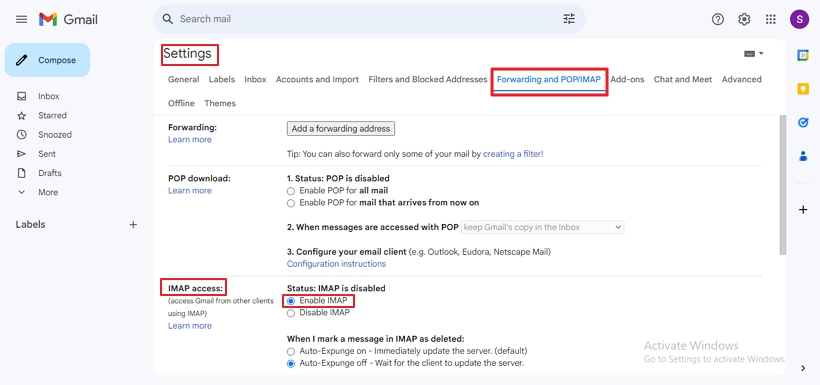
- Then, click Save Changes.
#Setting Gmail in Outlook and Importing PST
-
- Launch Microsoft Outlook and go to File > Add Account.
- Enter your Gmail credentials and click Connect.
- Further, when configured, click Done.
- Next, go to File again, click Open & Export, and select Import/Export.
- Afterward, choose Import from another program or file and click Next.
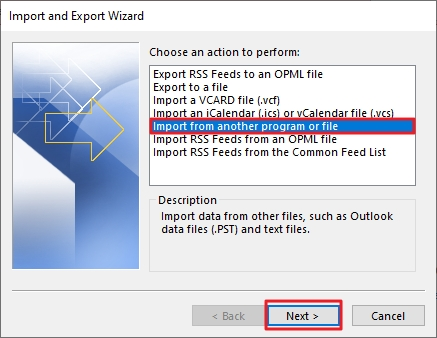
- Then, choose Outlook Data File(.pst). Click Next.
- Subsequently, browse and select the PST file to import and click Next.
- At last, select your Gmail account as the destination to Import PST File to Gmail and click Finish.
Stage 2: Exporting Emails to MBOX with Google Takeout
- Open Google Takeout on your system.
- Next, scroll down to find Mail, and check the box beside it. Scroll down the page till last and click Next.
- Further, set the frequency to Export once, and select the file type and size.
- Lastly, click Create Export.
On downloading, and extracting contents, you receive the MBOX file. Furthermore, you can open and import the contents in a preferable email client.
Limitations of the Manual Method
- It is a lengthy and time-consuming process and requires technical knowledge.
- Users face lots of errors while connecting to different accounts.
- There is a high-risk factor in using this cost-free method.
- This method is not very compatible with all versions of the system.
Convert PST to MBOX using a Professional Tool
The PST to MBOX conversion might seem tricky at times. For hassle-free conversion, use the PST File Converter. No matter how bulky your PST files are, the tool converts them and keeps data intact during conversion. It is flexible and reliable and has other advantageous features too. These are:
- It allows users to import Emails, Contacts, Calendars, and more in bulk easily.
- Allows to Convert PST to PDF with Attachments and other file formats too.
- Moreover, you can directly import PST to Gmail, Office 365, G Suite and more.
- It is highly compatible with different operating systems and email clients.
Steps to Export PST to MBOX
-
- Download and install the tool on your system. Run it as an administrator.
- Choose either of two options: Select Single/Multiple File or Select Folder and click Next.
- Further, click Select Files, browse and locate PST file to import, and click Open. Click Next.
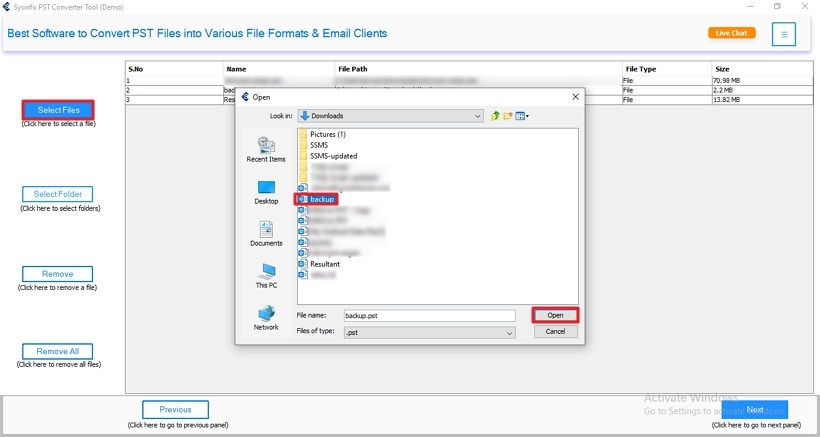
- Now, expand the tree hierarchy, select the files to preview, and click Next.
- Subsequently, choose MBOX as a file-saving format. Apply additional filters if required.
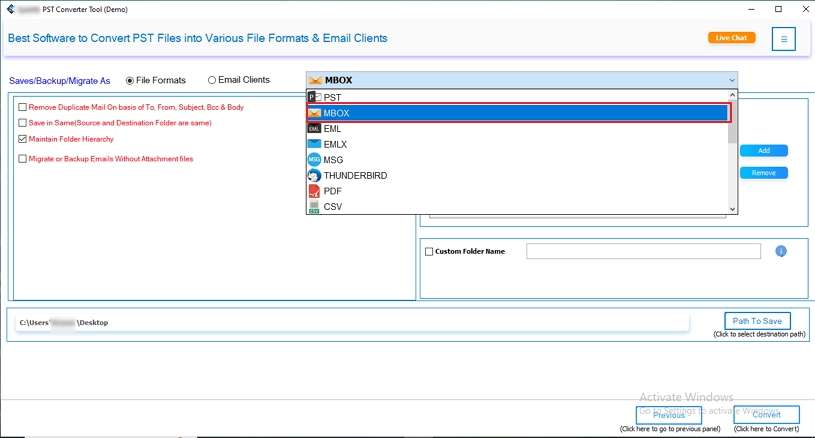
- After that, specify the destination to save the converted PST file.
- Finally, hit the Convert button.
Explore More: Convert PST to HTML
Conclusion
We have covered manual and professional methods in this blog to convert PST to MBOX. Though the manual method is cost-free, it is difficult to implement for novice users. Therefore, exporting using the expert tool is a better choice. It saves you time, is easy to use, and maintains folder hierarchy and data integrity.
Frequently Asked Questions(FAQs)
Q. How do I convert PST to MBOX on Mac?
Ans: To convert PST to MBOX on Mac, follow these steps:
1. Launch Mac Outlook, and go to File > Import.
2. Next, select your PST file and click Import.
3. Then, drag the imported mailbox onto the system.
Your PST file is successfully converted to MBOX.
Q. Can I export PST file to MBOX with attachments?
Ans: To export PST file to MBOX with attachments, follow these steps:
1. Download the PST Converter tool on your system and run it.
2. Choose any of the two options: Select Single/Multiple File or Select Folder and click Next.
3. After that, click Select Files, browse, and choose PST file. Click Open. Click Next.
4. Expand the tree structure, preview files, and click Next. In addition, choose MBOX as a format to save. Apply additional filters if required.
5. Specify the destination to save and hit Convert.
About The Author:

Meet Amit, an experienced SEO expert and content planner. He uses his creativity and strategy to create content that grabs attention and helps brands reach their goals. With solid skills in digital marketing and content planning, Amit helps businesses succeed online.
Related Post