-
Written By Amit Chandel
-
Updated on December 23rd, 2025
Quick & Easy Solution to Export Gmail Contacts to VCF File
Derry’s Query:In my company, we are migrating our contact data to a new CRM system. Since the CRM supports VCF format, I am looking for a reliable and efficient way to convert Gmail contacts into VCF files. Is there any proficient solution for this?
Do you want to export Gmail contacts to VCF? If you are searching for the same, you are in the right place. This is useful for users who want to transfer their contacts to a CRM tool. The VCF file format is important because it is well structured and works with many CRM platforms. In this blog, we will cover manual methods and also use the professional MailConverterTools Google Workspace Backup Tool. This tool eases the process in a few steps.
Why Export Contacts from Gmail to VCF?
This export is important to make contract management easy, safe, and more flexible. Below are some important reasons:
- VCF files are easy to import anywhere because it is supported by most devices, email apps, and CRM tools.
- The VCF files can help you to recover accidentally deleted Gmail Contacts.
- Contacts saved in a VCF file can be used anytime, even offline, after import to any device.
- It helps you to share contacts easily as a VCF file, and allows the receiver to import all contacts directly to another device.
- Moreover, a VCF file keeps all contact details properly arranged in one single file.
Manual Method to Export Gmail Contacts to VCF
Here, we will discuss the manual approaches for desktop and Android phone users to export their contacts from Google to VCF. It uses built-in methods, so you don’t have any need to use extra software.
#1: Export Google Contacts to vCard Using Google Contacts
This method works best for users who want to export Gmail contacts from a computer. It uses Google’s built-in Contacts service, so no extra software is required.
- Firstly, open any web browser and go to Google Contacts.
- Then, sign in using your Gmail account details.
- From the contact list, select the contacts you want to export.
- Thereafter, click the More options (three dots) or the menu icon and choose Export.
- Afterwards, select vCard (.vcf) as the file format.
- Finally, click on Export to download the file.
#2: Using Google Contacts to Export Google Contacts to VCF
Android users can export Gmail contacts directly from their mobile phone without using a computer or third-party tool.
- To begin with, open the Contacts app on your Android device.
- Then, tap the three-dot menu (⋮) and select Settings.
- Under Manage contacts, tap on Export or Export contacts.
- After that, choose your Gmail account and select the contacts you want to save.
- Finally, tap Export to .vcf file.
Limitations:
- Selecting and exporting contacts manually can take a lot of time if you have many contacts.
- You must repeat the same steps every time you want to export contacts.
- Manual selection may cause some contacts to be skipped by mistake.
- In addition, you cannot filter contacts based on specific fields like company name or category.
Simple Solution to Export Gmail Contacts to VCF File
To overcome the limitations of manual methods, the Google Workspace Backup Tool is the perfect option. It is a reliable and secure way to convert your data into VCF format with proper security. It offers various useful filters that allow you to customize the resultant output file. This tool supports batch conversion and proper data integrity.
Steps to Export Contacts from Gmail to VCF
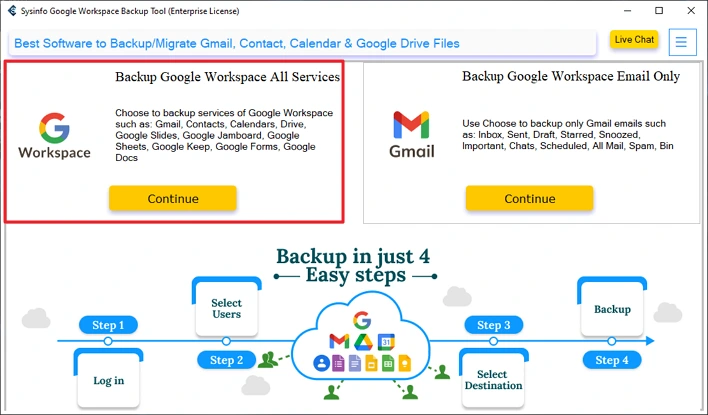
- Download the tool and choose Backup Google Workspace All Services.
- Then, log in with the required Gmail credentials.
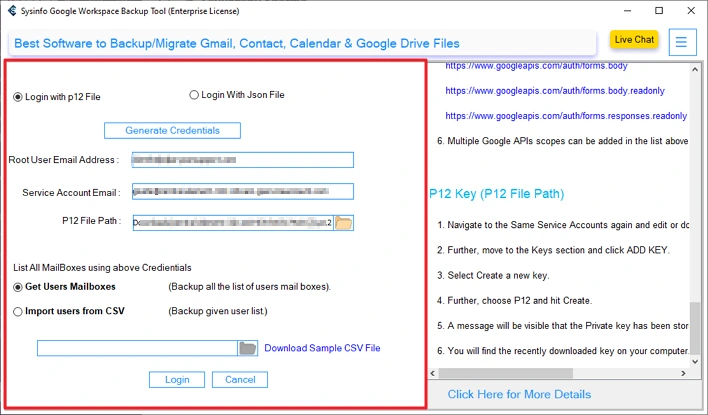
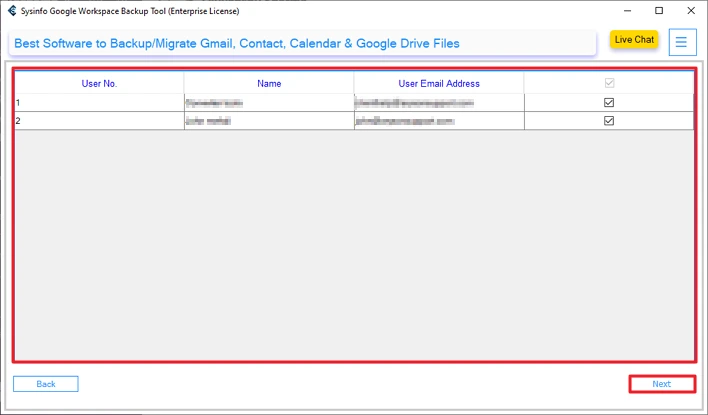
- After that, select users and click Next.
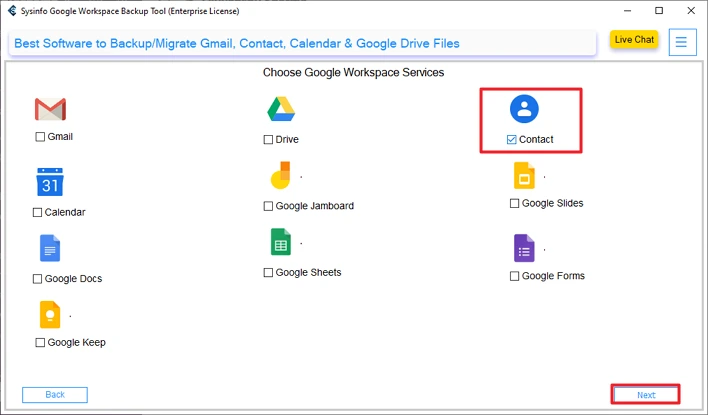
- Thereafter, choose contacts from the option and click Next.
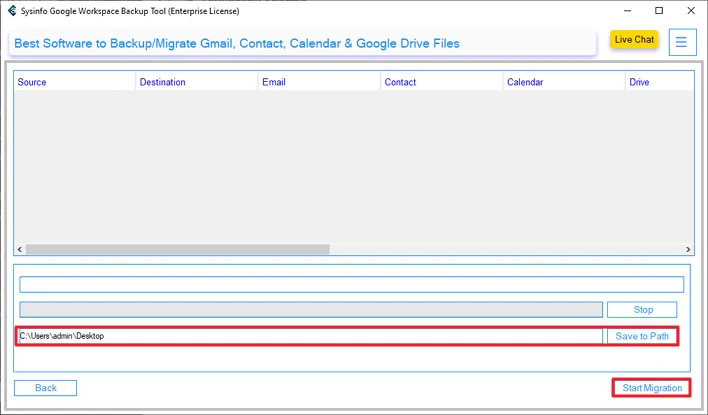
- Finally, set the path to save and click Start Migrations.
Successful User Case:
An IT administrator needs to migrate their Gmail contacts from multiple users to a CRM tool. The administrator used manual methods, but it was slow and risky. He used the MailConverterTools Google Workspace Backup Tool to export all contacts to VCF format in one go. He found that the process was quick, accurate, and secure; the tool helped him complete the migration on time without data loss.
Conclusion
This is very beneficial for users to export Gmail Contacts to VCF file. The VCF file is compatible with many devices and can be used as a backup. Manual methods are ready to export but have limitations with security, accuracy, and batch processing. On the other hand professional Google Workspace Backup Tool provides security, data integrity, and bulk conversion. Additionally, our tool offers a trial version that helps users to interact with our tool.
Frequently Asked Questions
Q1. How do I export Google Contacts to a vCard file?
Ans: You can export Google Contacts to a vCard file by signing in to Google Contacts, selecting the contacts, clicking Export, and choosing vCard (.vcf) as the format. For bulk or business exports, the MailConverterTools Google Workspace Backup Tool offers a faster and more reliable option.
Q2. Can I export only selected Gmail contacts to VCF?
Ans: Yes, Google Contacts allows you to select specific contacts before exporting them to VCF format. If you need advanced filtering or bulk selection across multiple users, the Google Workspace Backup Tool makes the process easier.
Q3. Can I export Google contacts to VCF on an Android phone?
Ans: Yes, Android users can export Google contacts to a VCF file using the Contacts app. Simply open Settings, choose Export contacts, and save them as a .vcf file on your device.
Q4. Is there a size limit when exporting VCF from Gmail?
Ans: Google may slow down or restrict exports when dealing with a large number of contacts. To avoid size-related issues and ensure smooth export, using a professional solution like the Google Workspace Backup Tool is recommended.
Q5. Which is the best tool to export Gmail Contacts to VCF?
Ans: The MailConverterTools Google Workspace Backup Tool is one of the best options for exporting Gmail contacts to VCF. It supports bulk export, maintains data accuracy, and is ideal for both individual users and businesses.
About The Author:

Meet Amit, an experienced SEO expert and content planner. He uses his creativity and strategy to create content that grabs attention and helps brands reach their goals. With solid skills in digital marketing and content planning, Amit helps businesses succeed online.
Related Post