-
Written By Amit Chandel
-
Updated on March 19th, 2026
How to Import PST to eM Client – Step-by-Step Guide
User Query: I’ve got a bunch of old PST files from Outlook, and I want to open them in eM Client. What’s the easiest way to import them without losing my emails or folder structure?
At some point, importing emails stops being optional and just becomes something you have to do. A lot of people have years (sometimes decades) of emails saved in PST files, and they don’t want to lose any of them. That’s usually when they start looking for a way to move everything into eM Client and make those old emails usable again. In this blog, we’ll go through a few simple ways to import PST to eM Client. We’ll cover a free method first, and then also talk about an easier option using a tool called MailConverterTools PST Converter Tool.
Common Reasons to Transfer Outlook PST to eM Client
- Outlook PST files often become hard to manage when they grow too large over time.
- Some people want a lighter email app that runs smoothly without slowing down their system.
- eM Client offers better support for multiple accounts, which makes handling emails more convenient.
- Users move their PST data to keep old emails accessible without depending on Outlook anymore.
- Sometimes Outlook causes errors or crashes, pushing users to look for a more stable option.
- People prefer eM Client for its simple setup and fewer technical complications during regular use.
How to Import PST to eM Client with the Manual Method?
If you just want a simple way to move your PST file, you can follow these steps. This works on both Mac and Windows as long as eM Client is already installed.
Steps to Import PST File to eM Client
- Open eM Client and click on File, then go to Import.
- Choose Import from Microsoft Outlook and click Next.
- Select the option to import from a PST file directly, so Outlook is not required.
- Click on Select File, find your PST file, and open it. Then click Next.
- Pick the folders you actually want to import instead of bringing everything.
- Choose where you want the data to appear inside eM Client.
- Finally, click Finish and migrate PST file to eM Client.
Limitations
- It may struggle with large PST files and can take a long time to complete.
- Sometimes the folder structure does not stay the same after importing.
- There is a chance of missing emails or attachments during the process.
- It does not always handle corrupted or damaged PST files properly.
- You have limited control over advanced settings or selective data filtering.
- The process can feel a bit confusing for non-technical users.
- It may freeze or crash if the system does not have enough resources.
- You need to repeat the same steps if you have multiple PST files.
Proficient Method to Import PST to eM Client Effortlessly
If you don’t have Outlook or eM Client installed, you can use the MailConverterTools PST Converter Tool to open and import PST files. It lets you move multiple PST files at once, even if they are large and have attachments. The folder structure usually stays the same after the transfer. This works effortlessly for more imports; for example, you can use this utility to import PST to Postbox. It works on both Mac and Windows. The interface is simple, so you don’t need much technical knowledge to use it. There is also a demo version available for users. Additionally, you can refer to the import PST to iCloud.
Steps to Open PST File in eM Client
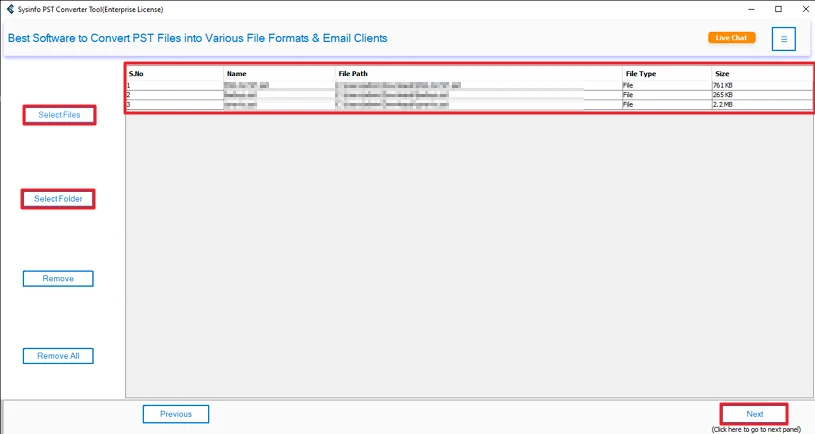
- Download the PST Converter Tool.
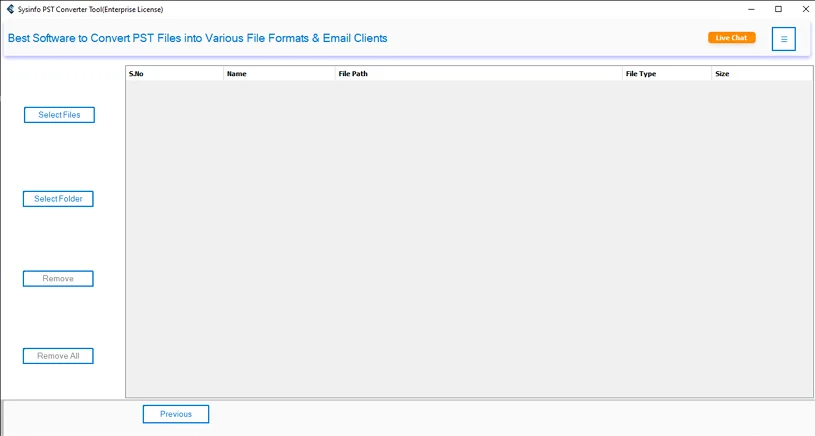
- Add your PST file/folder and hit Next.
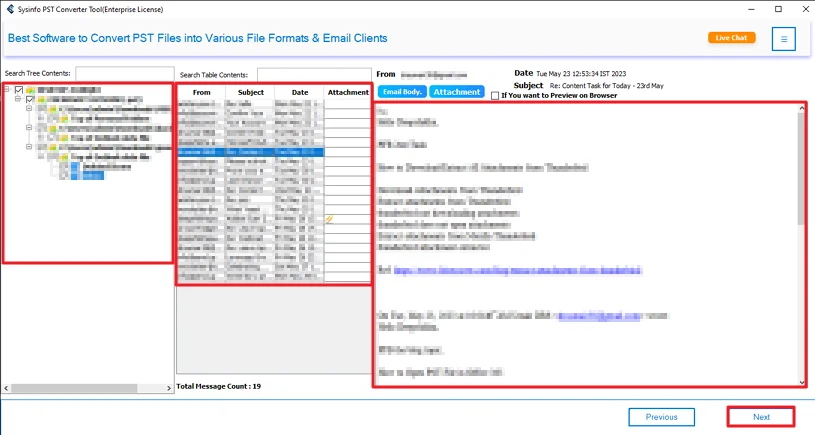
- After that, preview and select files and press Next.
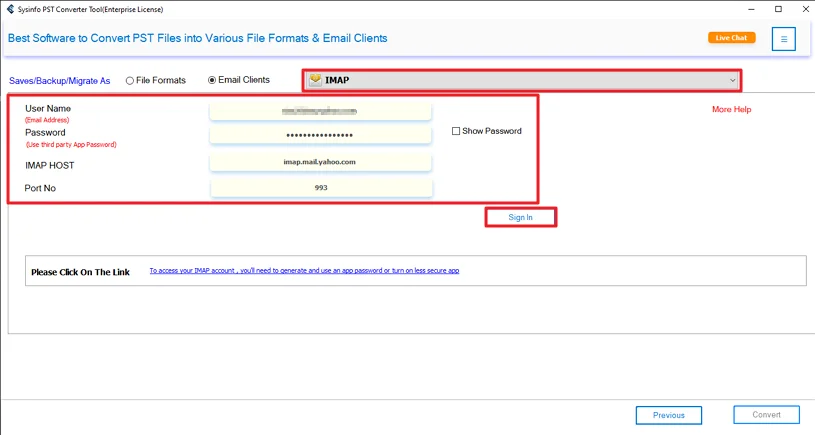
- Choose IMAP and log in with eM credentials.
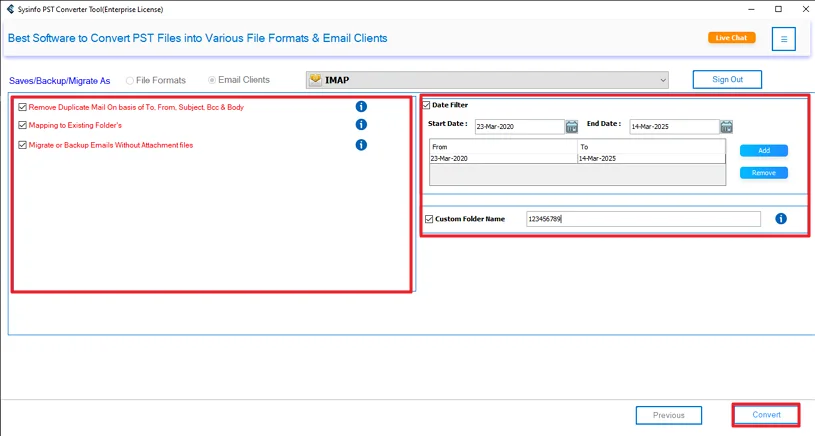
- Lastly, apply the features and click the Convert button.
Successful User Case
I had around 8–10 years of old Outlook emails saved in different PST files. Some of them were pretty large, and honestly, I didn’t want to risk losing anything important. I first tried the manual way in eM Client, but it was slow, and a couple of folders didn’t come through properly.
Then I used the MailConverterTools PST Converter Tool. I added all my PST files at once and let it run. It took some time, but everything moved over in one go. My folders were in place, emails opened fine, and attachments were still there.
What I liked most was that I didn’t have to repeat the process again and again. It just worked in one attempt, and I could access all my old emails in eM Client without digging through backup files anymore.
Conclusion
A lot of companies import PST to eM Client to keep things running smoother and easier to manage. The process itself isn’t that difficult, but doing it manually can take time, and sometimes things don’t transfer properly. The manual way also doesn’t really work well if you have a lot of data to handle. Using a PST converter makes it simpler. It helps keep your data in place and avoids changes to formatting during the move.
Frequently Asked Questions
Q.1 What is the best method to import PST files into eM Client?
Ans: If you have a small PST file, the manual method works fine. But for large files or multiple imports, using the MailConverterTools PST converter is easier and more reliable.
Q.2 Is it possible to transfer Outlook PST to eM Client without data loss?
Ans: There is always some risk with the manual method. The MailConverterTools PST converter is a better option if you want to keep emails, attachments, and folder structure the same.
Q.3 How can I import PST to eM Client without technical skills?
Ans: You can use a PST converter tool. It has a simple interface, and you just need to follow basic steps without needing much technical knowledge.
Q.4 Can I import multiple PST files into eM Client?
Ans: The manual method requires you to import files one by one. The MailConverterTools PST converter lets you add and import multiple PST files at the same time.
About The Author:

Meet Amit, an experienced SEO expert and content planner. He uses his creativity and strategy to create content that grabs attention and helps brands reach their goals. With solid skills in digital marketing and content planning, Amit helps businesses succeed online.
Related Post