-
Written By Vikas Bajpai
-
Updated on April 7th, 2026
Convert PST to JPG Fast & Easily – No Skills Required
User Query: I’m trying to convert some emails from a PST file into JPG, but the screenshot method isn’t working well for me. It’s slow, and I miss parts of emails. Is there a better option?
Handling Outlook PST files isn’t always easy, especially when you want to share a few emails as images for something like a report or proof. It gets a bit annoying when you realize you can’t directly do that. In this blog, we’ll go through a few simple manual methods and use the professional MailconverterTools PST Converter Tool to help you convert PST to JPG without too much hassle.
Convert PST Files to JPG: Quick Answer
There are two main ways to convert PST emails to JPG. One is the manual way—open emails and capture them one by one. It works, but not really great if you have a lot of files. A PST converter tool is much easier. It handles everything quickly and keeps the email layout the same.
Why Users Need to Convert PST to JPG?
- JPG files open almost anywhere. You don’t need Outlook to view them.
- Easy to share with anyone through email or apps.
- You can quickly drop them into documents or slides.
- Images are simple to store and organize.
- Good for keeping a visual record of emails.
- Useful if you need email proof for legal or office work.
- You can save only the important parts as screenshots.
- Makes things easier for people who don’t use Outlook.
Native Approach to Export PST Emails to JPG
This method can work, but they need a bit of patience and may not always give perfect results, especially if you have a lot of data. Still, if you just want a free way to try things out.
Follow these steps to export PST files to JPG:
- First, start by opening Microsoft Outlook on your PC.
- After that, Go to File → Open & Export → Open Outlook Data File.
- Afterwards, choose your PST file and then open the email you want.
- Furthermore, adjust the zoom so everything is visible.
- Next, use Snipping Tool to capture the email.
- Finally, save it as a JPG.
Drawbacks of using the manual method:
- Takes a lot of time if you have many emails.
- Easy to miss some parts while capturing.
- No automatic process, everything is manual.
- Image quality isn’t always clear or sharp.
An Automated Solution to Convert PST to JPG
If manual methods feel too slow or messy, you can go with the MailConverterTools PST Converter Tool. It makes it easy to convert PST to ICS, JPG, PDF, CSV, EML, DOC, TXT, and more. Just load the file and start the process. It can handle large files and even multiple PSTs at once. You also get a preview option before converting, and it keeps your folders and data mostly unchanged. This tool even lets you move data to Gmail, Yahoo, Office 365, and other email services.
Verified steps to convert Outlook PST to JPG:
- Firstly, download and launch the PST Converter tool on your system. Press Next.
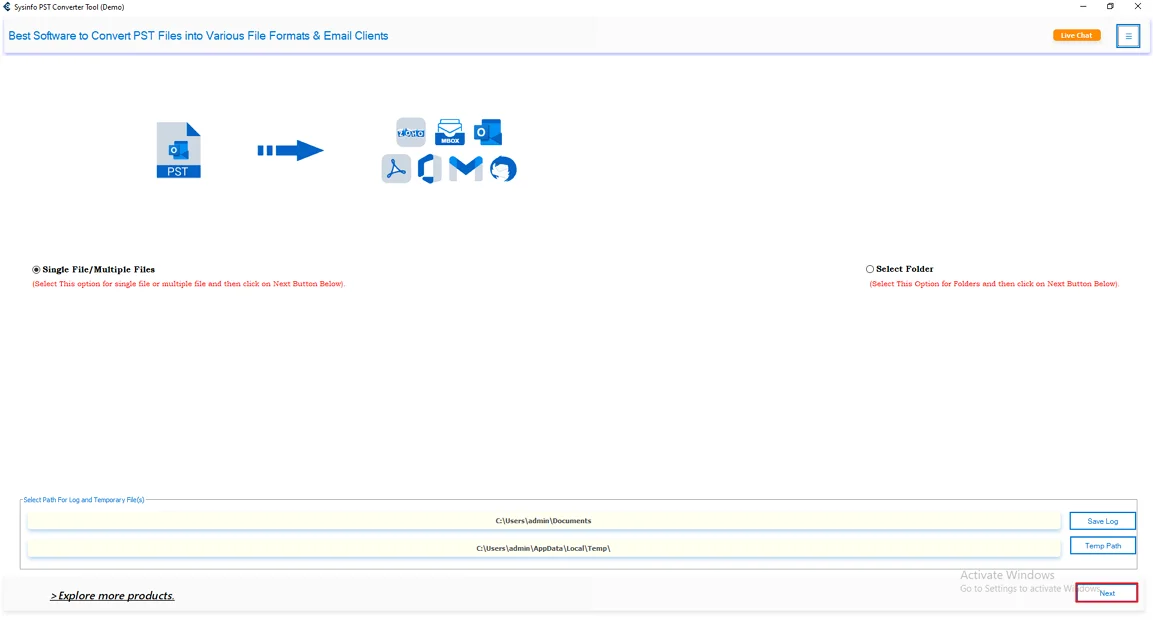
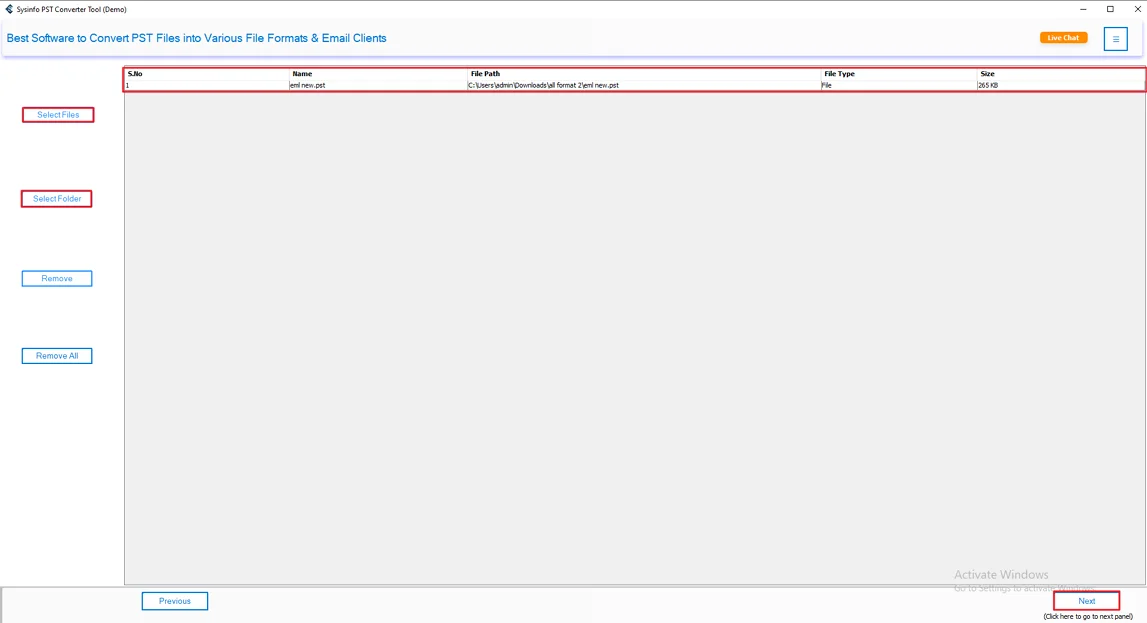
- Afterthat, click Select Files or Select Folders to add the PST files and hit the Next button.
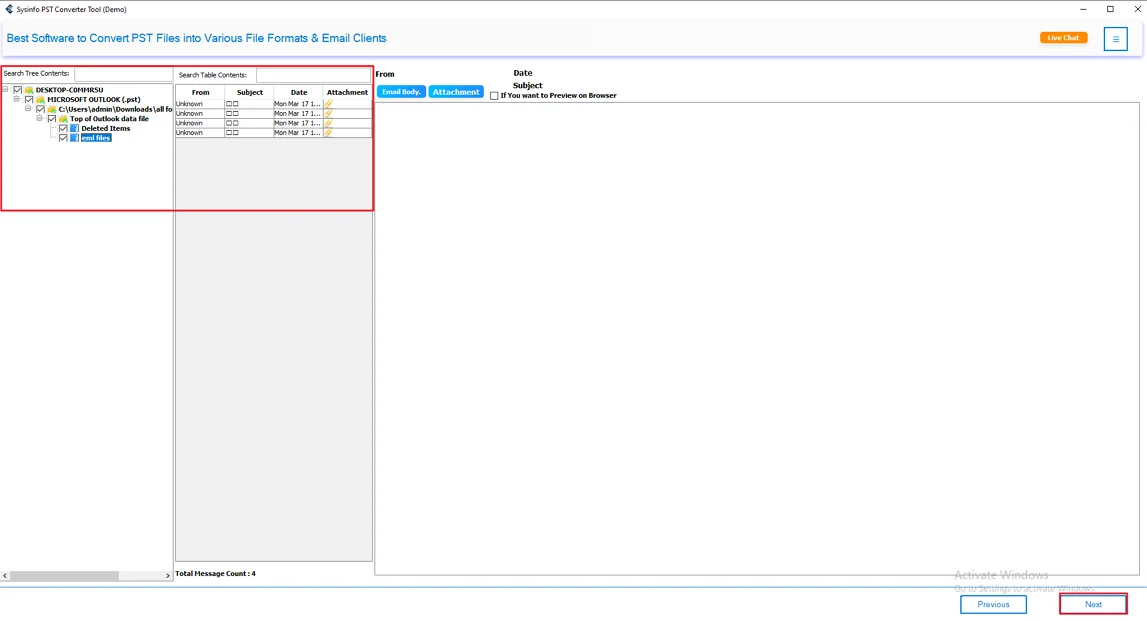
- Thereafter, preview and select your files and folders from the tree structure. Click Next.
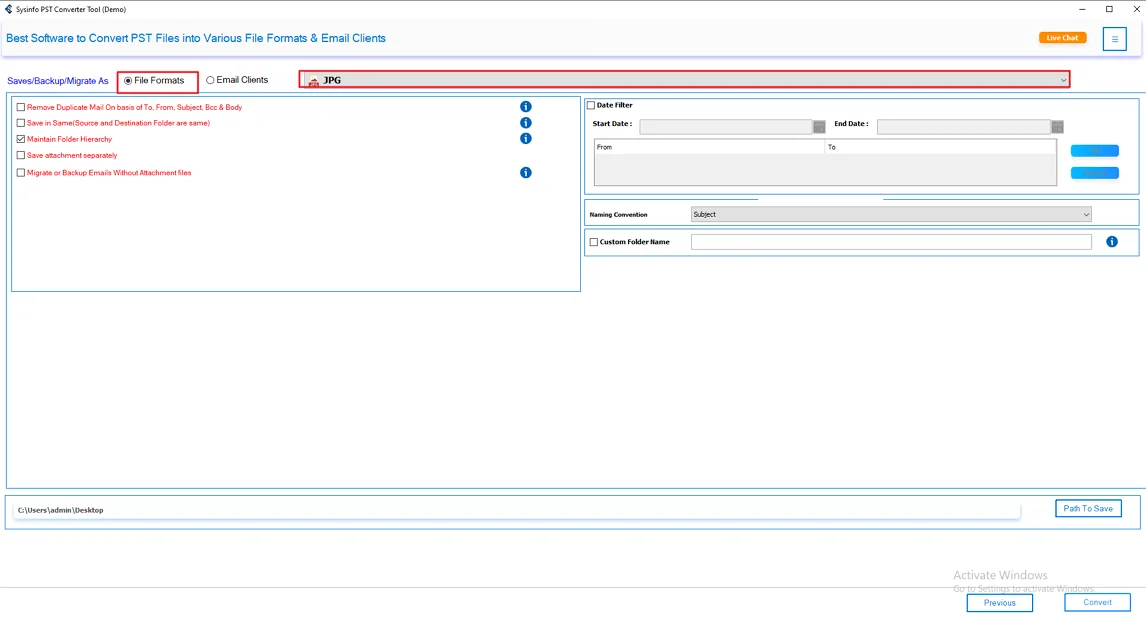
- Furthermore, select JPG as the saving file format.
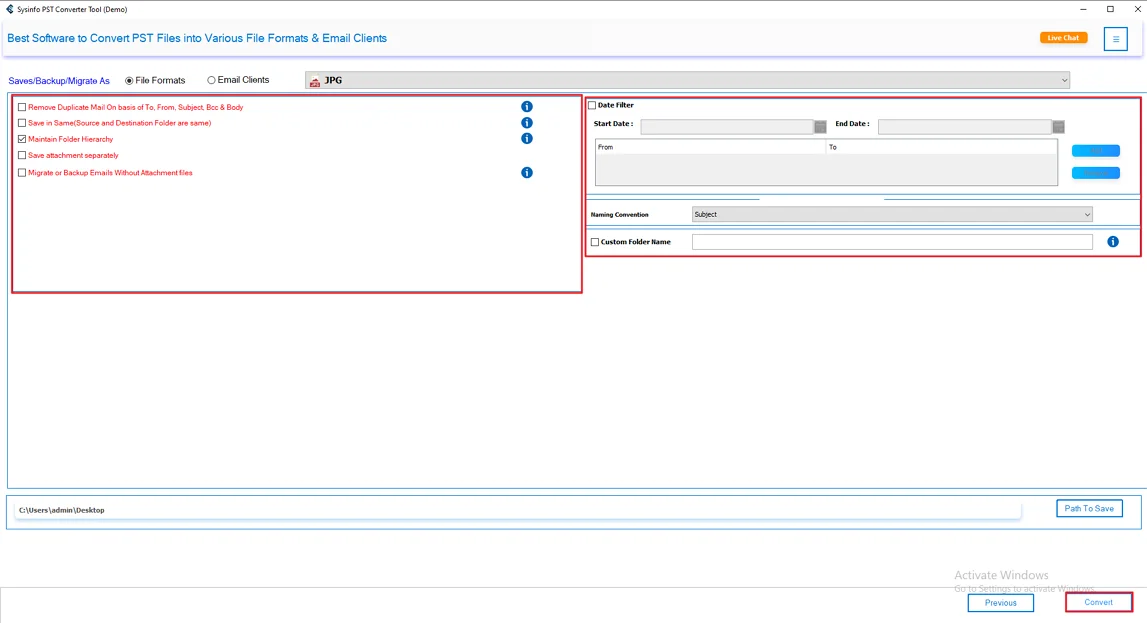
- Lastly, apply filter of your choice and hit the Convert button.
Real-Life Scanario
I had a bunch of PST emails that I needed to turn into JPG files for a report. At first, I tried the manual way in Microsoft Outlook. Just opening emails and taking screenshots. It was slow. I kept missing parts of emails. And some images didn’t even look that clear.
So I tried a PST converter tool instead to save Outlook PST Files to JPG. The steps were simple. I added the file, checked the preview, and picked JPG as the format. Then I just ran it. If you ever need a different format, you can also check out options like Convert PST File to Word Document for more flexibility.
After it finished, all the emails were saved as JPG files. The layout looked fine. Nothing seemed broken, and even attachments showed up properly. It was way easier than what I was doing before.
End Note
If you just have a few emails, the manual way is fine. It gets the job done. But if you have a lot of emails, it can take way too much time. Using a PST converter tool to convert PST to JPG is a much easier option. Whether you want to save emails, share them, or keep them for later, converting PST to JPG just makes things easier. You don’t really need any technical skills for it.
Frequently Asked Questions
Q.1 What is the easiest way to save PST emails as JPG images?
Ans. The easiest way is to use a tool like MailConverterTools PST Converter. You just add the PST file, choose JPG, and convert it in a few clicks without doing things manually.
Q.2 Can I convert multiple PST emails to JPG in bulk?
Ans. Yes, you can. The MailConverterTools PST Converter lets you convert multiple emails at once, so you don’t have to do it one by one.
Q.3 How to convert large PST files into JPG images without errors?
Ans. For large PST files, using a tool is the better option. The MailConverterTools PST Converter handles big files smoothly and keeps your data safe during conversion.
Q.4 Can I convert my PST file into images without any technical skills?
Ans. Yes, you don’t need any technical skills. The MailConverterTools PST Converter is simple to use, and the steps are easy to follow even for beginners.
About The Author:

Vikas Bajpai is a results-driven SEO expert and content strategist with a strong passion for building impactful digital experiences. He specializes in crafting data-backed content plans that boost visibility, engage audiences, and drive measurable growth. With deep expertise in search engine optimization, keyword strategy, and content marketing, Vikas helps brands strengthen their online presence and achieve long-term success.
Related Post