-
Written By Vikas Bajpai
-
Updated on May 14th, 2026
Best Way to Convert Gmail to Excel on Windows & Mac
Want to convert your Gmail emails to Excel for reporting, lead lists, or audits? Gmail doesn’t offer a one-click export solution to easily get this done. But with a proper guide, you can convert Gmail to Excel safely as CSV and open it in Microsoft Excel on Windows or Mac. This guide covers the best manual methods and the fastest automatic method using MailConverterTools Gmail Backup Tool.
User Query: I am a data analyst in an MNC, and I need to open Gmail in Excel format to analyse the email data. I searched for any effective way to get the process done, but failed. Is there any reliable way to get the conversion safely?
Common Problems When You Export Gmail to Excel
The export can finish fine, but the Excel sheet often looks messy once you open it. Here is what usually goes wrong:
- Columns do not match up, as the subject, sender, or date ends up in the wrong place.
- The email body loses its original formatting and looks jumbled.
- CC and BCC fields sometimes disappear from the export.
- The same email shows up more than once.
- Attachments either don’t come in or show up as broken links.
- Dates and times get reformatted based on your Windows or Mac settings.
You will often need to spend time cleaning the file before it’s good for reports or audits.
How to Save Gmail to Excel Efficiently?
There are a few techniques available to convert your Gmail emails to CSV format. Here, we have mentioned two manual methods and a dedicated tool solution for efficient migration.
Technique 1: Export Emails from Gmail to CSV One by One
This technique is useful only for small-scale migration. Gmail exports individual messages as .eml, and later you can open those in Excel as CSV-like content.
Steps to follow:
- At first, open Gmail in a browser and click on an email to open it.
- After that, click the More icon (⋮) → Download message. This saves an .eml file.
- Further, open Microsoft Excel → create a blank workbook.
- Moving ahead, drag & drop the .eml file into the blank workbook. When prompted, choose Yes to open it.
- Meanwhile, if it opens in Protected View, click Enable Editing.
- Excel will display the message content; Save As → choose CSV (Comma delimited) (.csv).
- Repeat the same steps for each email you want to export and open in Excel.
Technique 2: Using Thunderbird to Export Gmail Emails to CSV
This is the best free way to save Gmail to Excel in bulk. You will configure Gmail in Thunderbird and use the ImportExportTools NG add-on to export a folder to CSV.
Procedure to Follow:
- As the first step, install Thunderbird and open it.
- Add your Gmail account
- Click Tools → Account Settings → Account Actions → Add Mail Account.
- Enter your Gmail name, email, and password; let auto-configuration complete.
- Ensure ImportExportTools NG is installed:
- Go to Tools → Add-ons and Themes → Extensions → search ImportExportTools NG → Add to Thunderbird → restart if prompted.
- In Thunderbird, right-click the Gmail folder you want (e.g., Inbox, Sent).
- Go to ImportExportTools NG → Export all messages in a folder → CSV format.
- Choose a destination folder and Save. Thunderbird creates a .csv file you can open in Excel.
- In the end, you can open the CSV in Excel to view or analyze your Gmail data.
This concludes your detailed steps to convert Gmail to Excel using manual approaches. However, these approaches are not effective when dealing with large business-critical data, and we have covered other limits below.
What are The Loopholes of The Manual Approach?
- You end up spending a lot of time because every folder must be exported by hand.
- Users must install Thunderbird, enable IMAP, and add extensions before the export even works.
- It is very easy to click the wrong folder or settings and lose emails without noticing right away.
- Manual exports do not let you pick only certain dates, senders, or subjects, so you get too much extra mail.
- This approach breaks down completely when you have thousands of emails or need to do backups regularly.
What is The Effective Way to Convert Gmail To Excel?
Manual methods work for one or two emails, but they break down fast when you deal with real mailboxes. MailConverterTools Gmail Backup Tool connects directly to your Gmail account and exports everything to CSV smoothly with zero data loss. You get all email fields properly aligned, attachments saved separately, and consistent date formats without any manual cleanup. Also, this utility lets you migrate Gmail to Fastmail with no risk of data loss.
Follow the Steps to Export Gmail Emails to Excel:
- To begin, install and launch the Gmail Backup Tool on your PC.
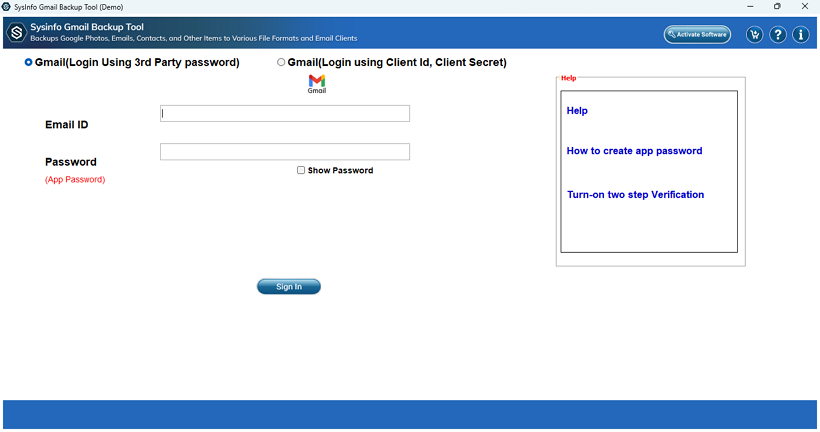
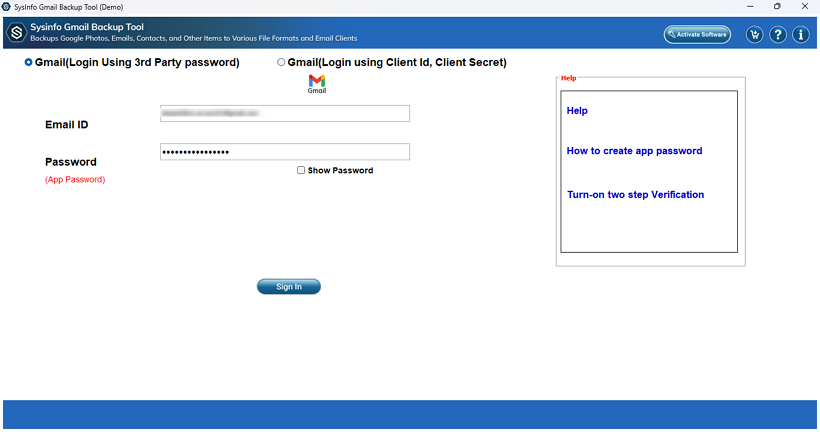
- After that, fill in your email address and app password, and then tap on Sign in to load the mailbox.
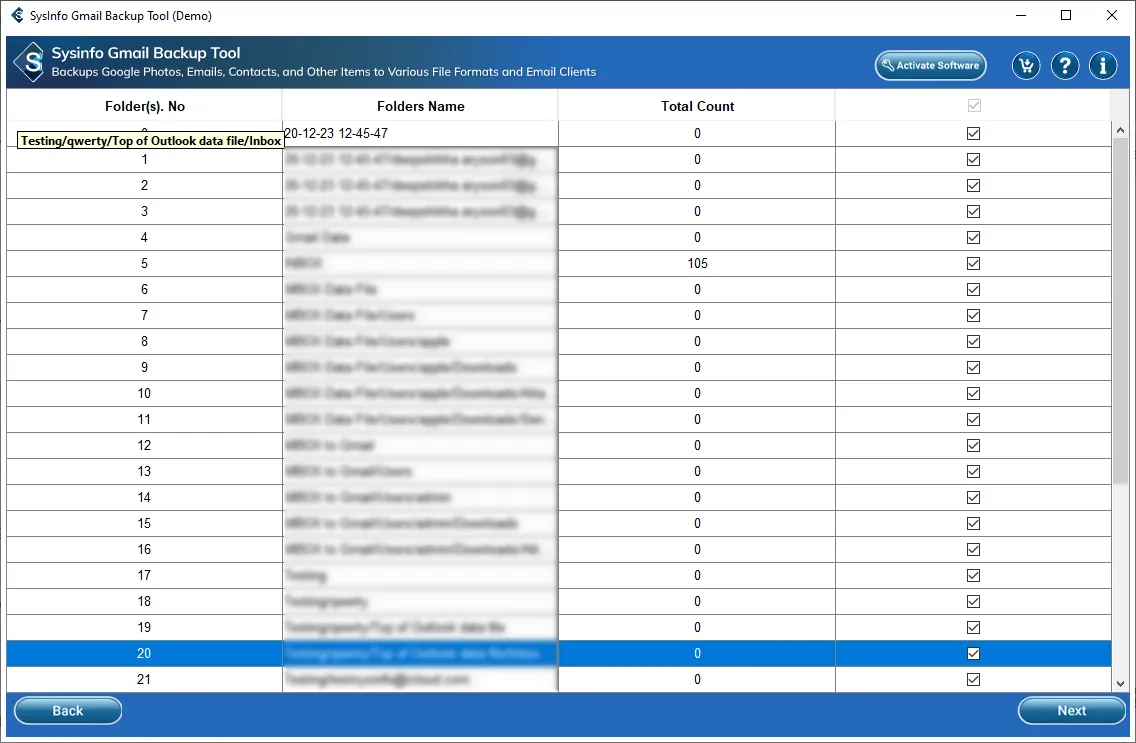
- Further, select the folders or files that you want to convert from the list shown in the tool.
- Moving ahead, choose CSV from the drop-down menu in the Save in File Format option.
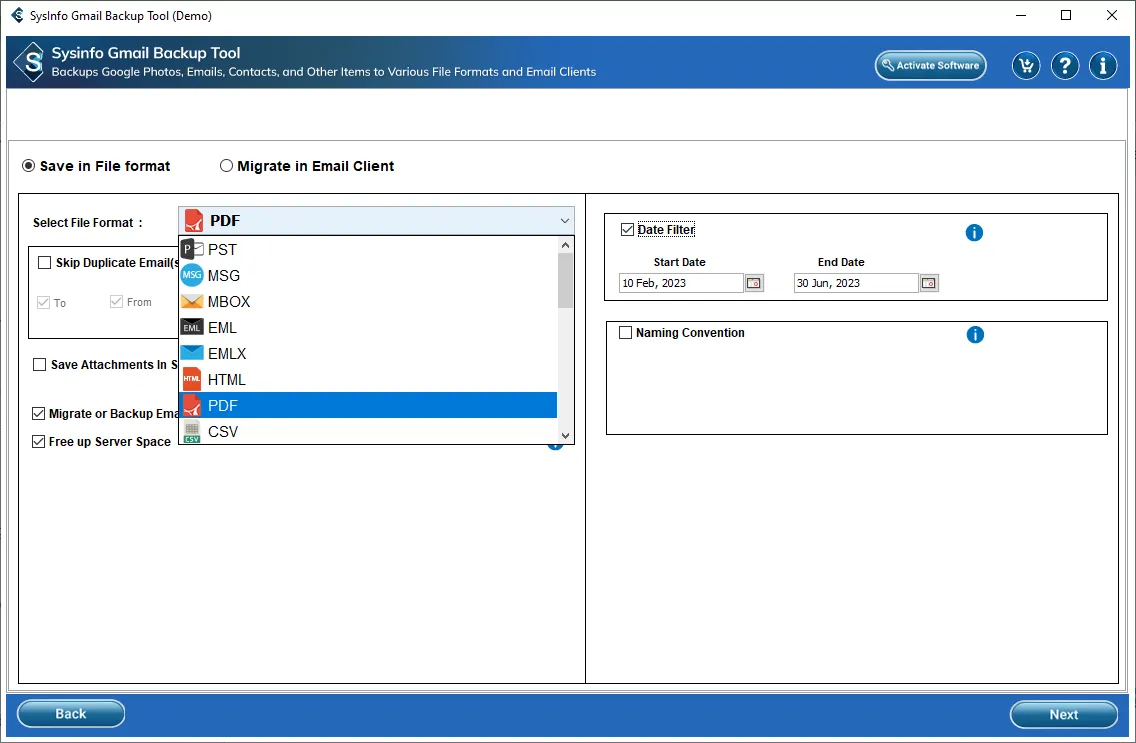
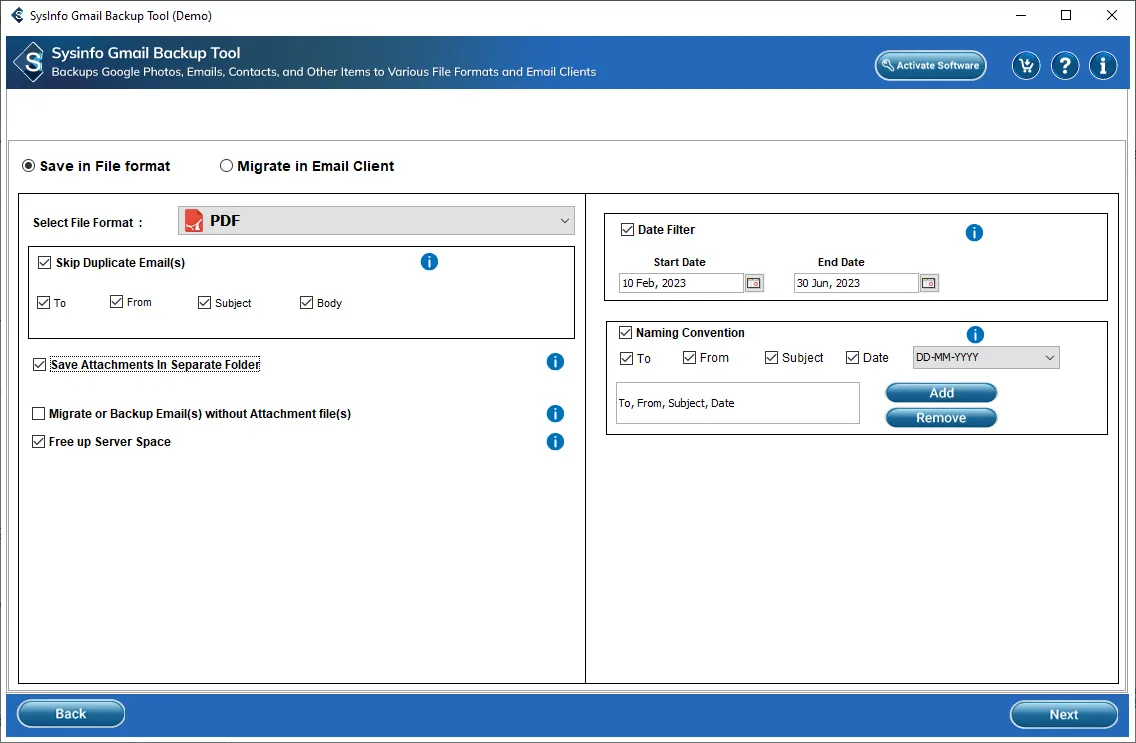
- Also, you can select from additional features to help you in the conversion and hit Next.
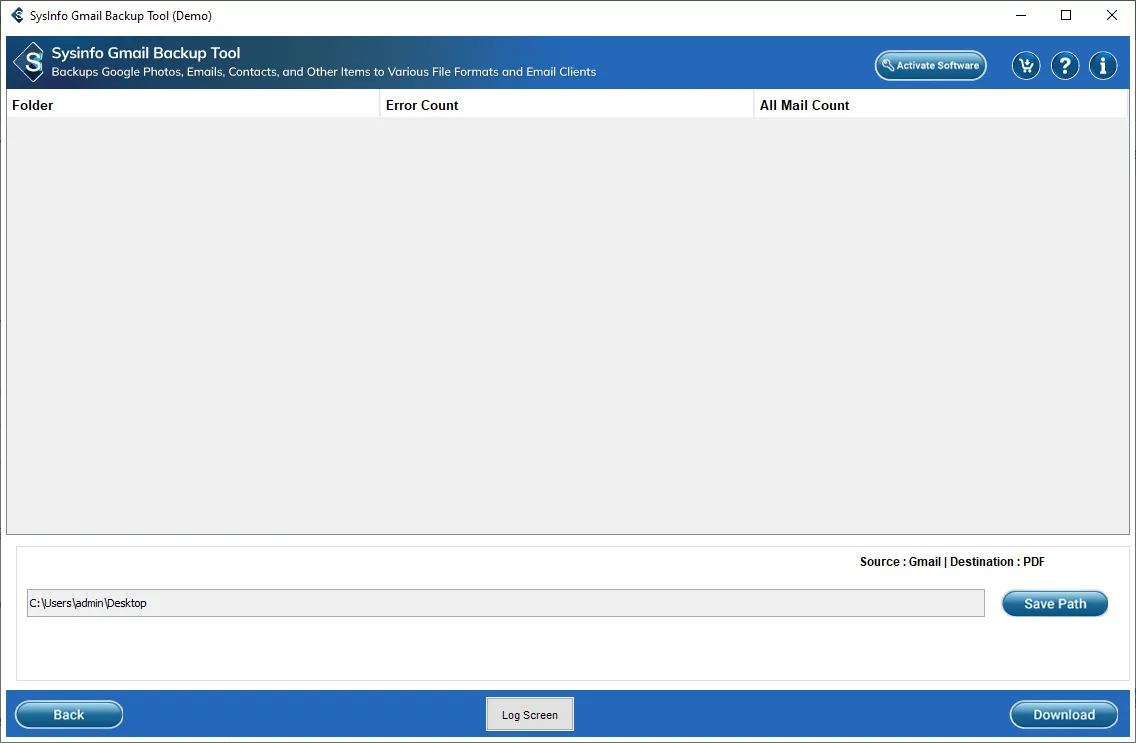
- Lastly, click on Save Path to specify the output location and then press Download to start the process.
What Makes This Tool Ideal for Converting Gmail to Excel?
- Bulk export of all Gmail labels or specific folders to CSV that opens directly in Excel on Windows and Mac.
- Saves attachments separately in named folders while keeping the path linked in the Excel sheet.
- Keeps all email data intact, like subject, sender, recipient, date, time, body text, and headers, and puts them in proper Excel columns.
- Supports date range, sender, and subject filters so you export only the emails you actually need.
- Works with accounts that have 2FA enabled by using app passwords and requires no IMAP add-ons.
- Includes a free demo that lets you preview and export a sample before you buy the full license.
- The software allows users to migrate Gmail to Yandex Mail in case of an email client switch.
How The Tool Helped A Marketing Team?
A marketing team in London had 18,000 Gmail emails for quarterly reporting. Manual export created broken columns and missing CC fields. Cleaning the Excel file took several hours daily. They then used MailConverterTools Gmail Backup Tool to convert their files to CSV and then open them in Excel. The software helped them to convert in one session with complete data safety.
To Wrap Up
Moving Gmail data into Excel simplifies reporting workflows for business teams significantly today. Manual conversion routes often trigger formatting errors and silent data loss during complex export processes. MailConverterTools Gmail Backup Tool reads Gmail archives directly at the raw file system level now. It preserves folder hierarchy and metadata while skipping client dependencies that cause most migration failures today. Choose the best method to convert Gmail to Excel without export errors or silent data loss during migration workflows.
Frequently Asked Questions
Q1. Does converting Gmail to Excel include attachments?
Ans. Yes, the MailConverterTools Gmail Backup Tool allows you to export Gmail emails along with attachments. While exporting to CSV/Excel format, the tool keeps email content and related data structured for easy access.
Q2. Can I convert multiple Gmail emails to Excel at once?
Ans. Yes, with the MailConverterTools Gmail Backup Tool, you can convert Gmail emails in bulk. It supports batch processing, so you don’t need to export each email one by one.
Q3. How to Save Gmail Emails to Excel in Bulk?
Ans. You can use the MailConverterTools Gmail Backup Tool to select multiple Gmail folders and export them directly into CSV format. This CSV file can then be opened in Excel for reporting and analysis.
Q4. Can I Export Gmail Emails to Excel Without Technical Skills?
Ans. Yes, the MailConverterTools Gmail Backup Tool is designed for both technical and non-technical users. It has a simple interface where you just select data, choose CSV format, and export it easily.
About The Author:

Vikas Bajpai is a results-driven SEO expert and content strategist with a strong passion for building impactful digital experiences. He specializes in crafting data-backed content plans that boost visibility, engage audiences, and drive measurable growth. With deep expertise in search engine optimization, keyword strategy, and content marketing, Vikas helps brands strengthen their online presence and achieve long-term success.
Related Post