-
Written By Amit Chandel
-
Updated on March 19th, 2026
How to Fix Outlook OST File Cannot Be Opened Issue Easily
User Query: My OST file just won’t open anymore. I’m not sure that what the problem is, and honestly, I don’t know where to start fixing it. Has anyone dealt with this before? Is there a simple way to open or recover an OST file when Outlook refuses to load it?
You try to open Outlook and suddenly get a message saying the OST file can’t be opened. It can be really frustrating, especially when your important emails seem stuck, and you need them. In this blog, we’ll go through a few common reasons to identify why the Outlook OST file cannot be opened. We’ll also see how the MailConverterTools Exchange OST Recovery Tool can help you access or recover your mailbox data if the file won’t open at all.
Why are Users Unable to Open OST File in Outlook?
- Sometimes the OST file itself gets damaged, and Outlook simply refuses to open it after that.
- A broken or wrongly set up Outlook profile can also stop loading the OST file.
- If the computer shuts down suddenly, the OST file may be affected and fail to open later.
- Running an older version of Microsoft Outlook can also create issues with opening an existing OST file.
- When the OST file becomes very large over time, Outlook may take longer or fail to open it.
- A poor or unstable connection with the Exchange server can interrupt the OST file and cause access problems.
- Sometimes malware or virus activity on the system damages mailbox files, including the OST file.
Manual Method to Fix Outlook OST File Cannot Be Opened
There are some manual fixes that you can use to solve this issue. These methods are technical and may not be a proper solution. For that reason, we have described a reliable way to do it as well.
Method 1: Start Outlook in Safe Mode
At times, Outlook doesn’t behave properly because of add-ins or small configuration issues. Opening it in Safe Mode can help you check if that’s the problem.
Steps to Fix OST File Not Opening in Outlook
- Press Win+R on your keyboard to open the Run box.
- Type outlook.exe /safe and press Enter.
- Click OK, and Outlook will start in Safe Mode.
Method 2: Repair the Outlook Program
Sometimes you can fix the issue by repairing the Office installation if your Outlook files get damaged.
Steps to Fix Outlook OST File Opening Error
- Open the Control Panel.
- Go to Programs > Programs and Features.
- Look for Microsoft Office in the list.
- Right-click it and choose Repair.
- Follow the instructions shown on the screen.
- Restart Outlook and check again.
Method 3: Create a New Outlook Profile
- Open the Control Panel and search for Mail.
- Click Show Profiles.
- Select Add and create a new profile.
- Set up your email account again and open Outlook with the new profile.
Method 4: End Outlook Processes from Task Manager
There are times when Outlook keeps running in the background, which can stop it from opening the OST file properly.
- Press Ctrl + Shift + Esc to open Task Manager.
- Go to the Processes tab.
- Look for Microsoft Outlook in the list.
- Right-click it and choose End Task.
Limitations
- These fixes may not work if the OST file is badly corrupted.
- The built-in repair tool in Microsoft Outlook usually handles only minor file issues.
- Creating a new profile means setting up the email account again.
- Repairing large OST files can take quite a long time.
- There’s a small chance some emails or data may not be recovered.
- You may need to try multiple fixes before something actually works.
Advanced Method to Fix Outlook OST File Cannot Be Opened
Instead of trying multiple manual methods, the one option is the MailConverterTools Exchange OST Recovery Tool. It scans the OST file and tries to recover the mailbox data from it. The tool can also fix OST internal error code 0000000E. Additionally, it is also used by many professionals for repairing OST file Outlook.
Steps to Fix Outlook OST File Cannot be Accessed
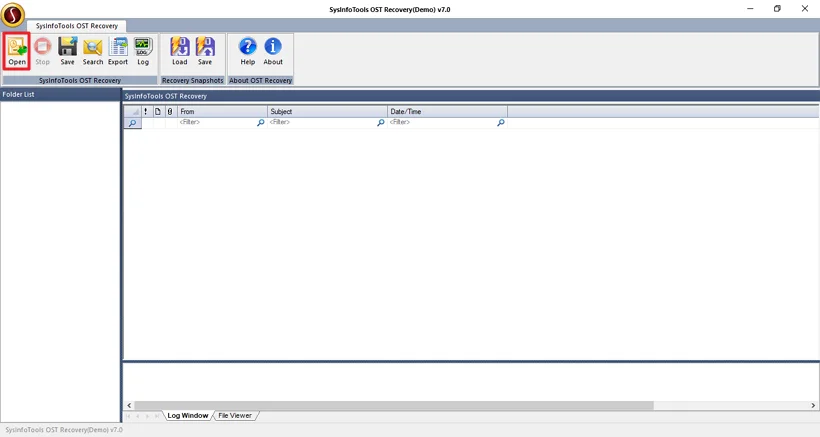
- Firstly, download the tool and click Open.
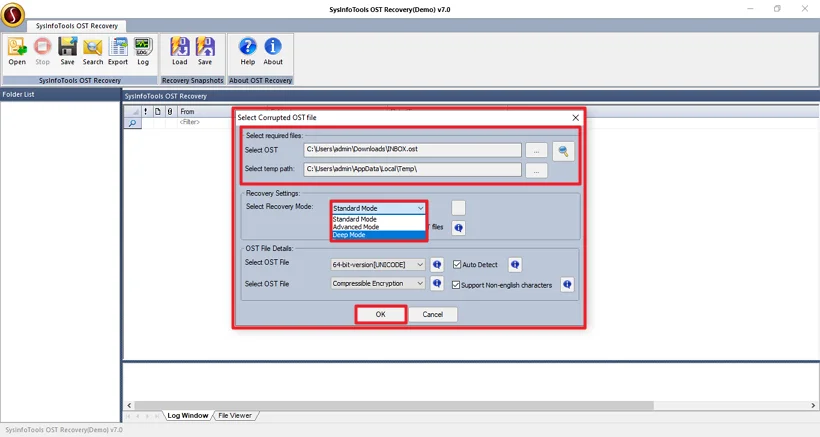
- Add your OST file, choose youre recovery mode, and click Ok to proceed.
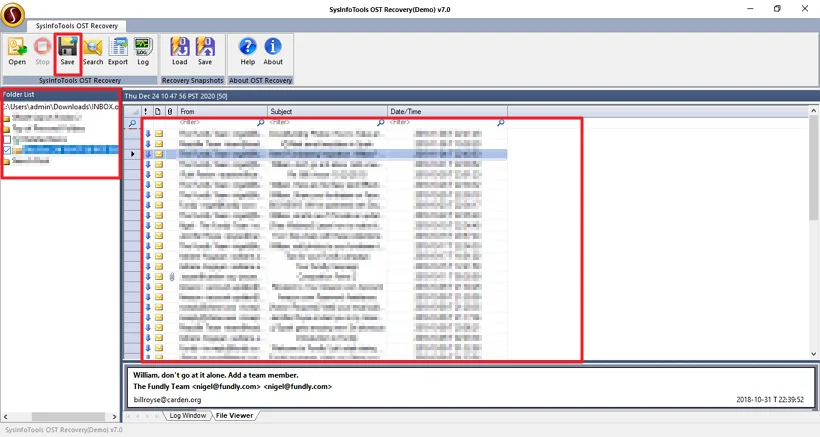
- After that, preview your files and tap Save.
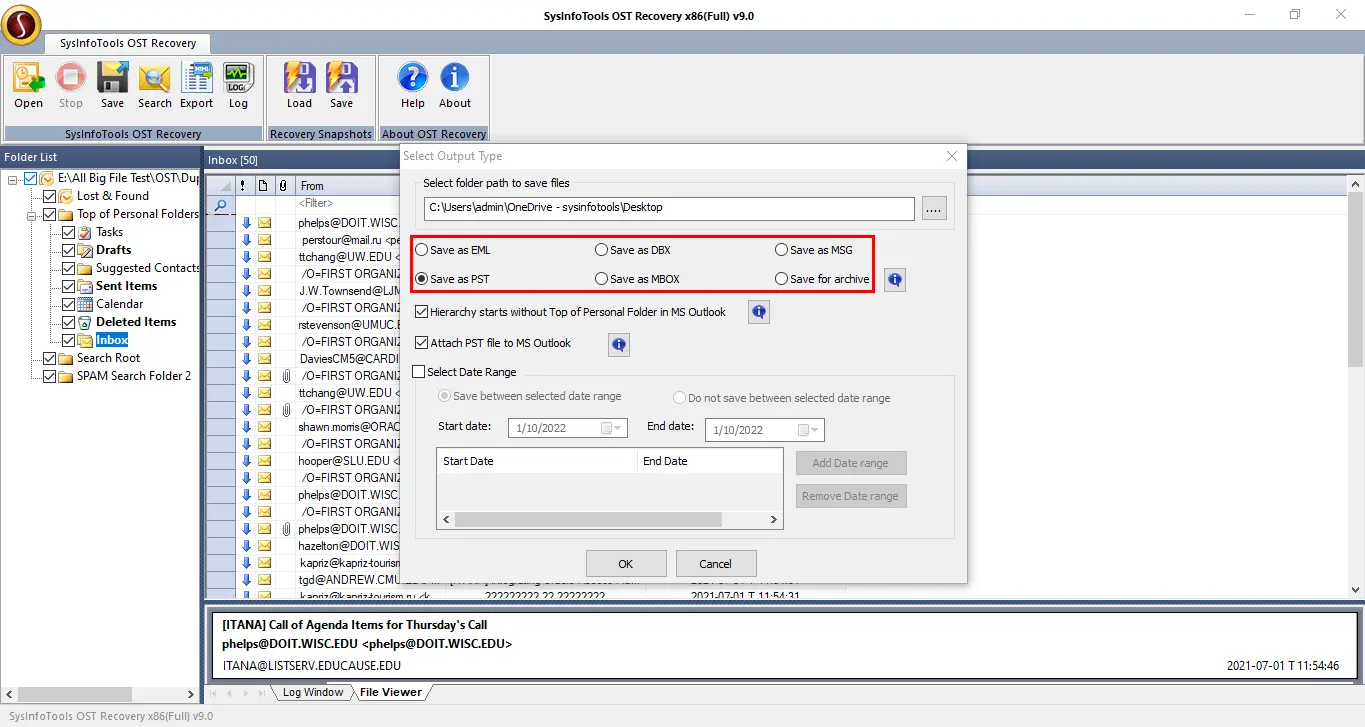
- Choose the destination and saving format.
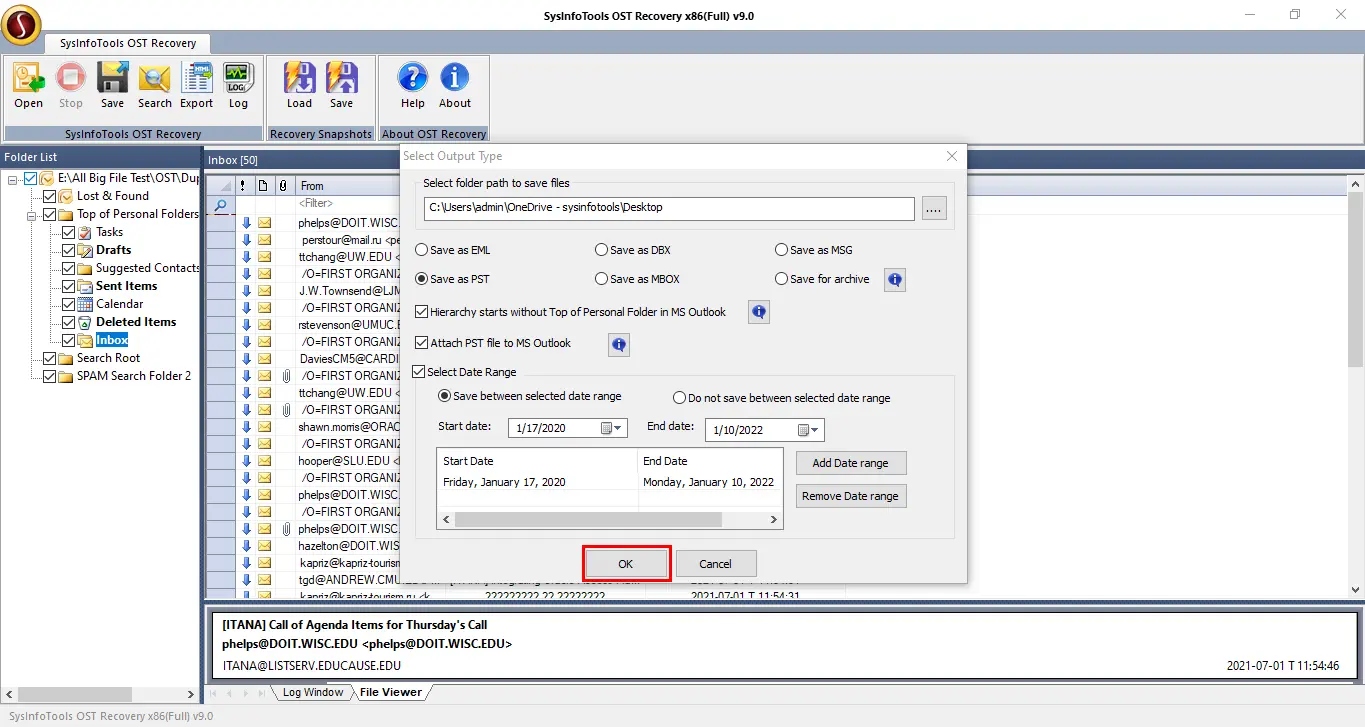
- Lastly, apply filters and click Ok.
Successful User Case
A small business employee was unable to open their Outlook account. Important emails related to clients and ongoing projects were stored in that file, so losing access created a serious problem. The user first tried a few manual fixes, but the issue remained unresolved. After that, they used the MailConverterTools Exchange OST Recovery Tool to scan the damaged OST file. Within a short time, the tool recovered the mailbox data and allowed the user to access their emails again. This helped them quickly restore important communication without any errors.
Conclusion
In this blog, we looked at different ways to fix the Outlook OST file cannot be opened problem. We discussed a few manual methods that can help you to resolve the issues with the OST file. These methods can be difficult to follow; that’s why using a professional tool can be a simpler option. It can help solve the issue quickly and let you fix the problem by following a few easy steps.
Frequently Asked Questions
Q.1 Is it safe to fix the Outlook OST file cannot be opened error?
Ans: Yes, it is safe if you follow the correct steps. You can first try manual methods like Safe Mode or repairing Outlook. However, if they do not work, a tool like MailConverterTools Exchange OST Recovery Tool can safely scan and recover the OST file.
Q.2 Is it possible to recover data from a damaged OST file?
Ans: Yes, damaged OST files can often be recovered. If manual methods fail, the MailConverterTools Exchange OST Recovery Tool can scan the file and help recover emails and other mailbox data.
Q.3 Is it possible to resolve the Outlook OST file cannot be opened issue without technical skills?
Ans: Yes, it is possible. Manual methods can be technical, but a tool like MailConverterTools Exchange OST Recovery Tool makes the process simple with easy steps.
About The Author:

Meet Amit, an experienced SEO expert and content planner. He uses his creativity and strategy to create content that grabs attention and helps brands reach their goals. With solid skills in digital marketing and content planning, Amit helps businesses succeed online.
Related Post